
How to Add Your Digital Business Card to Apple Wallet
Turn your digital business card into an Apple Wallet pass: what a pass is, how to add it from an app or from Safari, how to show it, and what happens when you update your details.
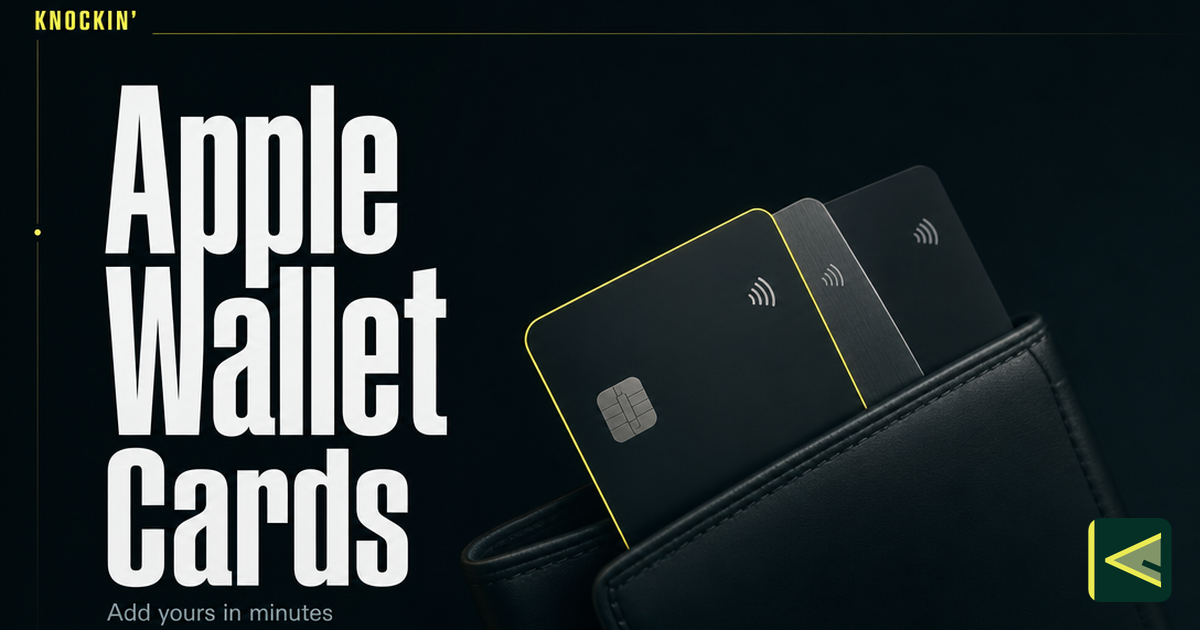
Your digital business card does its best work in the three seconds after someone asks, "Do you have a card?" Every step between that question and your card is a chance for the moment to go cold: a passcode to enter, an app to find, a page to load. Putting your card in Apple Wallet removes almost all of them — double-click, tap, show. This guide explains what a wallet pass actually is, walks through the two ways to add your card from a typical card service, and covers what happens later, when your details change.
If you're new to the concept of a card that lives on a link instead of in a pocket, our introduction to digital business cards covers the basics. Everything below assumes you already have a card published somewhere and an iPhone in your hand.
Why Your Card Belongs in Apple Wallet
Think about where your most important cards already live: your payment cards, your boarding pass, your gym membership. They're in Wallet because Wallet is the one place on an iPhone built for "show this to another human quickly." A digital business card belongs there for the same three reasons.
It's always with you. Your phone is the one object you carry into every meeting, conference, and chance encounter. A card that lives only in an app is there too, technically — if you remember which app, and if you're still logged in. A pass in Wallet has no login, no account, no loading screen. It's just there.
You can reach it from the lock screen. Double-click the side button and Wallet opens with your passes, before you've even authenticated. When someone asks for your card mid-handshake or as a train door is closing, that two-second head start matters. You're not making the other person wait while you find your credentials.
You don't have to explain anything. Showing a pass from Wallet is a gesture everyone recognizes from boarding passes and loyalty cards. There's no "let me find the app," no awkward silence while a splash screen resolves. The interaction pattern is already familiar to the person in front of you.
The short version: Wallet keeps your card where your hand already goes. The rest of this guide is about getting it there.
What a Wallet Pass Is (and How It Differs From an App)
Apple Wallet doesn't host your full digital business card. It hosts a wallet pass — a small, standardized card that follows Apple's pass format, the same one airlines and coffee shops use. A business card pass is a digital card that is saved and shared from Apple Wallet, much like a credit card or a plane ticket that lives in the same app [Source: https://www.hihello.com/blog/how-to-add-your-digital-business-card-to-apple-wallet].
The pass is deliberately lightweight. Because Apple's format keeps passes small and predictable, the pass typically shows the essentials — your name, role, maybe your company — plus a QR code that points to your complete card. Scanning that code takes the other person to the full experience [Source: https://www.hihello.com/blog/how-to-add-your-digital-business-card-to-apple-wallet]. So the pass isn't a replacement for your card; it's a pocket-sized signpost to it.
That's the key difference from using your card service's app:
- The app is where you manage your card. Editing details, checking who viewed it, uploading materials — that happens in the app or on the web, where the full feature set lives.
- The pass is where you show it. Fast access, offline-friendly, no login, one gesture from the lock screen. Almost nothing else — and that restraint is the point.
There's a second difference that matters just as much: a pass can change after you add it. Apple built the pass system so the service that issues a pass can push new content to it, which is how a boarding gate updates at the airport without you re-adding anything [Source: https://developer.apple.com/documentation/walletpasses]. We'll come back to what that means for your card details in a moment.
What You Need Before You Start
Three things, and you likely have all of them:
- An iPhone with Apple Wallet on it. Wallet ships with iOS; there's nothing to install.
- A digital business card that's already published on a card service. If you haven't built one yet, start with our guide to making a digital business card and come back.
- A sharing or wallet option offered by your service. Not every card service supports wallet passes, though most of the established ones do. Check your card's share menu for an "Add to Apple Wallet" option — the exact wording varies by platform.
One honest caveat before the steps: menu names and screen layouts differ between card services and shift between iOS versions. The paths below describe the general pattern. Treat them as the map, and your screen as the territory.
How to Add Your Card From a Card Service's App
This is the most common path, because it's the one card services build first. The documented flow for a typical service (HiHello's, in this example) looks like this [Source: https://www.hihello.com/blog/how-to-add-your-digital-business-card-to-apple-wallet]:
- Open your card service's app on your iPhone and go to your list of cards.
- Tap the card you want to add.
- Open the card's menu — usually a three-dot button in a corner of the card.
- Select Add to Apple Wallet.
- Confirm in the Wallet preview that appears, and the pass is saved.
Apple Wallet accepts more than one pass from the same service, so if you keep separate cards for different contexts — a freelance identity and a day-job identity, say — you can save just one or all of them [Source: https://www.hihello.com/blog/how-to-add-your-digital-business-card-to-apple-wallet]. Each appears as its own pass, and you can reorder them in Wallet so the one you show most often sits on top.
After adding, open Wallet once to see how the pass presents — which details made it onto the pass face and where the QR code sits. That's the card you'll be showing people; it's worth ten seconds of looking.
How to Add Your Card From Safari
The second path doesn't require your card service's app at all — useful when you've switched phones or deleted the app to save space. It works from the browser, on the iPhone itself:
- Open your card's live link in Safari on your iPhone — the same URL people visit when they scan your QR code. If you're not sure what that link should be, our guide to digital business card QR codes explains where it comes from.
- Look for an Add to Apple Wallet button or wallet icon on the page. Many card services put it directly on the shared card page; others tuck it into a share sheet.
- If it's on the share sheet instead, tap Safari's Share button, then choose Add to Apple Wallet from the actions list.
- Confirm the preview, and the pass joins your Wallet.
The requirement hiding in step 1 is the important one: this has to happen in Safari on the iPhone that will carry the pass. Wallet passes are added device by device — sending the link to a Mac or iPad won't put anything in your phone's Wallet. If you manage cards for a team, each person adds their own pass from their own device.
If you don't see a wallet option anywhere, your card service may only expose passes in its app — the app path above remains the fallback.
Showing Your Card From the Wallet
Here's the payoff — the moment you rebuilt your setup for.
From the lock screen, double-click the side button (or open the Wallet app) and tap your card's pass. The pass fills the screen with your name, role, and its QR code. Hold it out the way you'd hold out a boarding pass at a gate.
The other person scans the QR code with their phone camera. No app is needed on their side — a camera app reads the code, and the browser opens your complete card with everything it carries [Source: https://www.hihello.com/blog/how-to-add-your-digital-business-card-to-apple-wallet]. They save whatever they need from there, usually straight into their contacts.
A few habits make this smoother in person:
- Let them scan; don't reach for their phone. Hold your screen steady at a comfortable distance, the way you'd present a payment card.
- Say what they'll get. One sentence — "scan this and my card will pop up" — prevents the half-second of uncertainty some people feel facing an unfamiliar QR code.
- Have a fallback ready. Batteries die and Wallets get fumbled. Your QR code and link still work from anywhere; we cover the full toolkit in how to share a digital business card.
Depending on your service, sharing can also run the other direction: some services let the person who received your card save it to their own wallet as well, so your details sit in their Wallet next to their loyalty cards. Whether that's offered depends on the platform.
What Happens When You Update Your Card
You'll change jobs, retitle yourself, or switch phone numbers eventually — that's supposed to be the advantage of a digital card over a printed stack. So the practical question is: does the pass in your Wallet show the old details forever?
The mechanism is on your side. Because Apple's pass system lets the issuing service push updates to passes already added to Wallet [Source: https://developer.apple.com/documentation/walletpasses], your card service can refresh the pass when your card changes. You edit your details once, in the app or on the web, and the update propagates: your live link shows the new details immediately, and the pass follows.
How completely the pass face refreshes — whether only the QR destination updates, or the printed name and role on the pass update too — is decided by your card service, not by Apple. Two habits keep you safe regardless:
- After a significant change, open Wallet and look. Ten seconds confirms what the pass face currently says. If it's stale and a re-add is needed, better to find out yourself than mid-introduction.
- Remember the QR code is the source of truth. Even on a stale pass face, a scan still lands on your live card, which always shows current details. The pass is a signpost; the card is the destination.
This update behavior is also what separates a wallet pass from the old workaround of saving a screenshot of your card: a screenshot ages, while a pass is designed to be refreshed by the service that issued it.
What About Google Wallet?
If you carry an Android phone, or the people you meet mostly do, the same idea exists on the other side: Google Wallet accepts passes too, and established card services typically offer an "Add to Google Wallet" flow next to their Apple one [Source: https://www.hihello.com/blog/how-to-add-your-digital-business-card-to-apple-wallet].
The mechanics rhyme — a lightweight pass with a code that points to your full card — so everything in this guide about what a pass is, why it beats digging through an app, and how updates work transfers over. Google Wallet has its own quirks around device requirements and pass formats, and we'll give it a dedicated walkthrough in a follow-up article rather than compress it into a footnote here.
Pairing the Wallet With Your Other Sharing Channels
A wallet pass is the best answer to one specific question — "can I get your card?" asked in person, right now. It is not meant to carry your whole sharing strategy, and it doesn't need to. Each channel you have covers a different moment:
- Wallet pass covers face-to-face, spontaneous moments: conferences, meetings, hallway conversations.
- QR code covers semi-permanent surfaces: a slide's closing frame, a table sign, a badge insert. Here's how QR sharing works in detail.
- NFC covers the phone-to-phone tap, when both devices are close at hand.
- Link covers everything asynchronous: email signatures, DMs, bios. The full guide to sharing a digital business card maps all of these to their moments.
You reach for the Wallet when someone is standing in front of you; you drop the link when someone is across a timezone; you print the QR where people walk by. One card, published once, four vehicles.
If you're still deciding what belongs on that card in the first place, our piece on what to put on a business card is the companion read.
Where Knockin Fits In
Knockin takes the digital business card one step further: your card isn't just a page of details, it's a smart card that answers questions for you — an AI concierge that introduces you, fields the common questions, and knows when to bring the conversation back to you. We cover the full mechanics in how Knockin works, from signup to a LIVE card.
Sharing follows the same multi-channel pattern this guide has been describing: you can distribute your Knockin card via link, QR, wallet, NFC, or widget, as we outlined in our introduction to Knockin. The wallet pass plays exactly the role you'd expect — your introduction, one tap away in the pocket, ready for the moments when someone asks and the moment shouldn't wait for an app to load. Behind the QR code, though, the person who scans doesn't just find your details; they find a card that can talk about you.
You can build one for free at knockin.info — no credit card required — and have a card worth putting in your Wallet before the day is out.
Conclusion
Adding your digital business card to Apple Wallet is a five-minute setup that pays off every time someone asks what you do. The pass is small on purpose: your name, your role, and a QR code that leads to the whole card. Add it from your card service's app, or from Safari on your card's live link. Show it from the lock screen with a double-click. Update your details in one place and trust the pass to follow, checking its face after any big change.
Your next networking conversation shouldn't start with "wait, let me find my card." Build a card that answers for you, put it in your Wallet, and let the double-click do the rest — get started free at knockin.info.
Related Posts
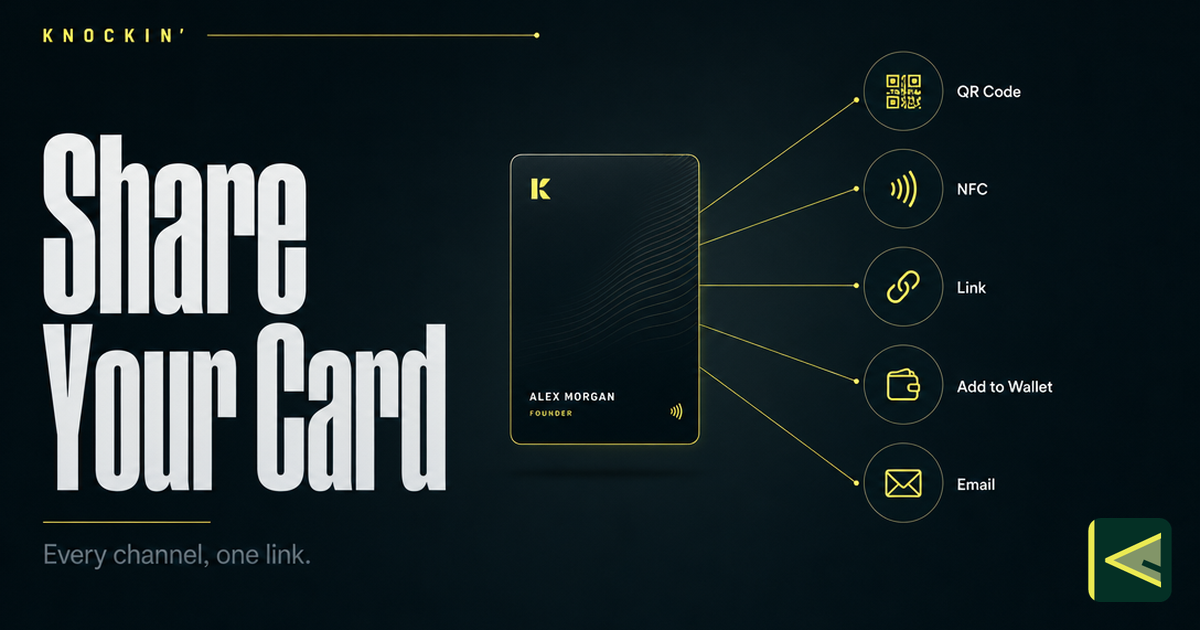
How to Share a Digital Business Card: Every Way to Connect
Seven ways to share a digital business card — QR code, NFC tap, plain link, phone wallet, email signature, website widget, and social bio —…
Business Card QR Codes: How They Work, Design Rules, and Sizing
The complete reference for QR codes on business cards: how they work, static vs dynamic, how to generate one that lasts, and the exact…
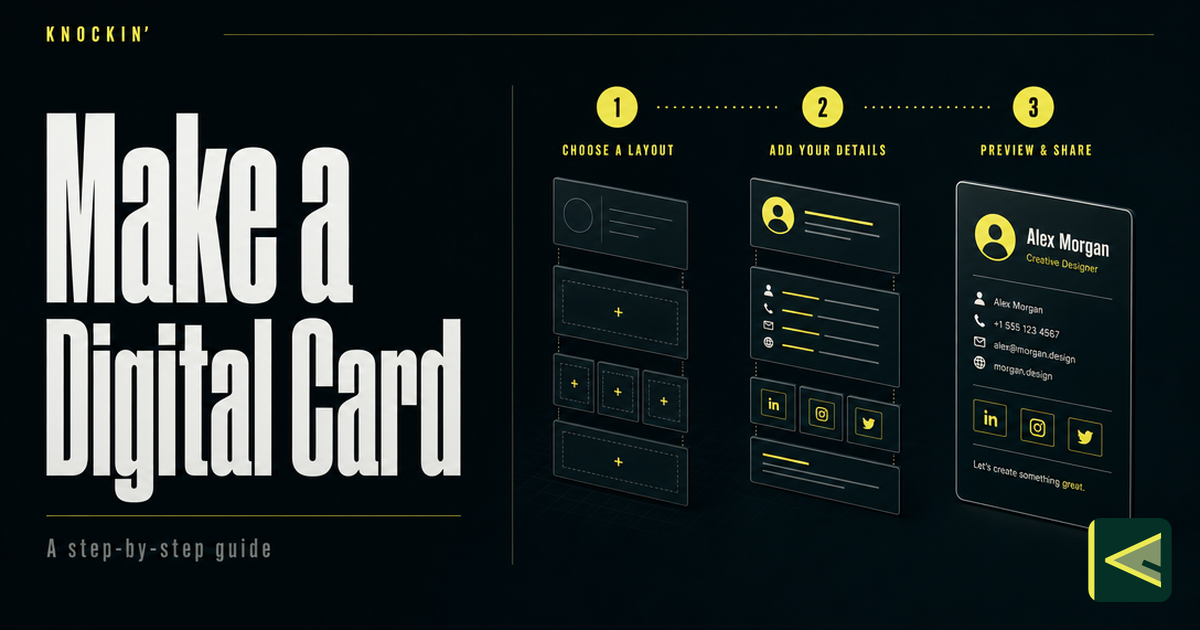
How to Make a Digital Business Card (Step by Step, 2026)
A practical, tool-agnostic guide to making a digital business card: decide content first, choose a maker on five criteria, build from a…
Frequently Asked Questions
Can I put my digital business card in Apple Wallet?
What is the difference between a wallet pass and the card service's app?
Does the wallet pass update when I change my card details?
Does the other person need an app or an iPhone to receive my card?
Your bio can finally answer back
Turn what you already know into an intelligent bio card that answers when you're not there.
Build, refine, and share in minutes — no credit card required.
https://knockin.info/blog/digital-business-card-apple-wallet