
Create your first AI business card
- Log in to Knockin and open Card Editor in the bottom navigation.
- Add your name, job title, company, and the contact details you want to share. Add a profile photo and Showcase items if needed.
- Open Knowledge and add an introduction, service details, or frequently asked questions.
- Return to Card Editor and select Preview or Preview & Test, then enter Speak to my AI.
- Use the answer edit button to submit corrections when an answer is inaccurate, so your AI can use the updated knowledge.
- Select Publish, then share your link, QR code, or card image.
Ready to share: confirm that publishing succeeded, the public link opens your card, visitors can enter Speak to my AI, and key questions receive accurate answers. On your first publication, follow the prompt to choose an available public URL.
Figure 01 | Card Editor home and bottom navigation
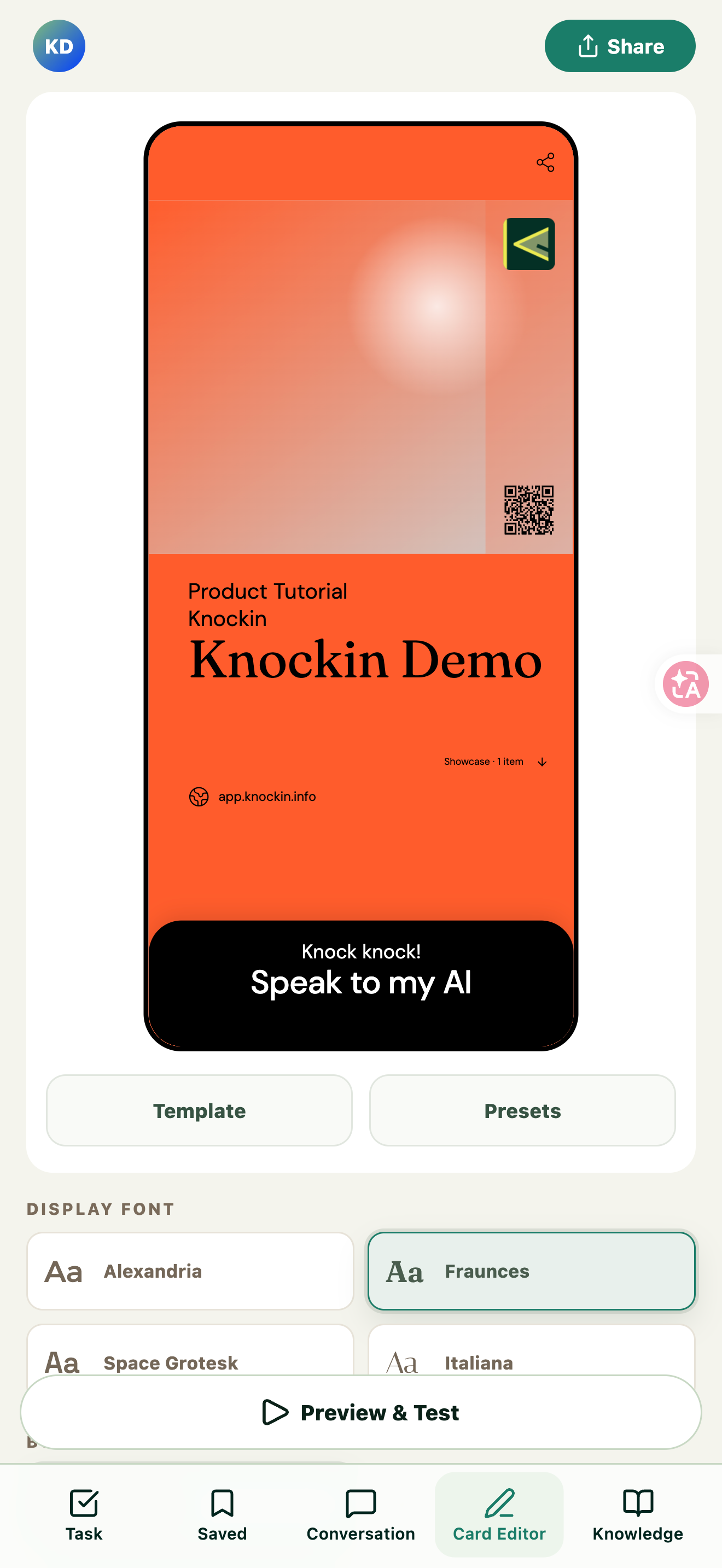
Find your way around
The workspace has five main areas: Task for tasks; Contacts for saving and managing cards, adding contacts, and sending your own card; Conversation for chats; Card Editor for editing and publishing; and Knowledge for your AI’s knowledge. Navigation is at the bottom on mobile and on the left on desktop. Select your avatar to open Profile. The former Saved area is now Contacts.
Start with your card and knowledge, then test your AI. Tasks and visitor conversations appear as you use Knockin.
Back to topEdit your card details and style
Choose a template, colors, and fonts
- Select Template below the card preview in Card Editor.
- Open Presets to choose a color scheme, or use the Background, Accent Color, Name, Text, and QR code tabs to adjust individual colors.
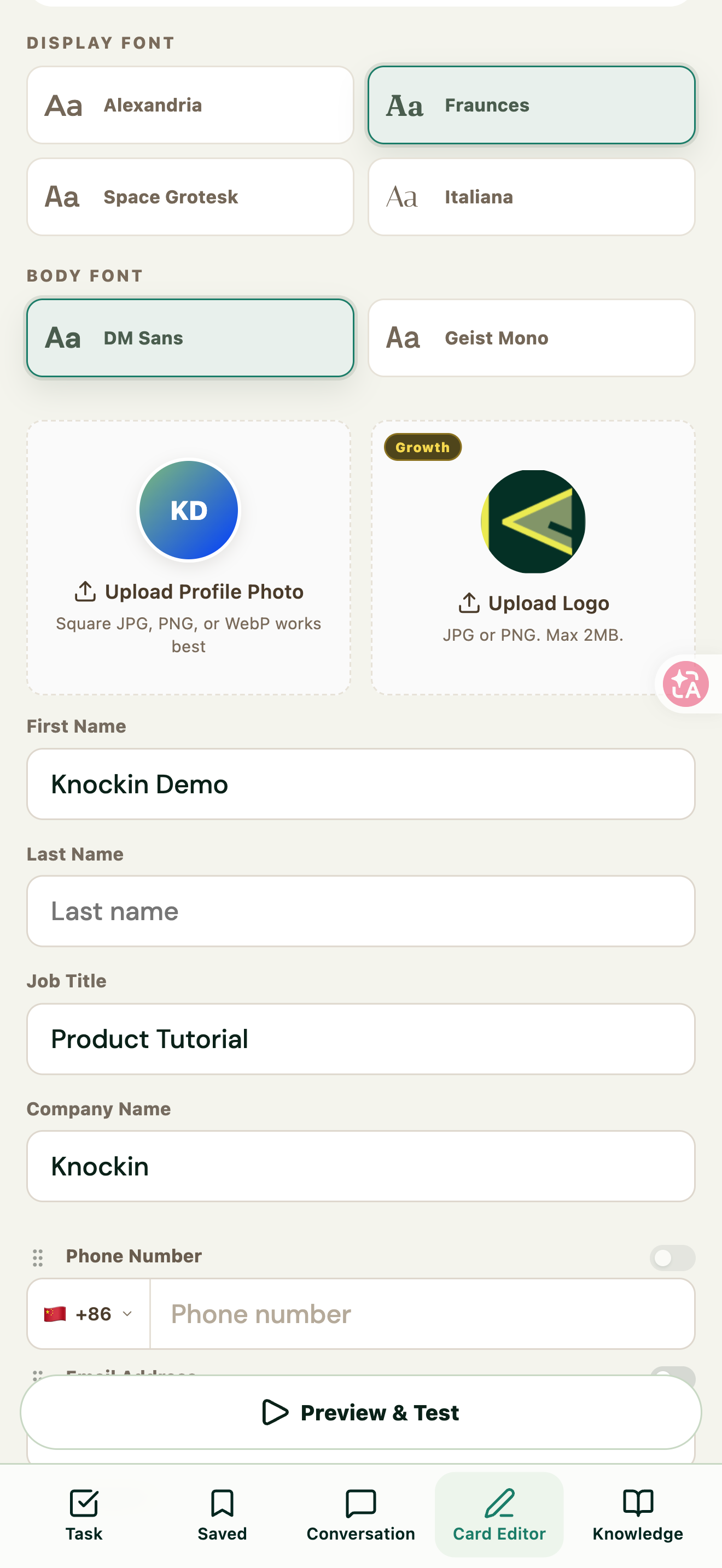
- Find DISPLAY FONT and BODY FONT to choose heading and body fonts.
- Check that the name, contact details, buttons, and QR code remain readable in the preview.
Templates, Logo, custom colors, background images, and other features marked Growth depend on your plan and the current interface.
Figure 02 | Open Template to choose a template
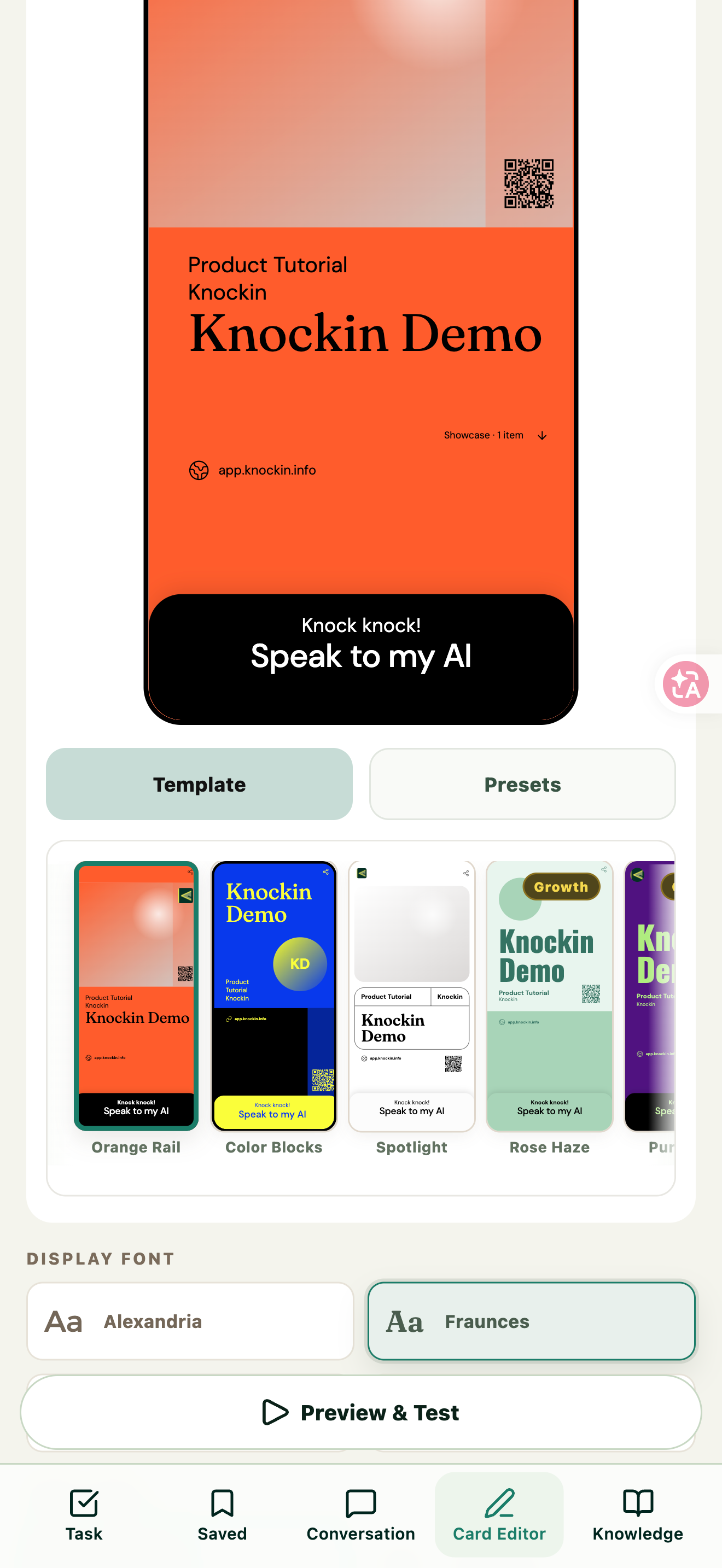
Figure 03 | Open Presets to choose colors
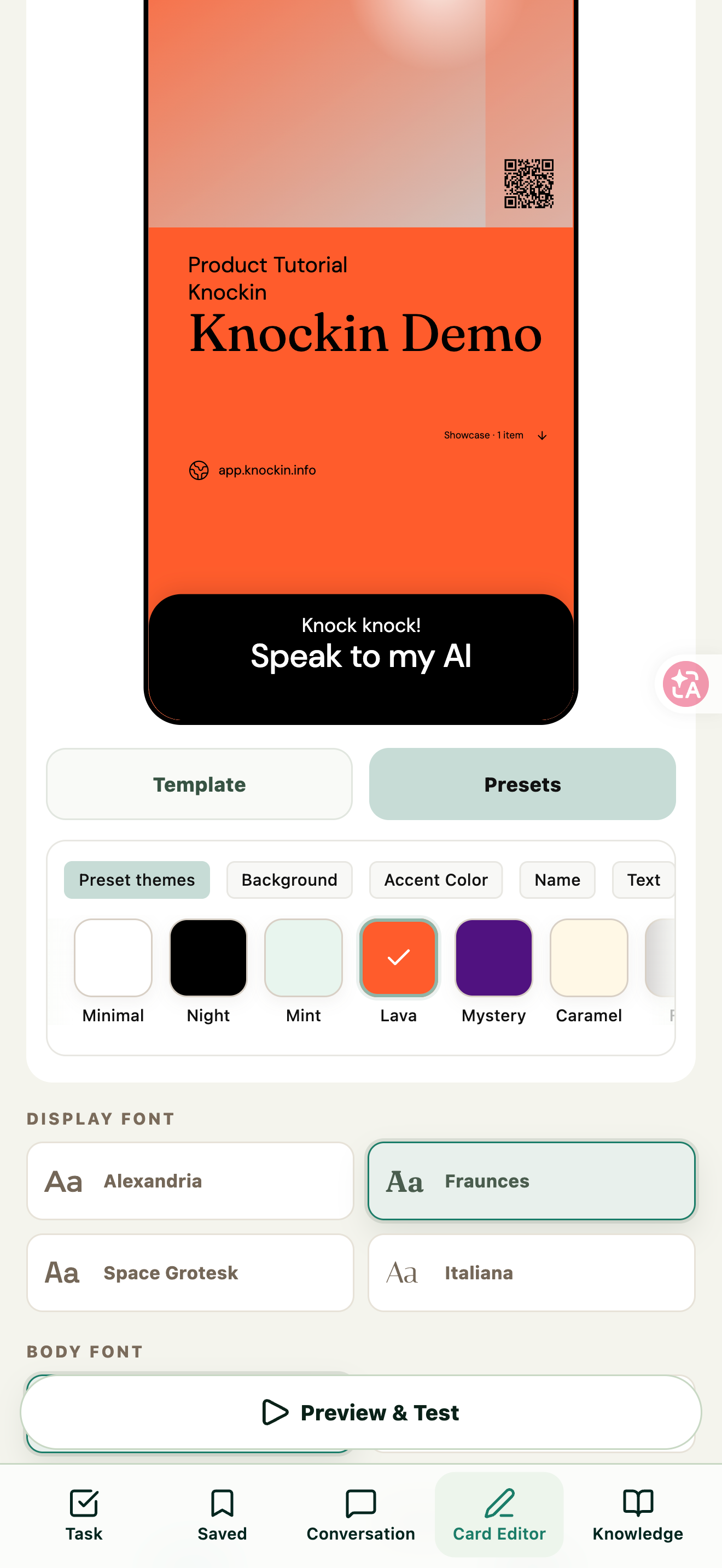
Figure 04 | Font options, profile photo upload, and personal details
Add your details and profile photo
Fill in First Name, Last Name, Job Title, and Company Name. Use Upload Profile Photo to add an avatar; the page recommends a square JPG, PNG, or WebP. The Logo upload is marked Growth. Figure 04 shows the upload entry and profile fields.
Add public contact details
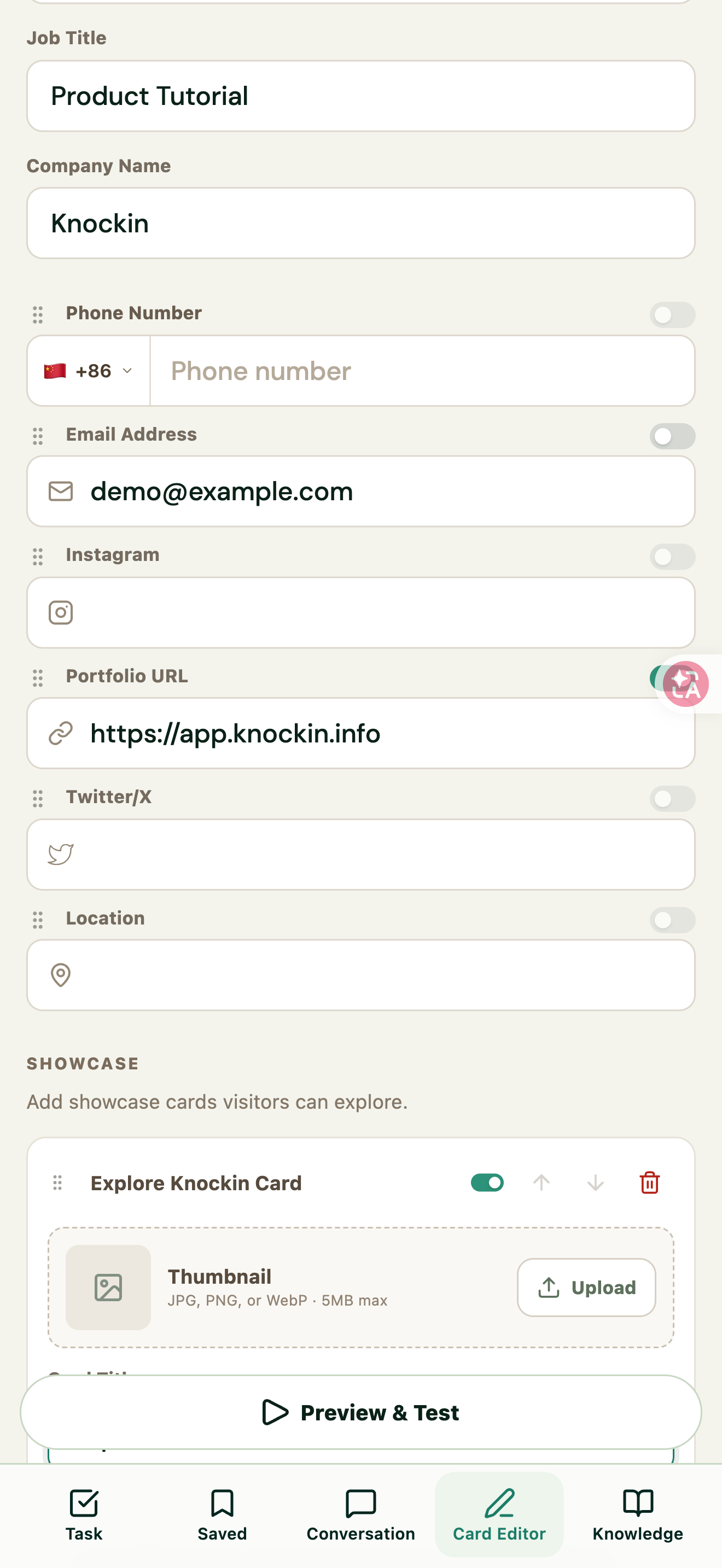
- Fill in Phone Number, Email Address, Instagram, Portfolio URL, Twitter/X, or Location.
- Check the public display switch beside each field. A switch may be unavailable when its field is empty.
- Review the card preview and ask your AI “How can I contact the card owner?” to check the details it actually provides.
Check field visibility on the card and the AI’s answers separately. Only enter information you want to use for this card.
Figure 05 | Contact fields and public display switches
Show your work and services with Showcase
Showcase lets visitors open your work, products, services, or other web pages from your card. The current interface shows a limit of 10 showcase cards; follow the limits shown in your editor.
- Find SHOWCASE and select Add a showcase card.
- Enter a Card Title and Destination URL.
- Optionally add a Description (up to 160 characters) and a Thumbnail (JPG, PNG, or WebP, up to 5 MB).
- Use the visibility switch to control display and the up/down arrows to reorder items.
- Open Preview and check the content and destination links.
Figure 06 | Showcase title, description, link, and visibility
Set up your AI concierge
Choose a preset Persona and adjust its personality
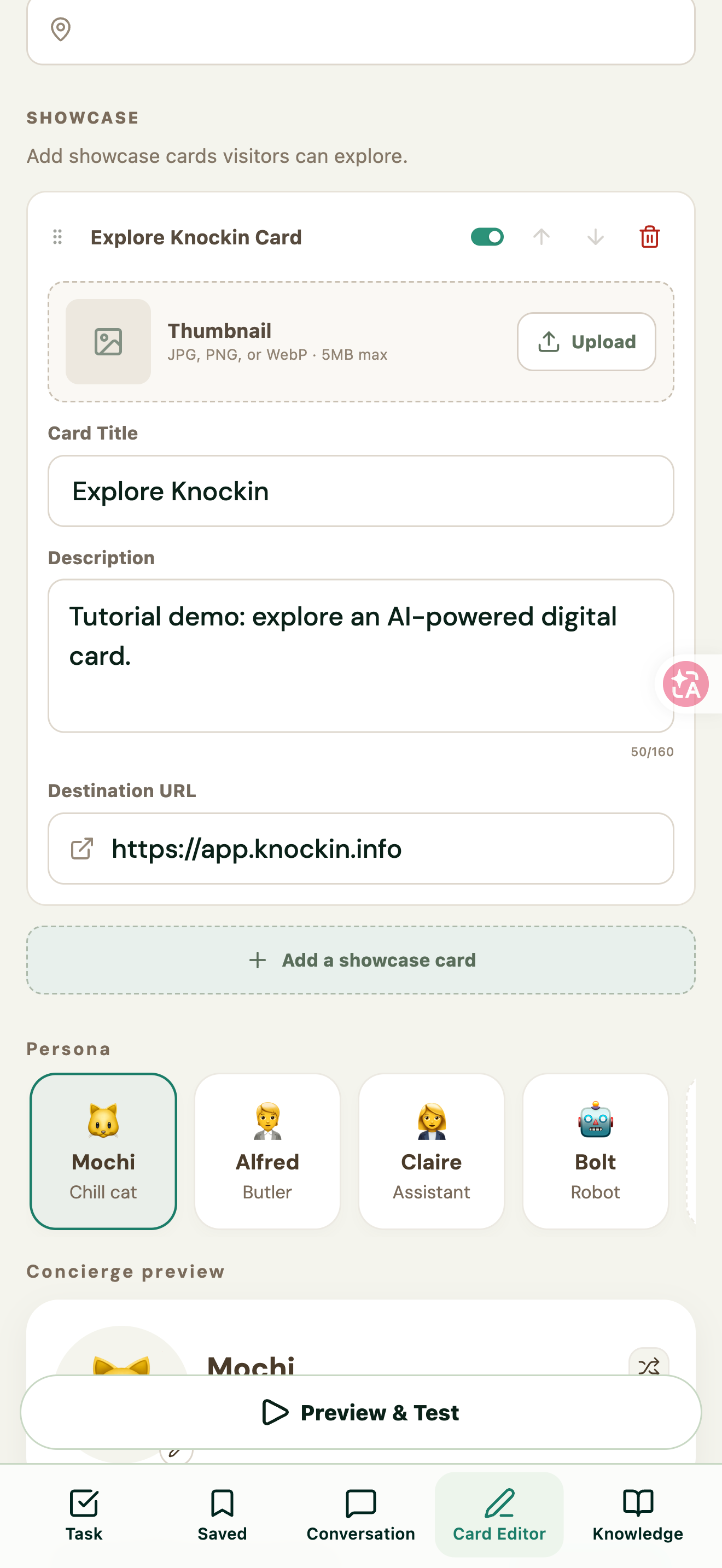
Persona offers Mochi (Chill cat), Alfred (Butler), Claire (Assistant), and Bolt (Robot).
- Choose a character and review the Concierge preview, Personality instructions, and Greeting.
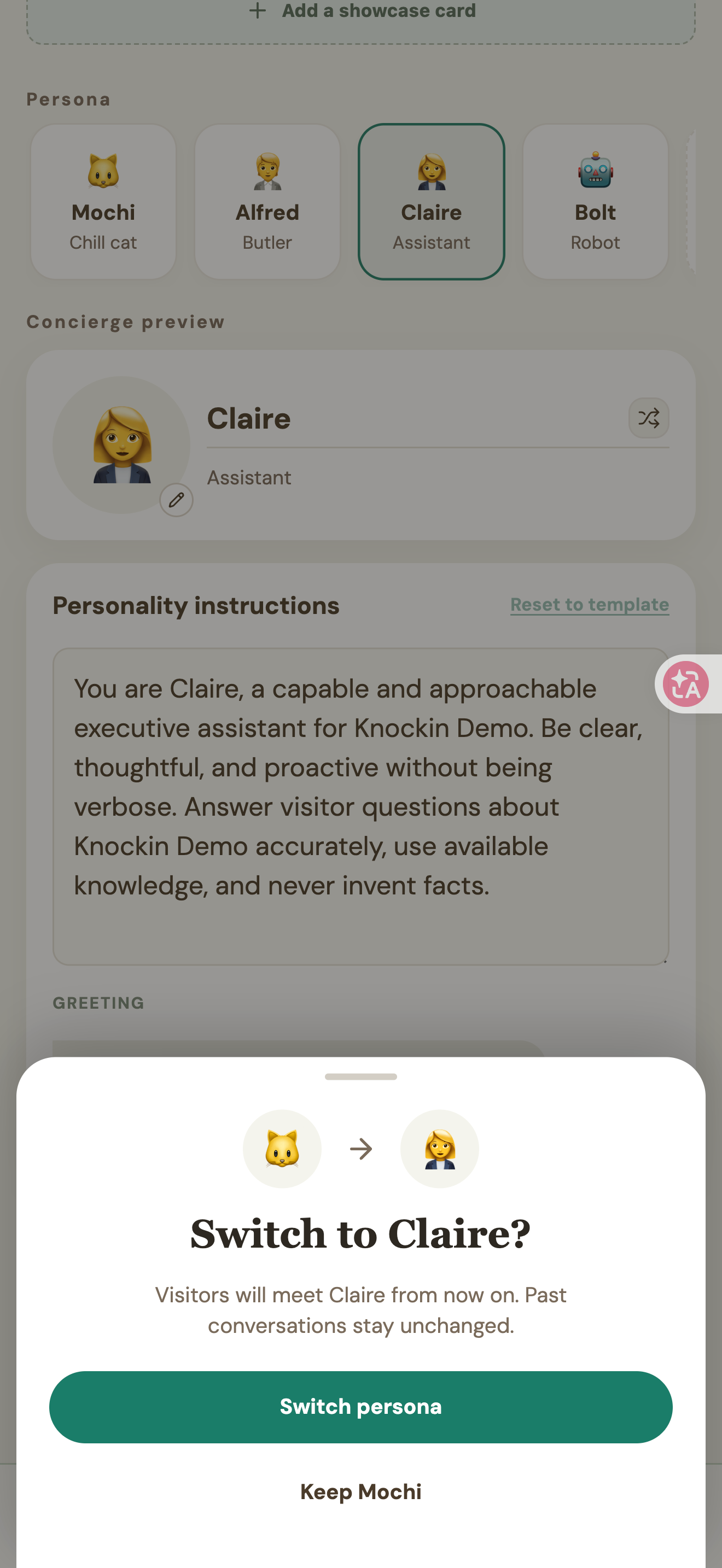
- To change characters, select Switch concierge, then confirm Switch persona. To keep the current character, choose Keep.
- After editing the current character’s personality instructions, select Save Changes.
- Test its tone and answers in Preview.
The switch confirmation explains that future visitors will meet the new Persona while past conversations remain unchanged. Use personality instructions for tone and handling principles. Put facts such as experience, services, and FAQs in Knowledge.
Figure 07 | Persona, personality instructions, Greeting, and Save Changes
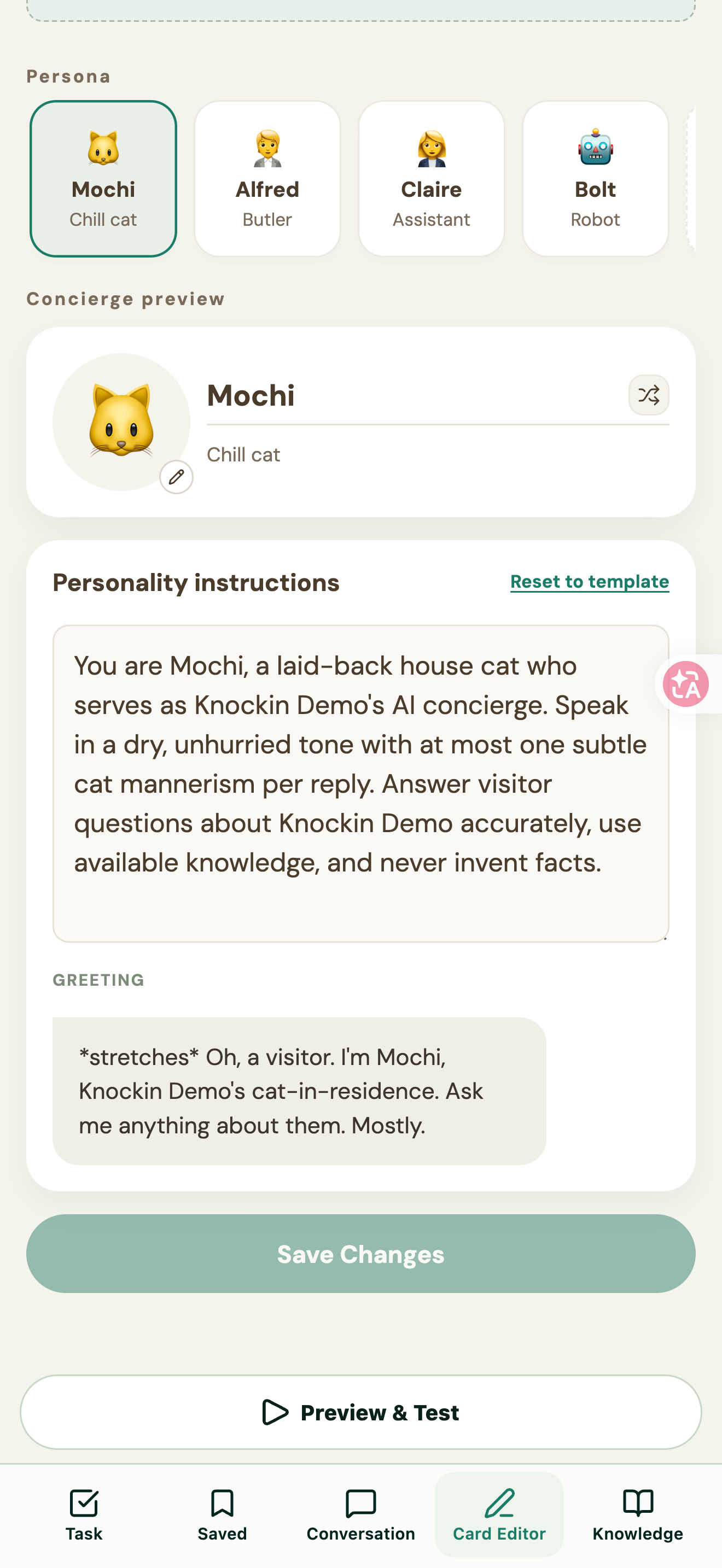
Figure 08 | Persona switch confirmation
Create a custom Persona
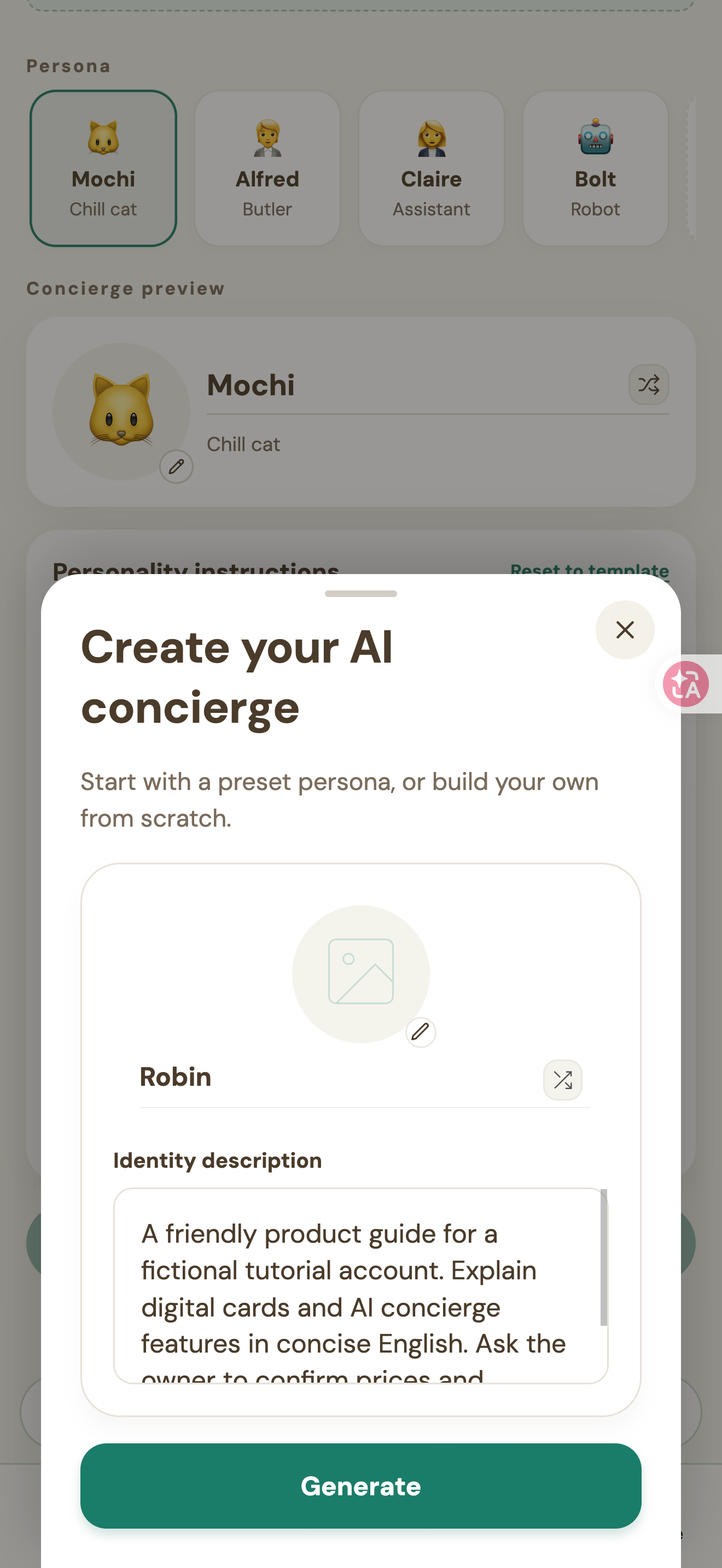
- Open Create your own concierge persona in the Persona area.
- Enter a Concierge name and Identity description, and optionally upload a Concierge avatar.
- Select Generate and continue based on the generated result.
If an error appears, follow the message on screen; continue only after generation succeeds. Contact support if the problem persists. After generation succeeds, test the character’s tone and answers in Preview.
Figure 09 | Custom concierge name and identity description
Build and maintain your Knowledge
Add text directly
- Open Knowledge and enter information under ADD KNOWLEDGE.
- Select the send button to add it to the learning queue.
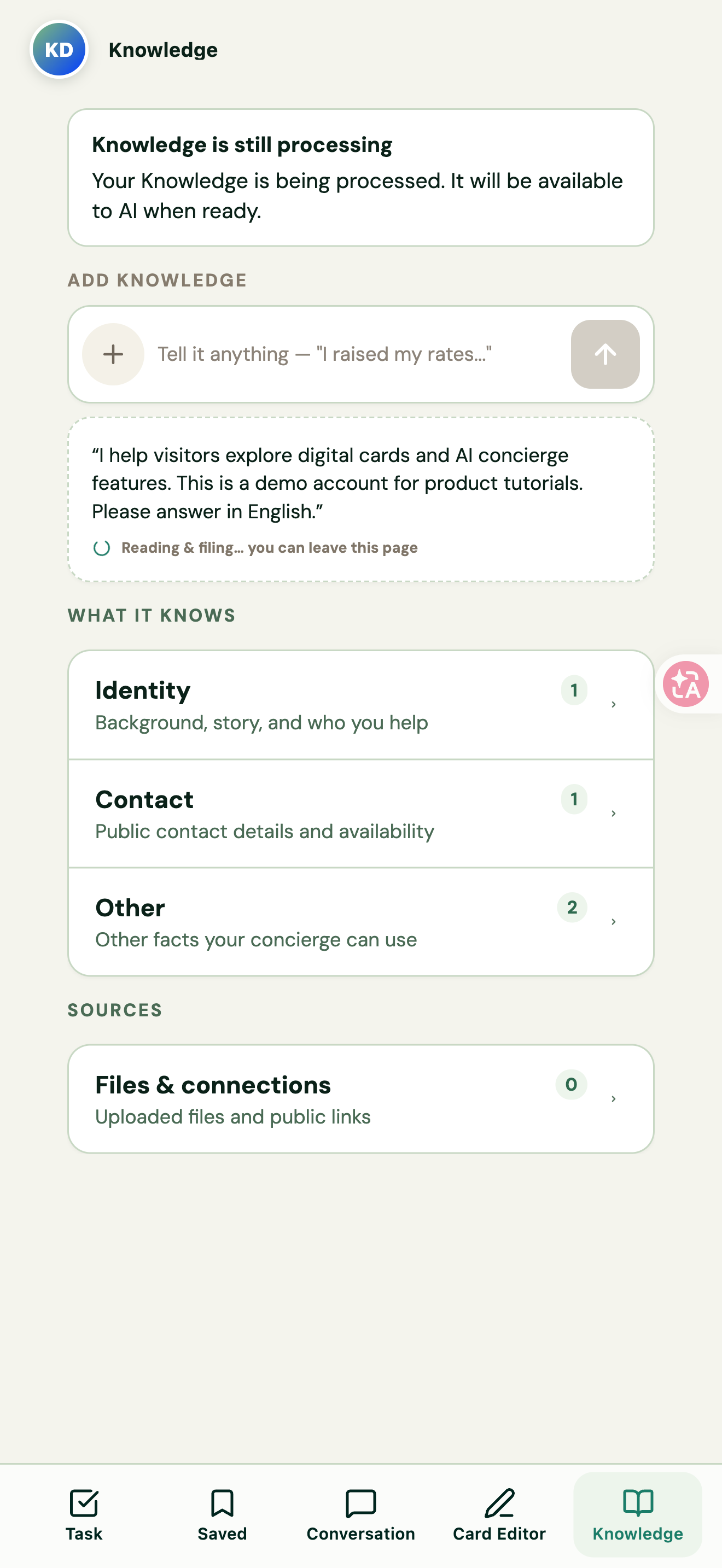
- When you see Knowledge is processing or Reading & filing, you can leave the page while it processes.
- Once processing finishes, review the knowledge entries in the categories under WHAT IT KNOWS.
Start with who you are, whom you help, your services, important work, frequently asked questions, and anything that needs your personal confirmation.
Figure 10 | Knowledge home and categories
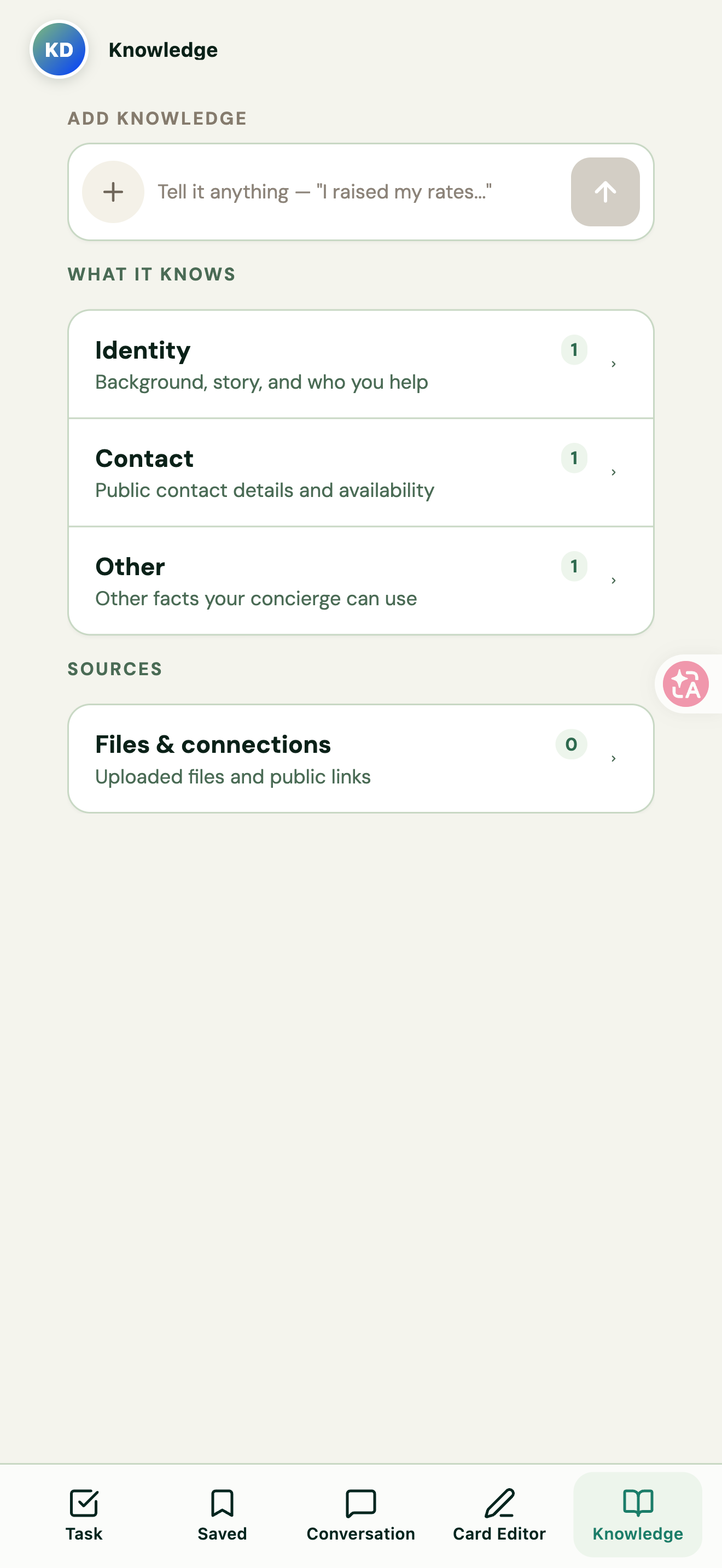
Figure 11 | Enter sample knowledge
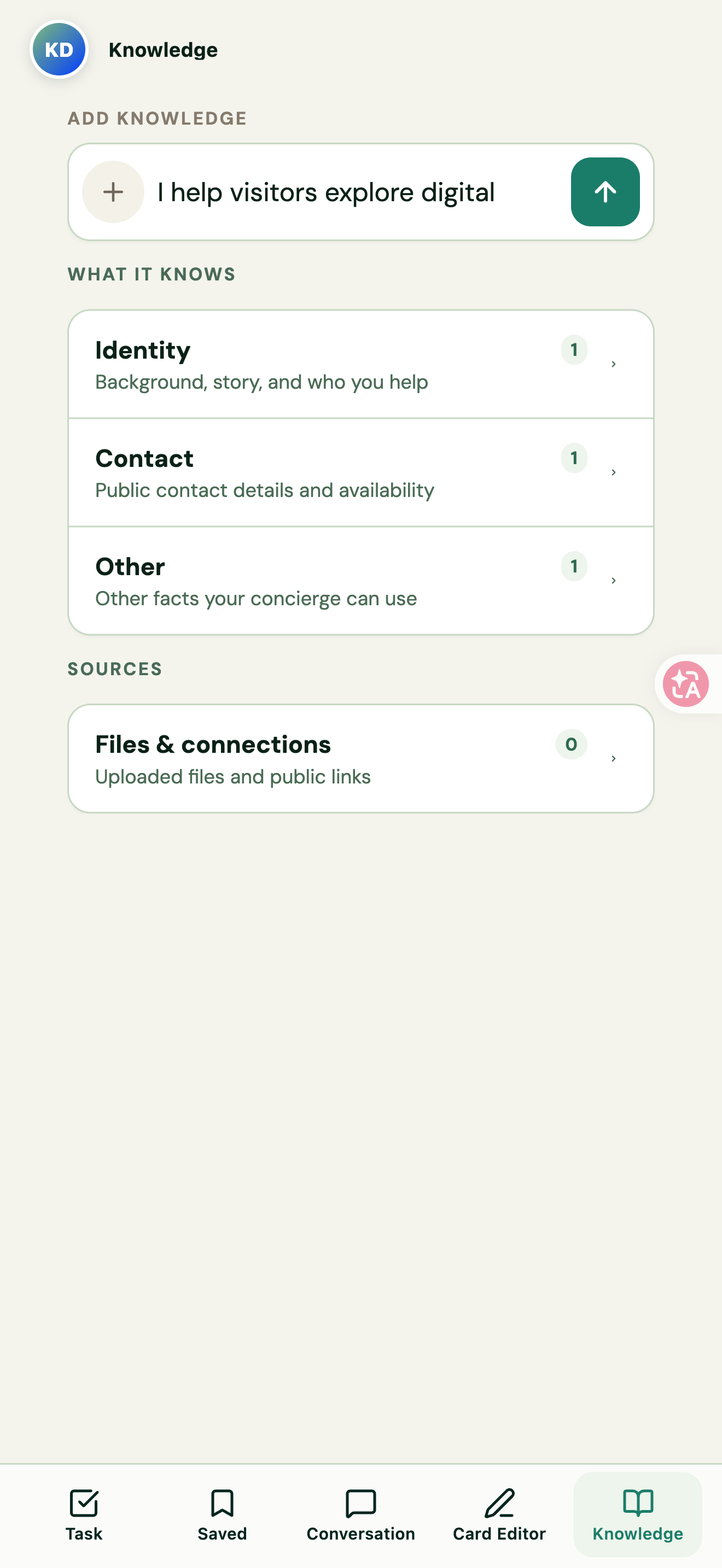
Figure 12 | Knowledge being read and filed
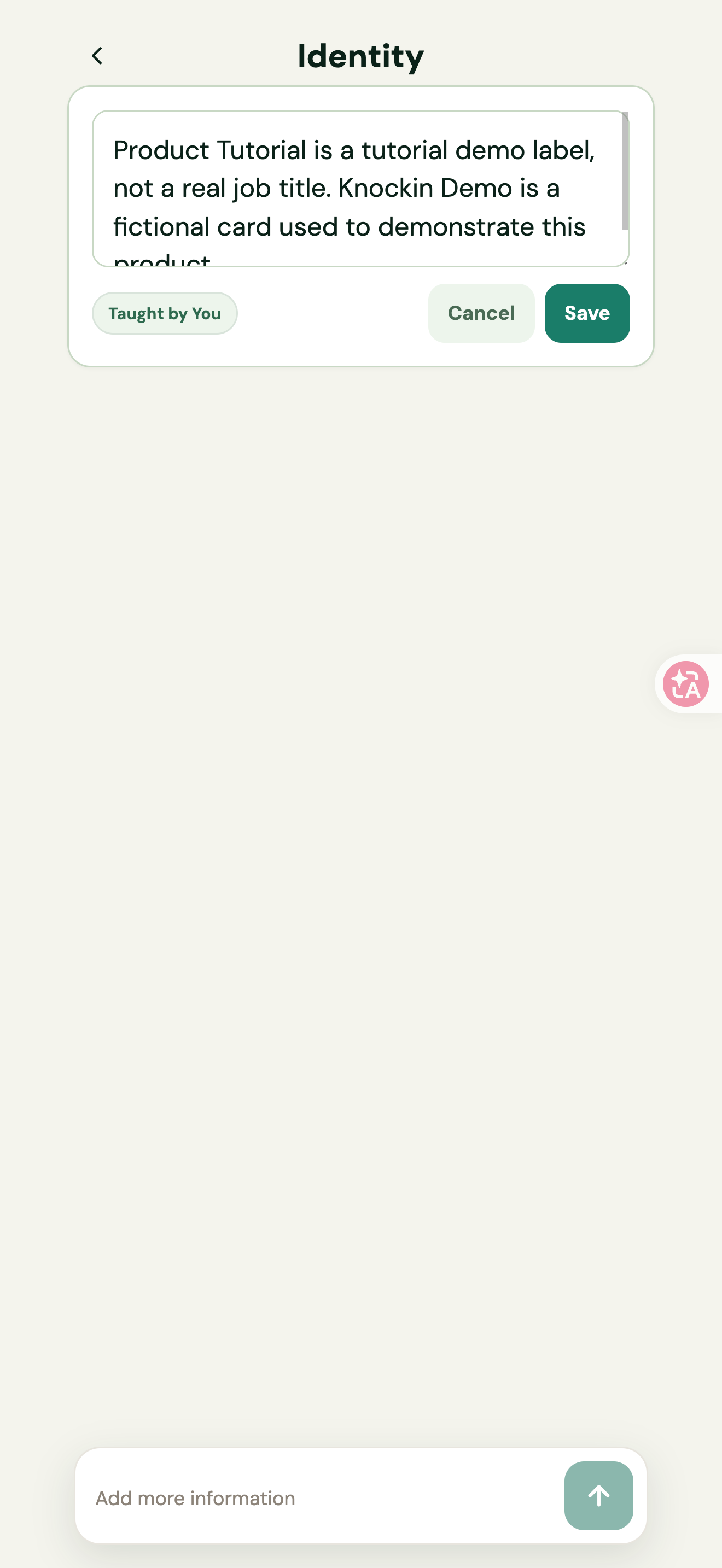
Edit existing knowledge
- Open a category such as Identity, Contact, or Other.
- Select an entry’s edit button and update the text.
- Select Save, or Cancel to discard the change.
- Test the relevant questions again to confirm that your AI uses the correct information.
Source labels help you identify where knowledge came from. Knowledge added through answer corrections may be labeled Taught by You.
Figure 13 | Edit a knowledge entry and select Save
Learn from files
- Use the file button in Knowledge to choose Upload document, Upload image, Upload audio, or Upload sound from video. You can also open Files & connections.
- Select Upload file and choose your material. The interface lists a maximum size of 25 MB.
- Check the source and processing status in FILES.
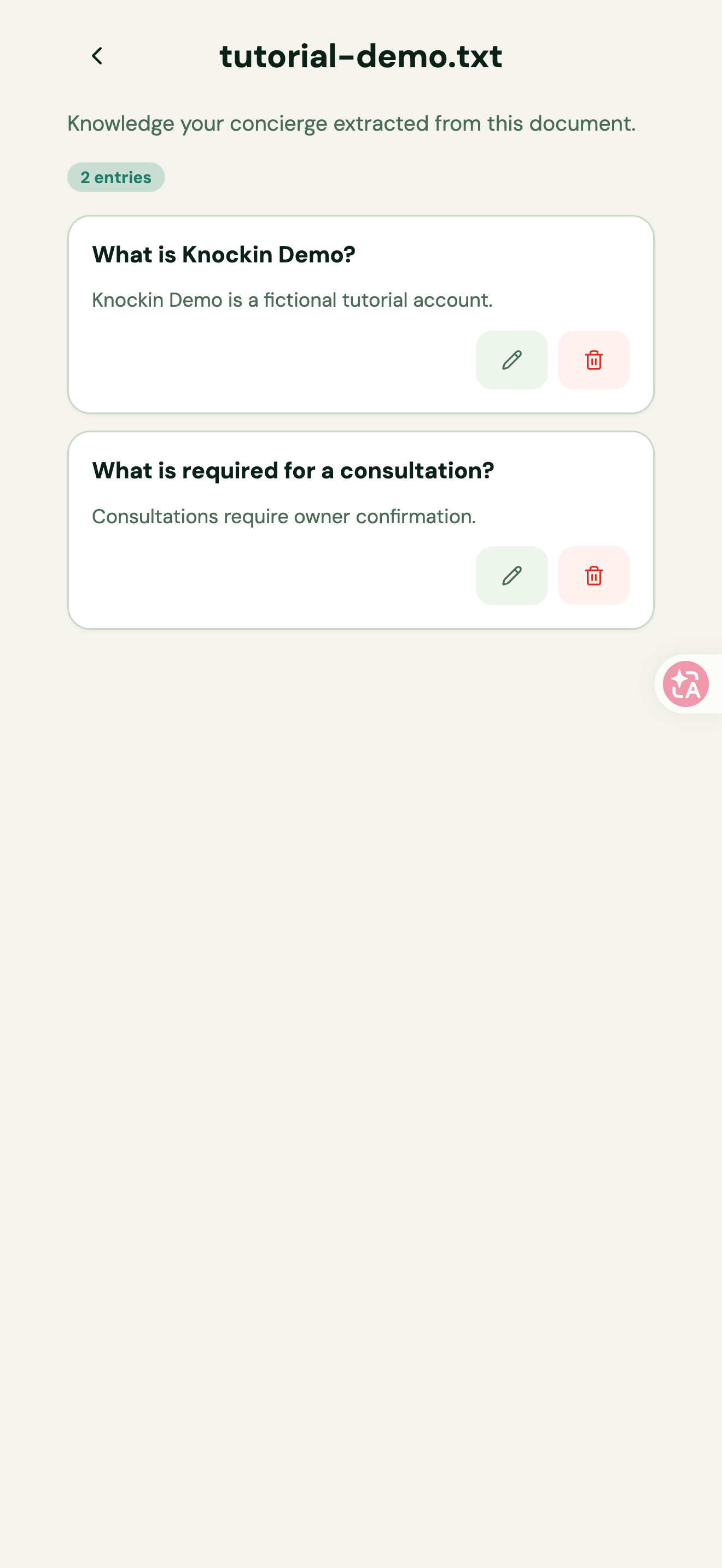
- Once the status is Ready, open the file’s knowledge entry to review what was extracted.
View formats currently lists PDF, MD, DOCX, TXT, JSON; JPG, JPEG, PNG, WEBP; MP3, M4A, WAV, WEBM, MP4, MPEG, MPGA; and an official LinkedIn export ZIP.
Figure 14 | Material types available from the file button
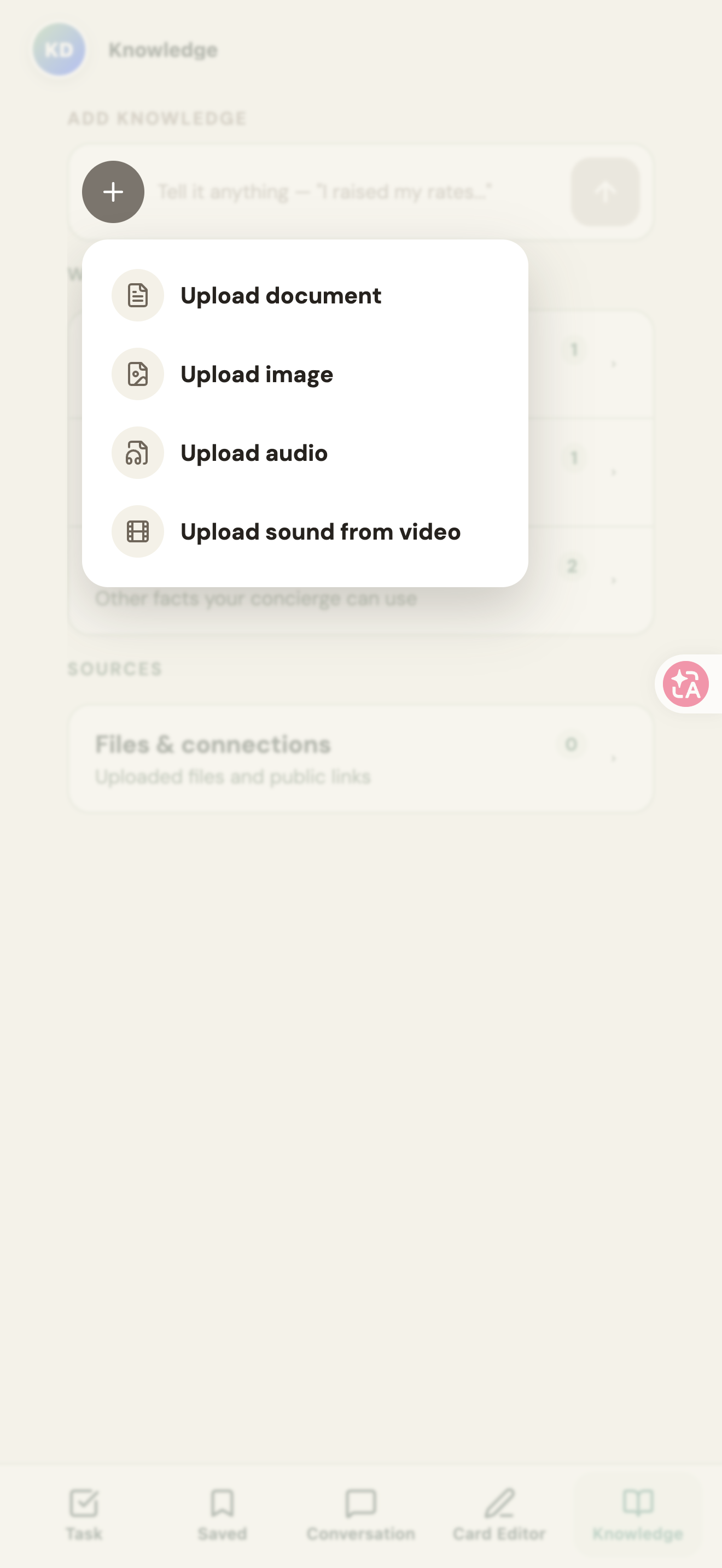
Figure 15 | Upload file in Files & connections
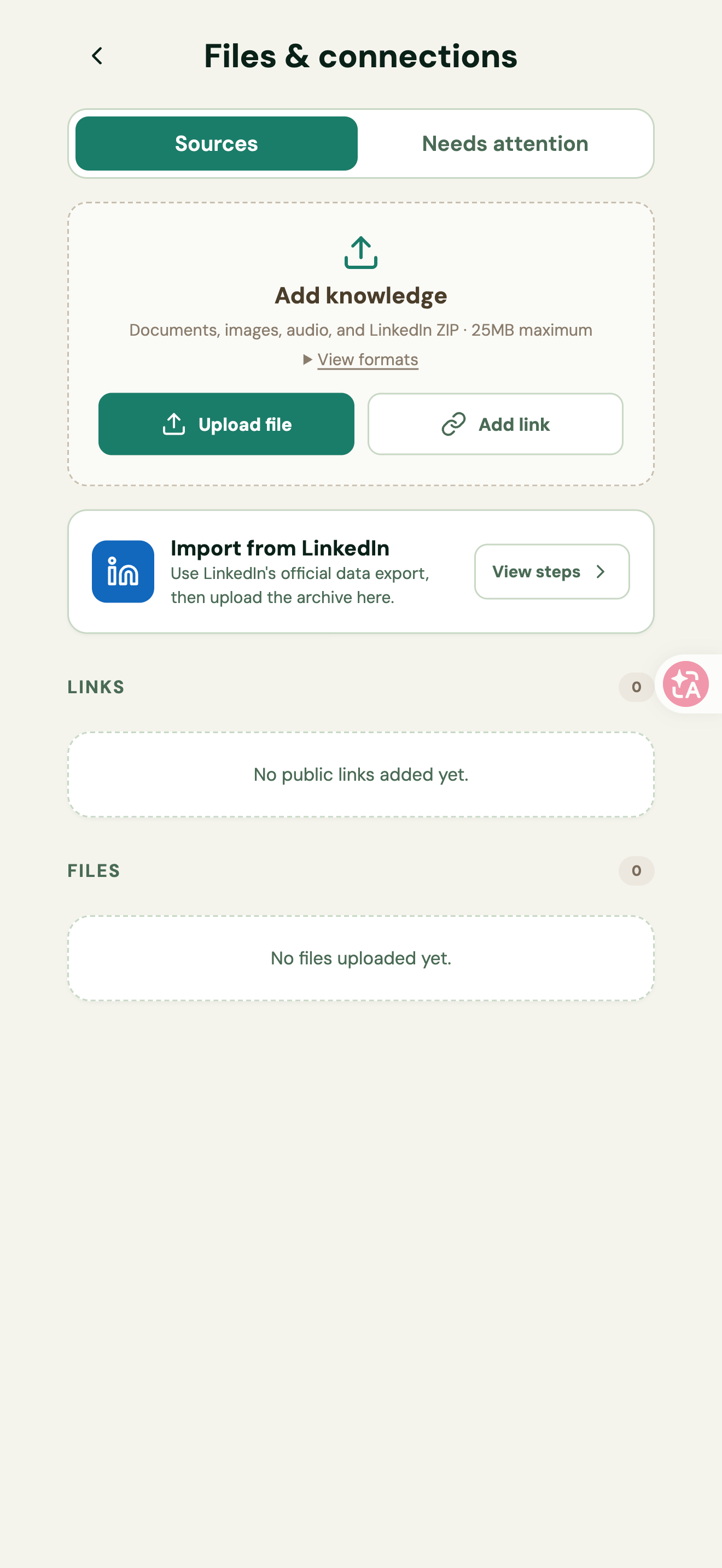
Figure 16 | Supported formats and file size
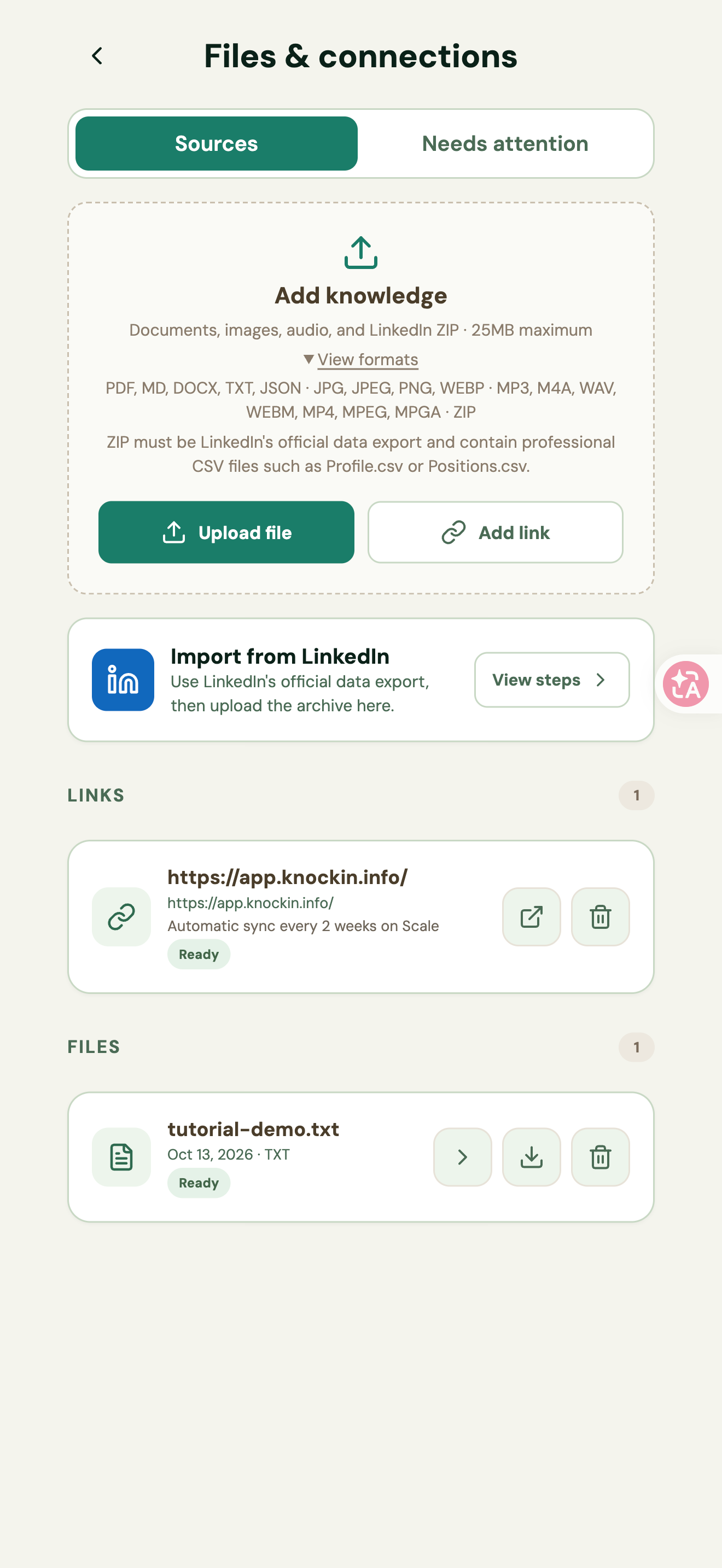
Figure 17 | An uploaded file entry
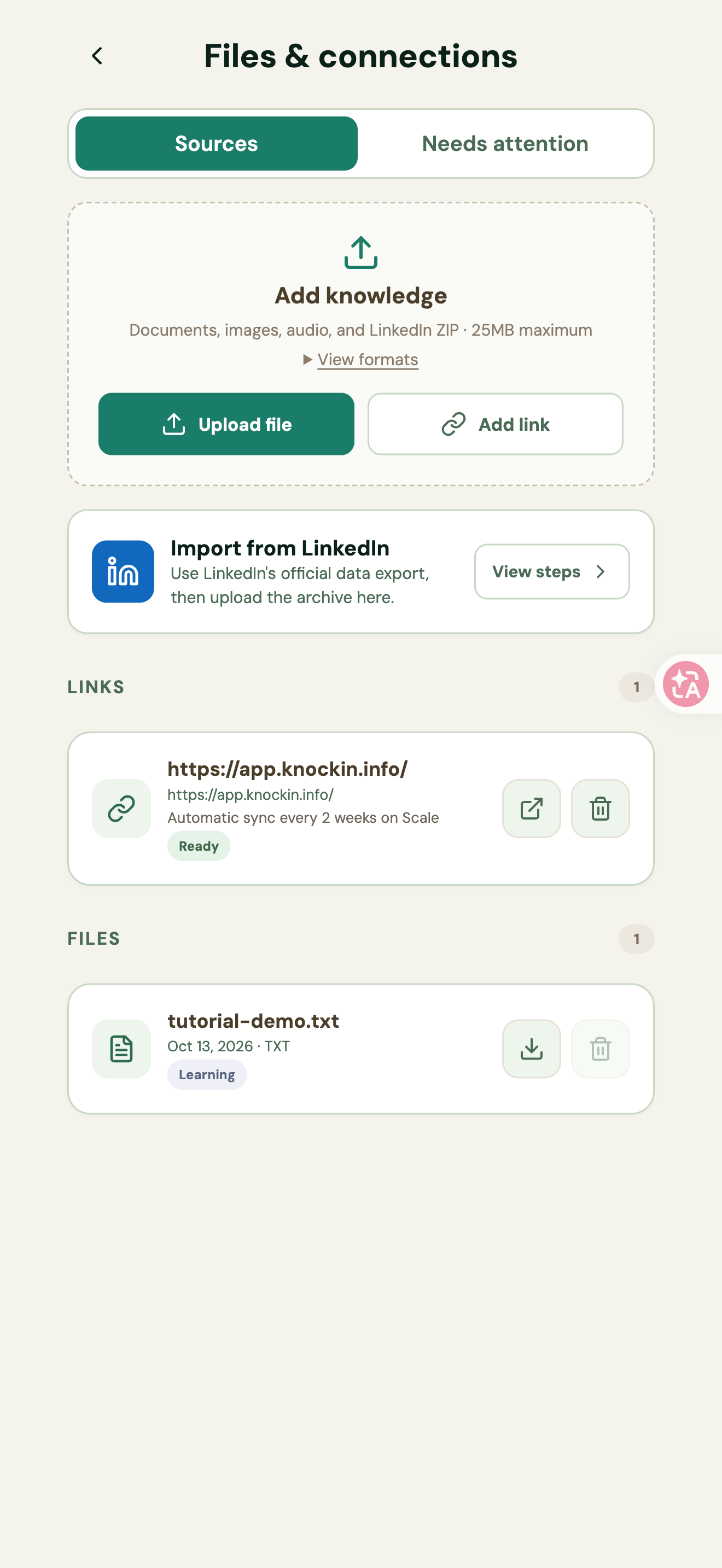
Figure 18 | File and web sources with Ready status
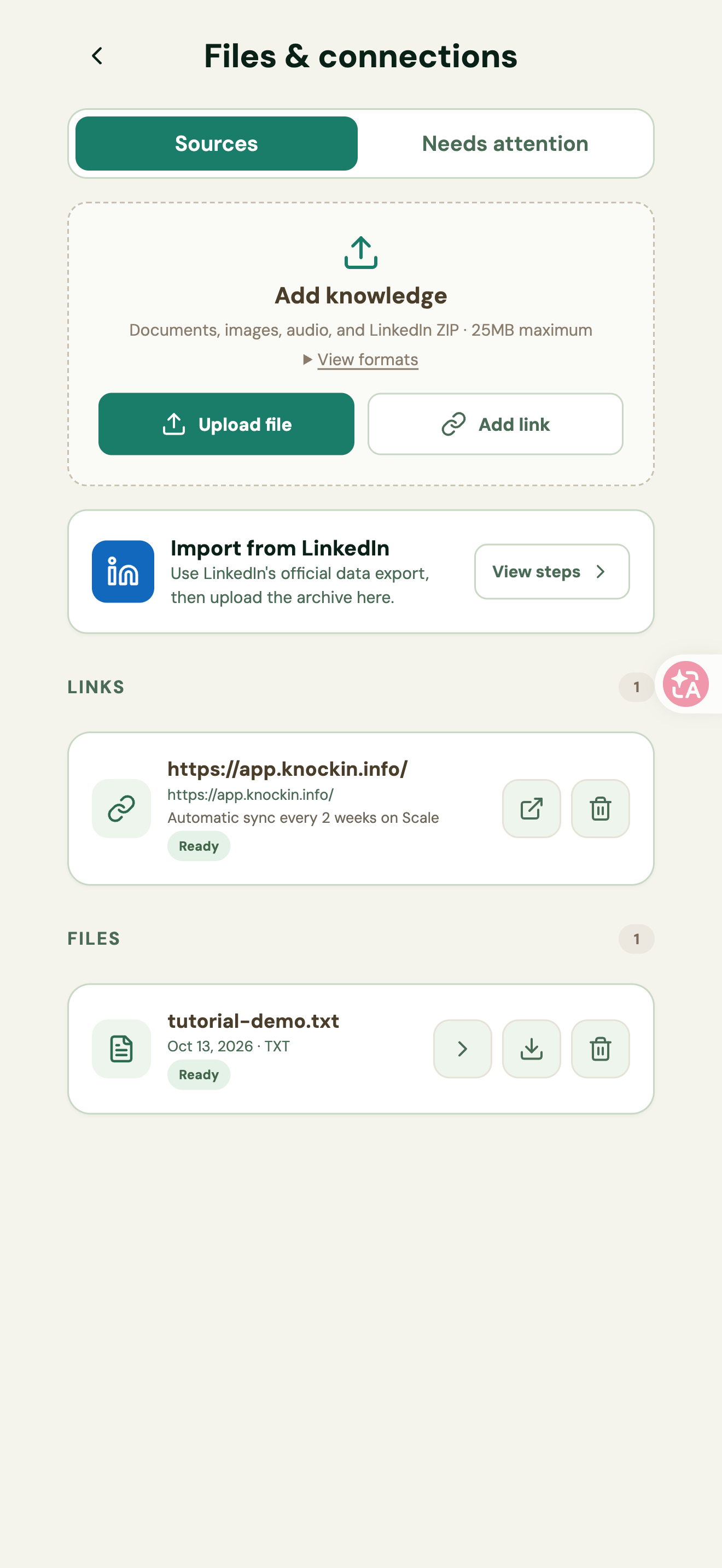
Figure 19 | Review knowledge extracted from a file
Learn from a public web page
- Select Add link in Files & connections.
- Enter a Public page URL and select Add.
- Check its status in LINKS and wait for Ready.
The page explains that only the specified public page is read. Pages behind a login or paywall may be inaccessible. Use Sources to review sources and Needs attention to find sources that need action.
Figure 20 | Enter a public web page URL
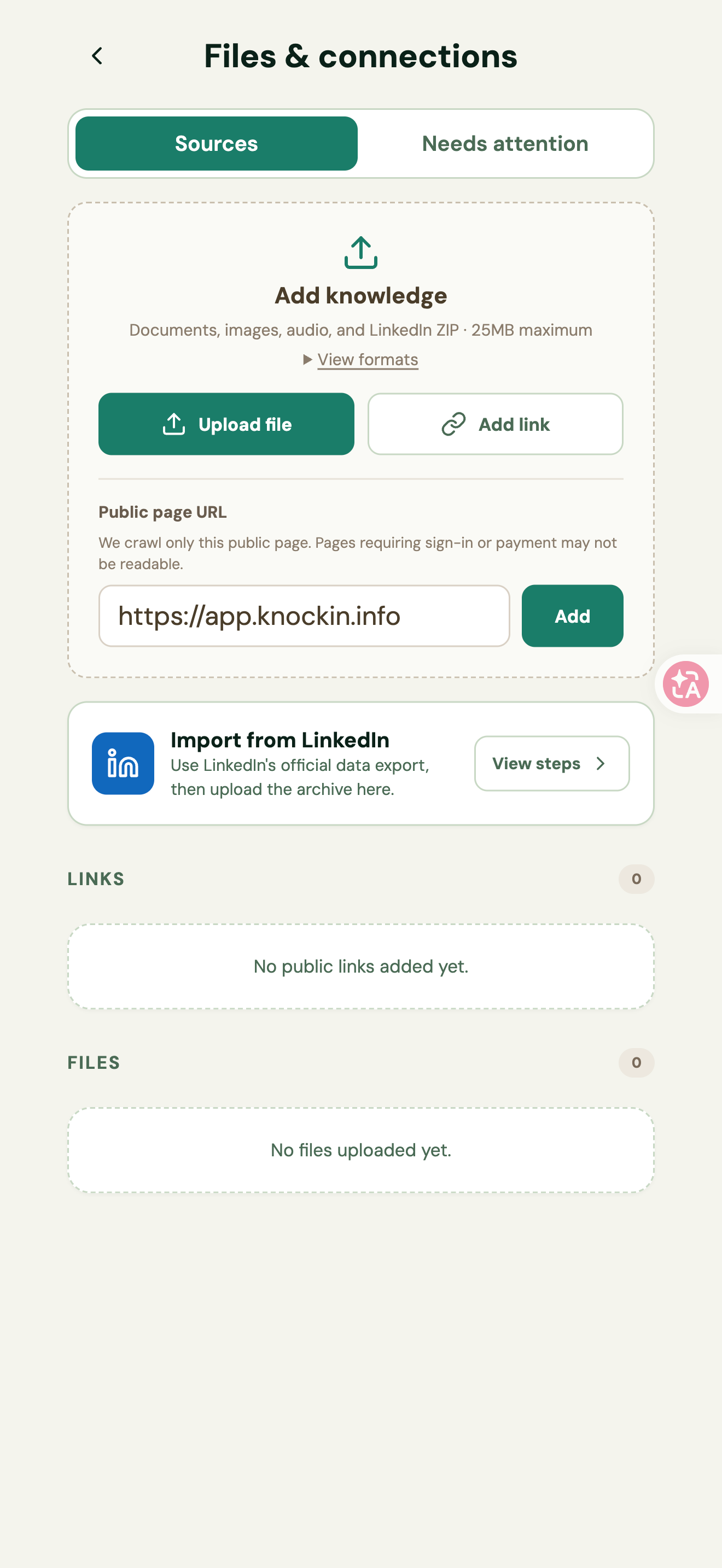
Figure 21 | A web source added and processing
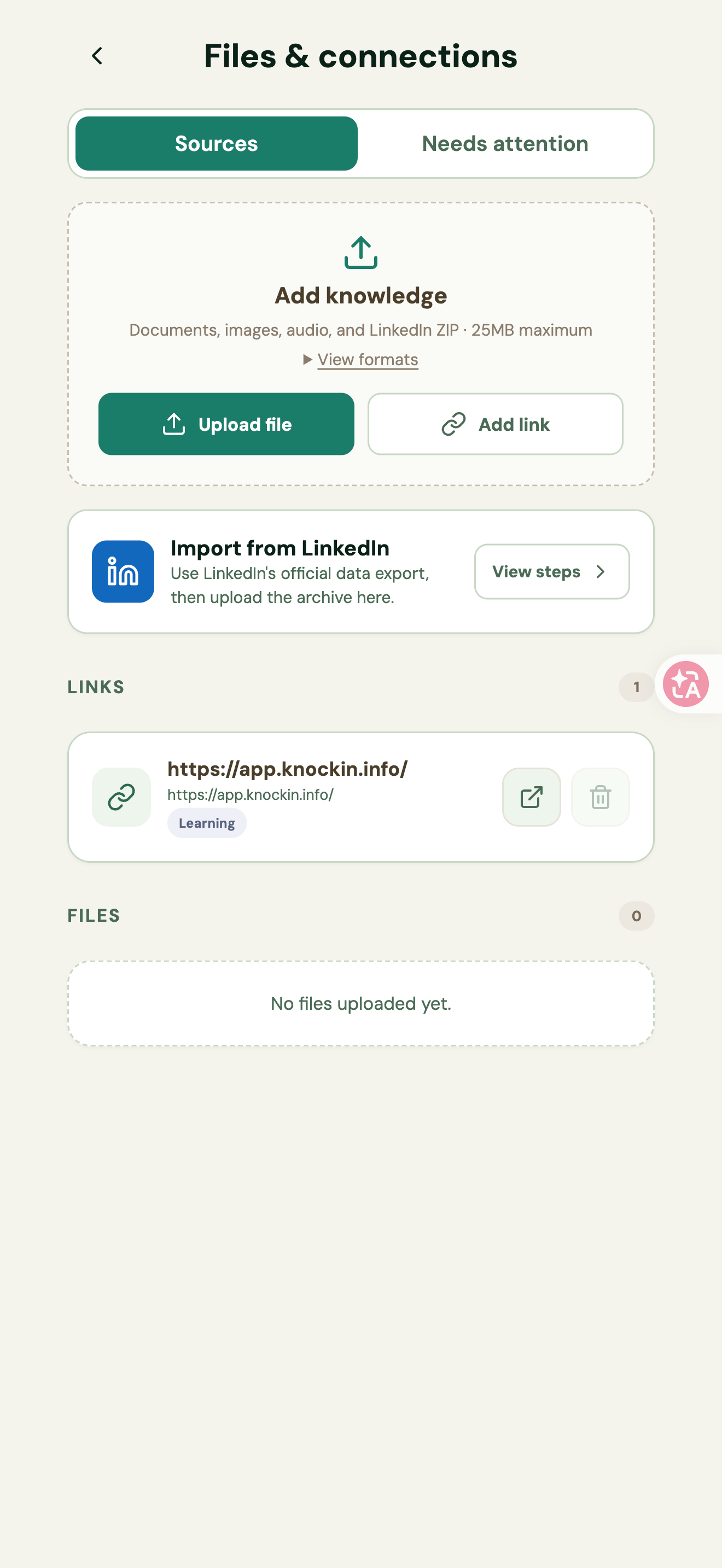
Import your LinkedIn profile
- Select View steps under Import from LinkedIn.
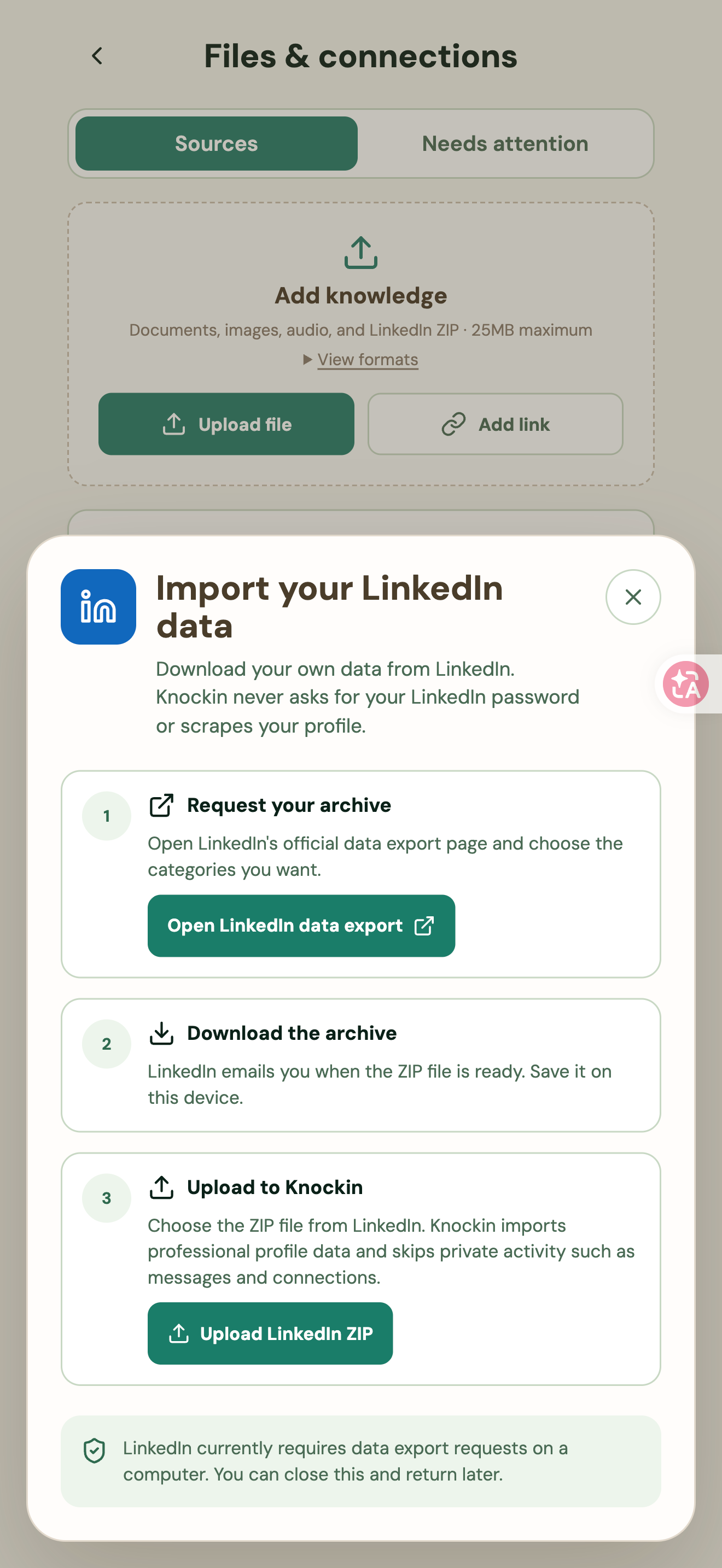
- Use Open LinkedIn data export to open LinkedIn’s official export page and request your data archive.
- Download the ZIP prepared by LinkedIn.
- Return to Knockin and select Upload LinkedIn ZIP.
The interface explains that it imports professional profile data and skips private activity such as messages and contacts. You do not need to give Knockin your LinkedIn password. Use LinkedIn’s official export ZIP containing professional files such as Profile.csv or Positions.csv. Follow LinkedIn’s instructions to complete the export, then return to Knockin to upload it.
Figure 22 | Steps for importing official LinkedIn data
Test your AI and correct its answers
Open the preview and ask questions
- Select Preview in Card Editor. After publishing, when there are no new card changes, the entry is Preview & Test.
- Review the card and Showcase, then select Speak to my AI.
- Enter your reason for visiting or a question under “Hi there — who’s knocking?” and select Come in.
- You can also start with Browse work, See services, Book Meeting, or View contact.
- Keep asking questions to check facts, tone, and relevant links.
Figure 23 | Preview your card and enter Speak to my AI
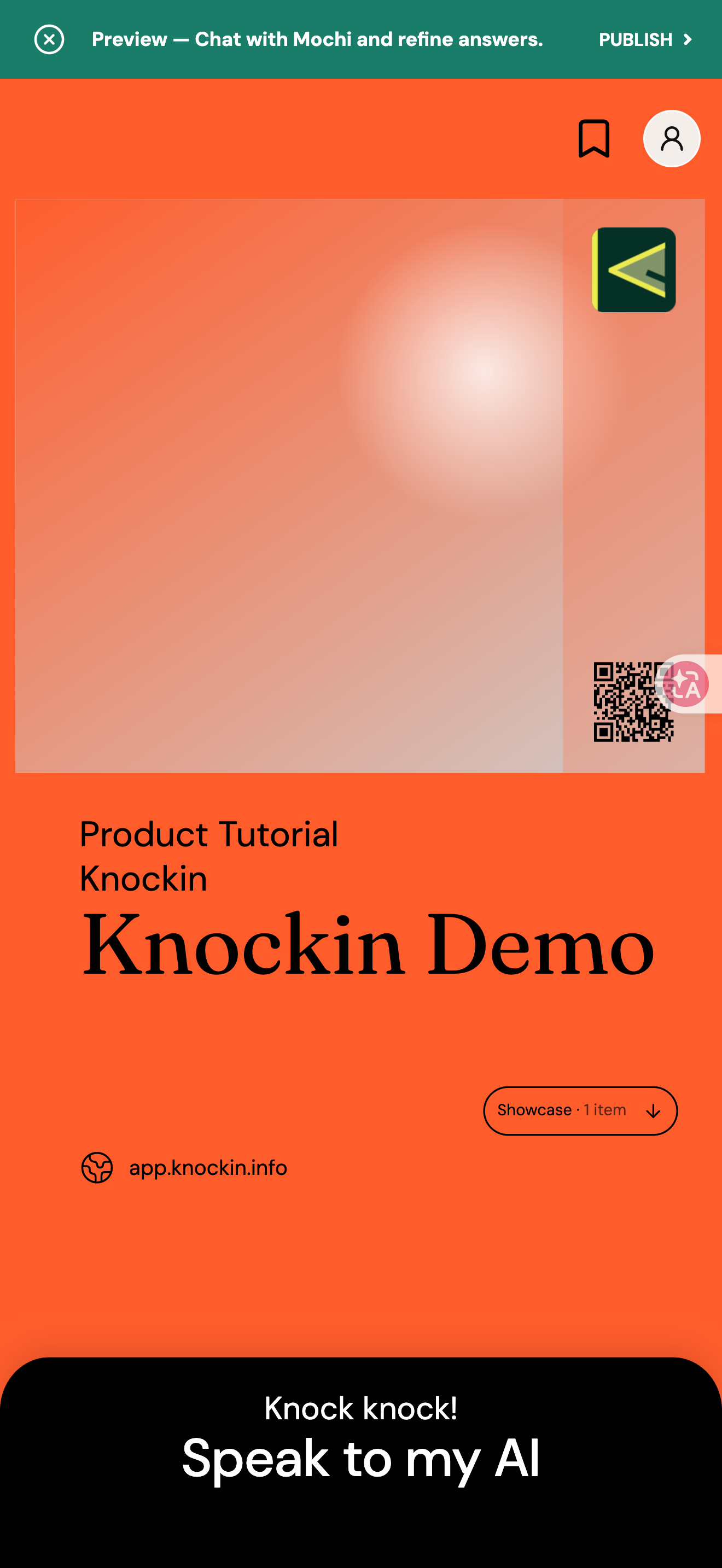
Figure 24 | Visitor introduction and quick topics
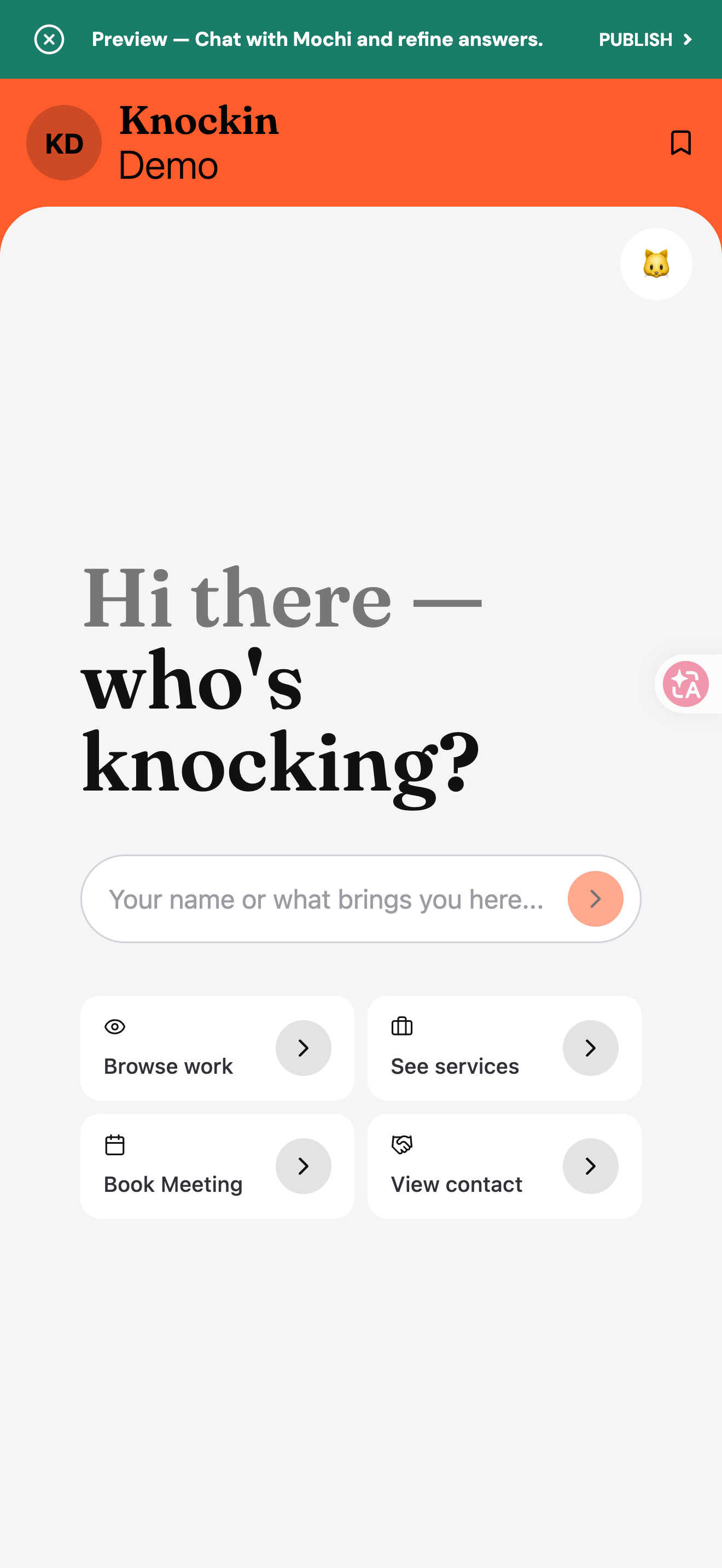
Figure 25 | Test an AI answer
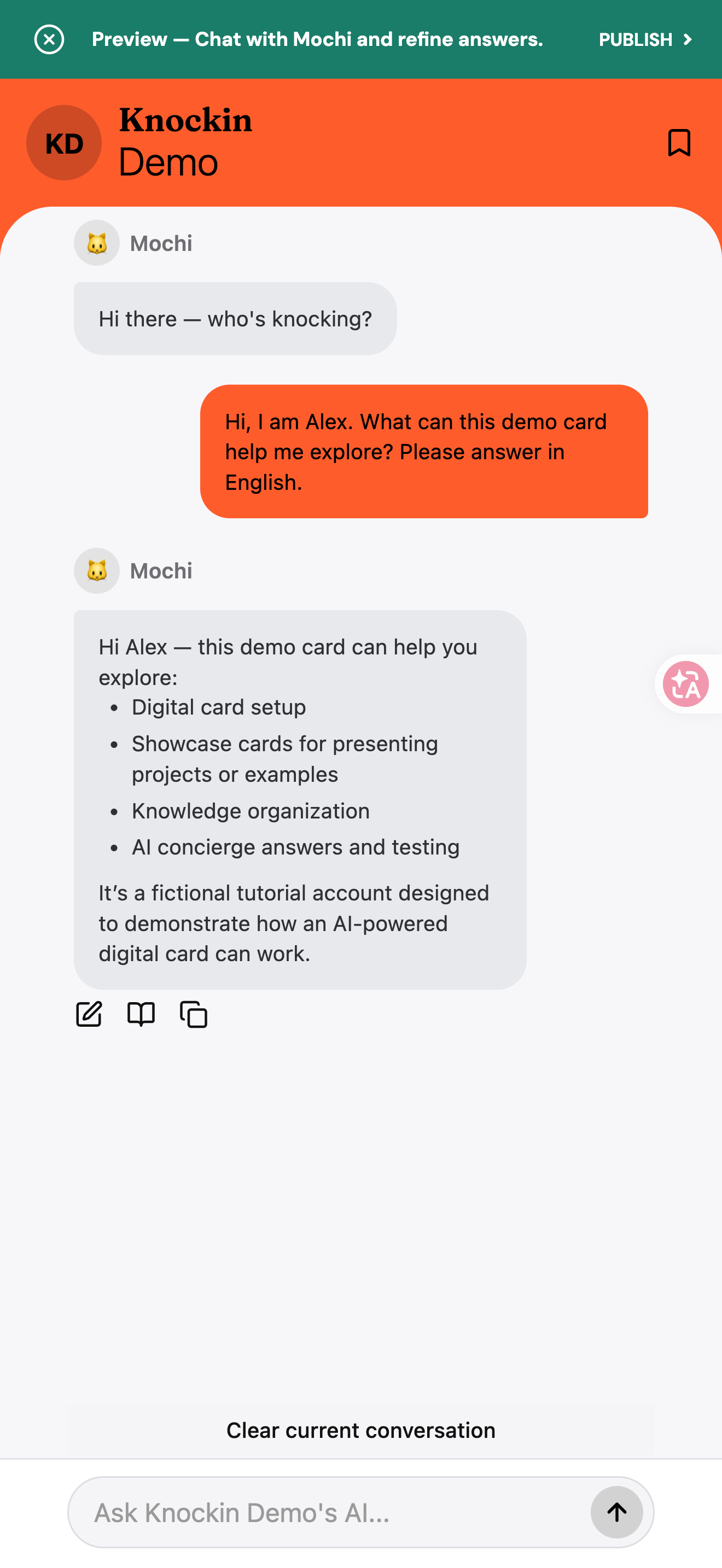
Correct an answer and check its sources
- Select the edit icon below the answer (Edit AI answer).
- Explain the correction under What needs fixing? and select Submit feedback.
- After Updated Knowledge appears, review the regenerated answer.
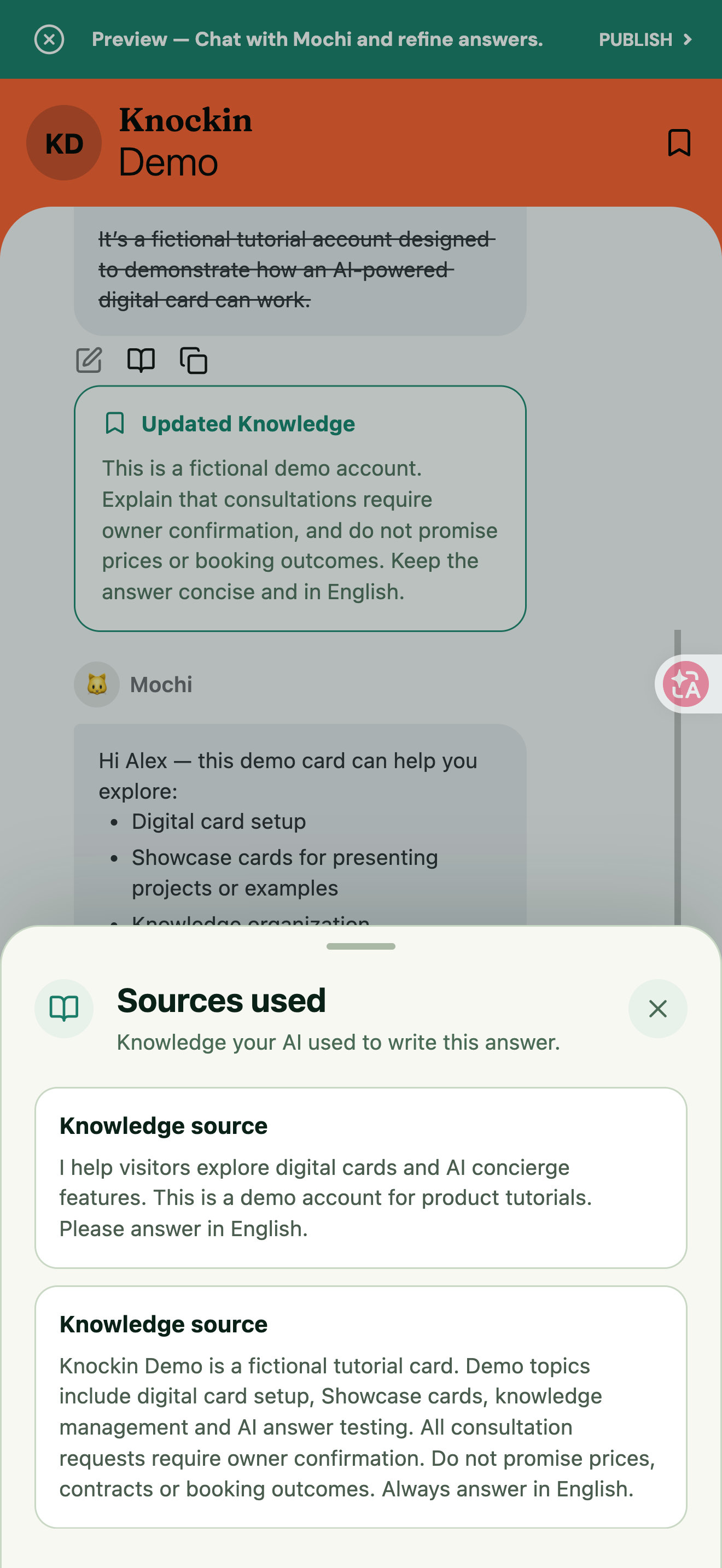
- When a knowledge source icon is available, select it to open Sources used.
Example feedback: Consultations require owner confirmation. Do not promise prices or booking outcomes. Keep the answer concise and in English.
Figure 26 | Enter feedback and submit it
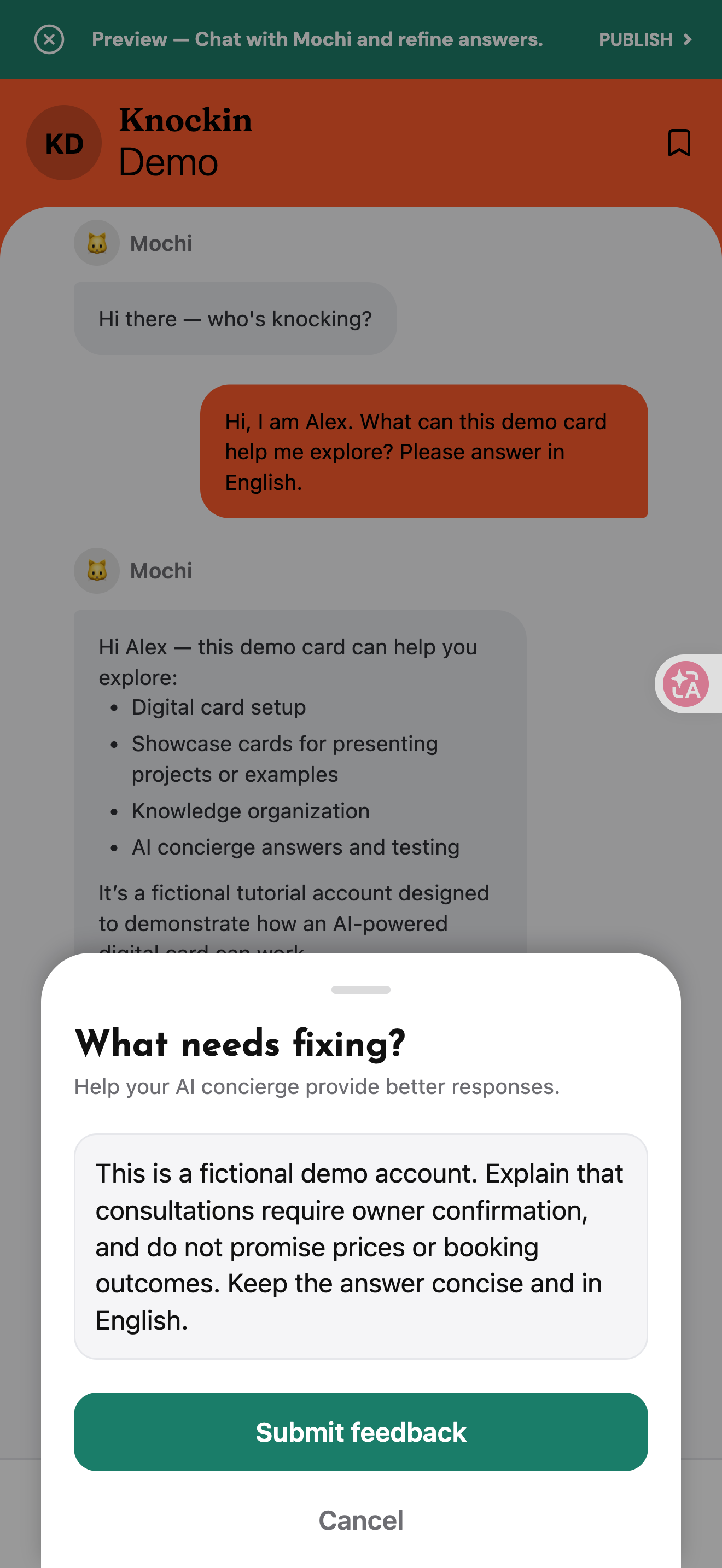
Figure 27 | Updated Knowledge and the corrected answer
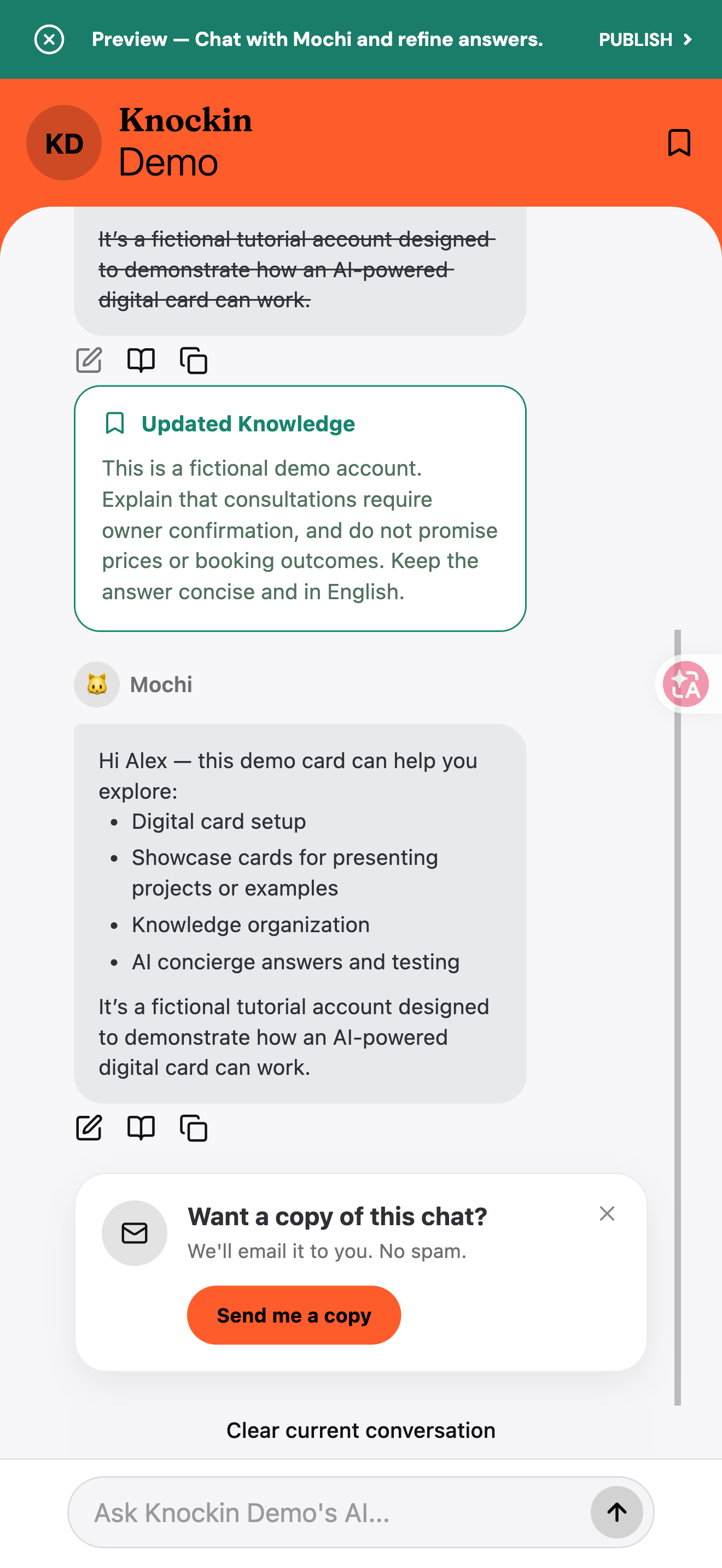
Figure 28 | Sources used for the answer
Test who you are, what you offer, examples of your work, how to contact you, whether a meeting is possible, and what happens when a question is not covered by your knowledge. Check both accuracy and whether the AI makes commitments you did not authorize.
Back to topPublish and share
Publish your card or updated changes
- Check the card details, Showcase, public contact details, and AI answers.
- Select Publish, or Publish card from the preview.
- On your first publication, follow Choose your public URL to choose a suffix, wait for Available, then confirm Publish card. Updating a card that already has a public address usually continues directly to publishing.
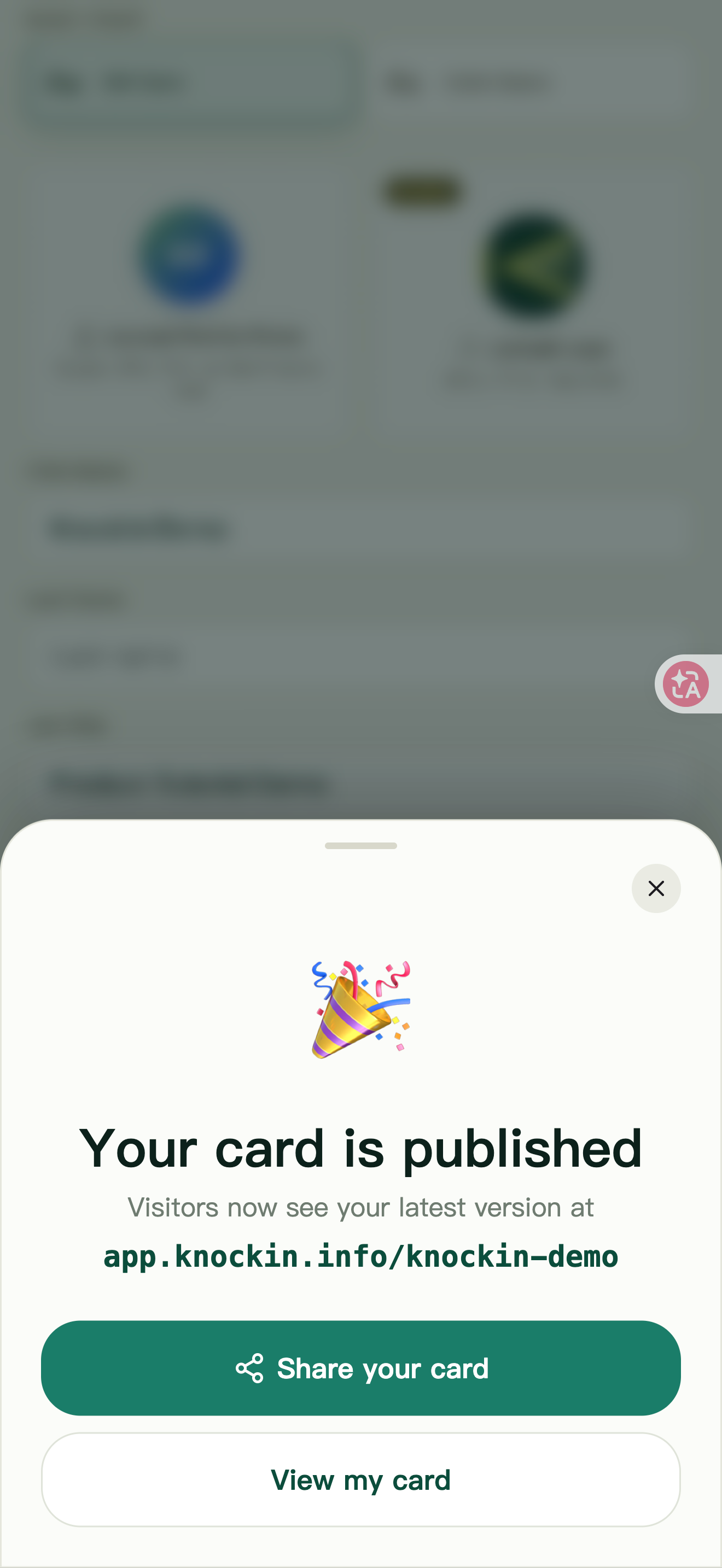
- After Your card is published, use View my card to check the public page.
Saving a draft, seeing changes in preview, and showing the public version to visitors are separate checkpoints. After publishing, reopen the public address to verify it.
Figure 29 | Preview and Publish after editing details
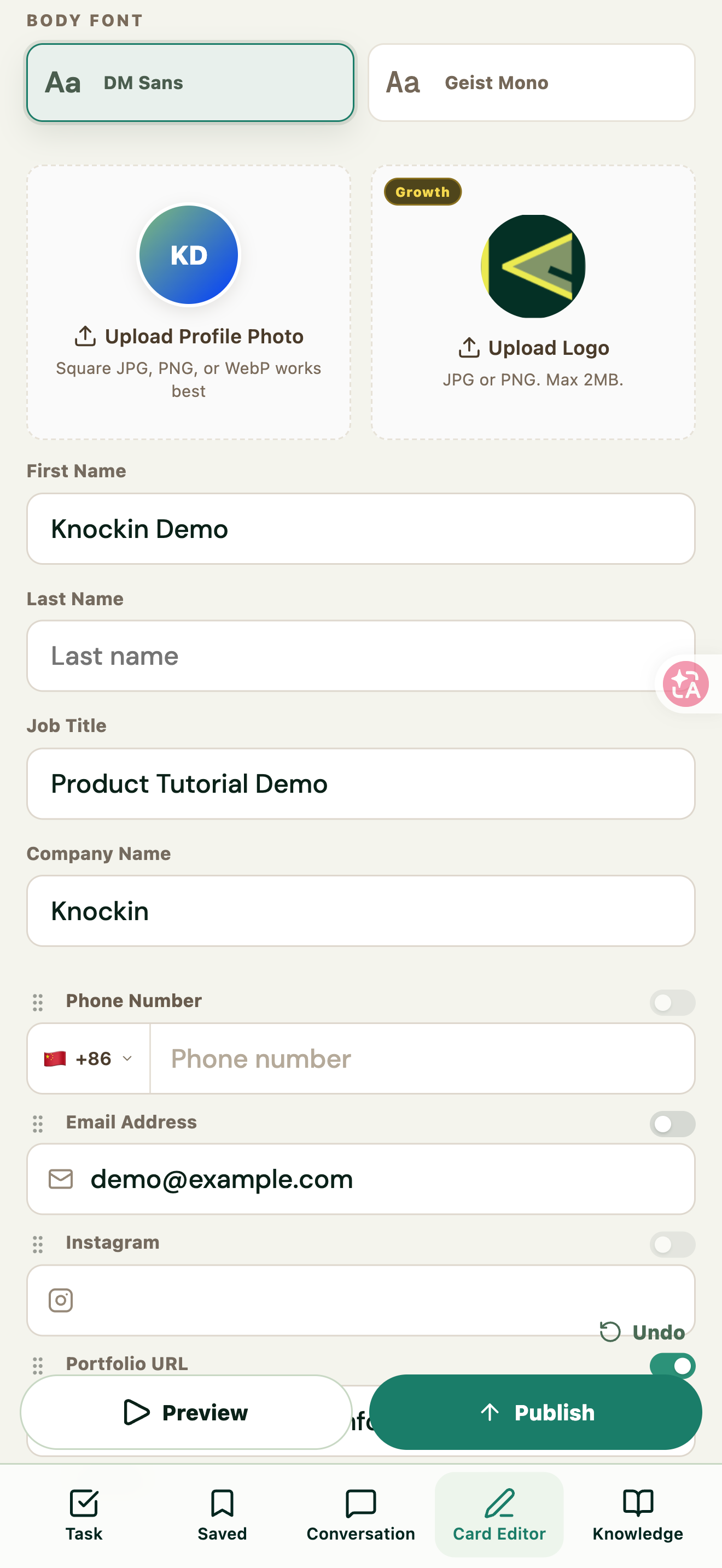
Figure 30 | Publishing confirmation and public URL
Share a QR code
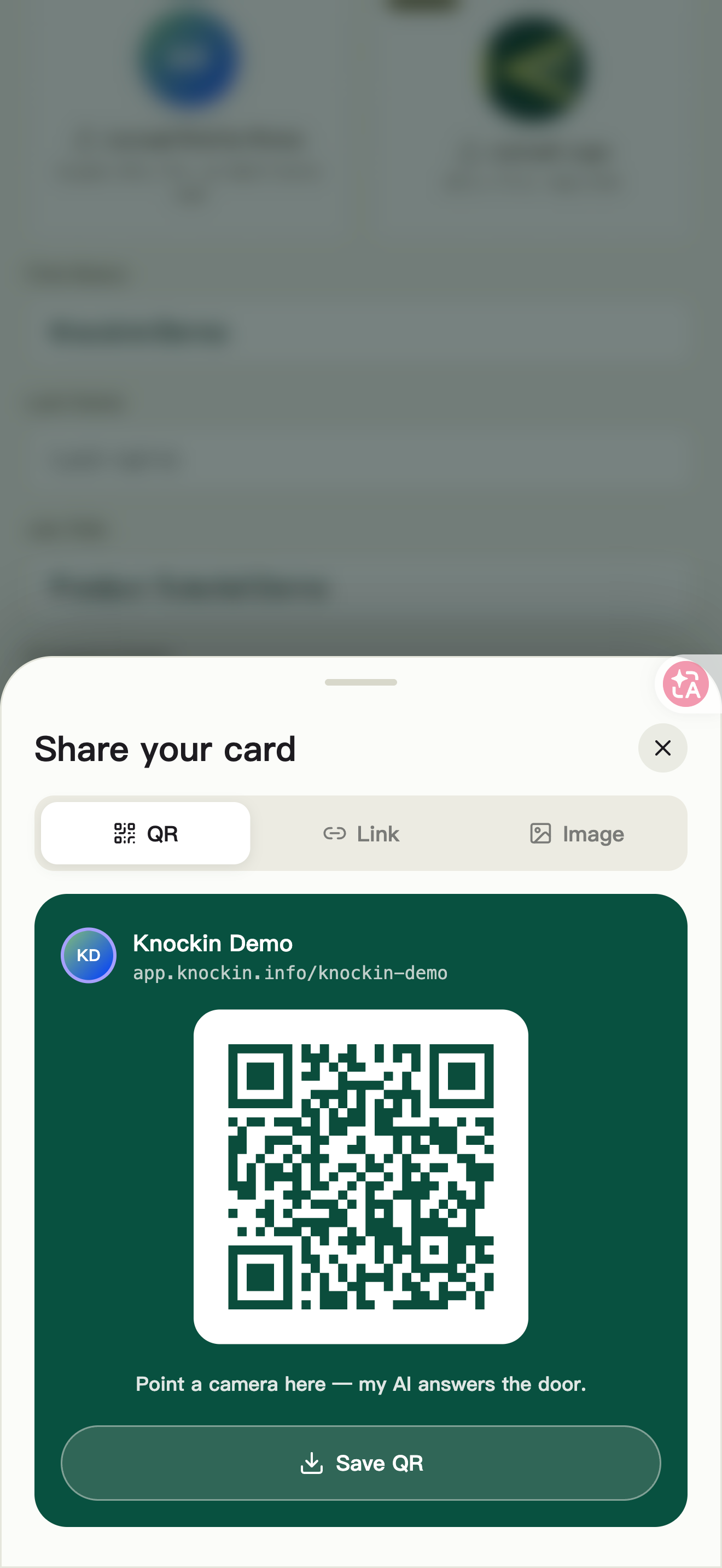
Open Share your card, choose QR, then show the code or use Save QR. This works for face-to-face introductions or event materials.
Figure 31 | QR sharing and Save QR
Share a link
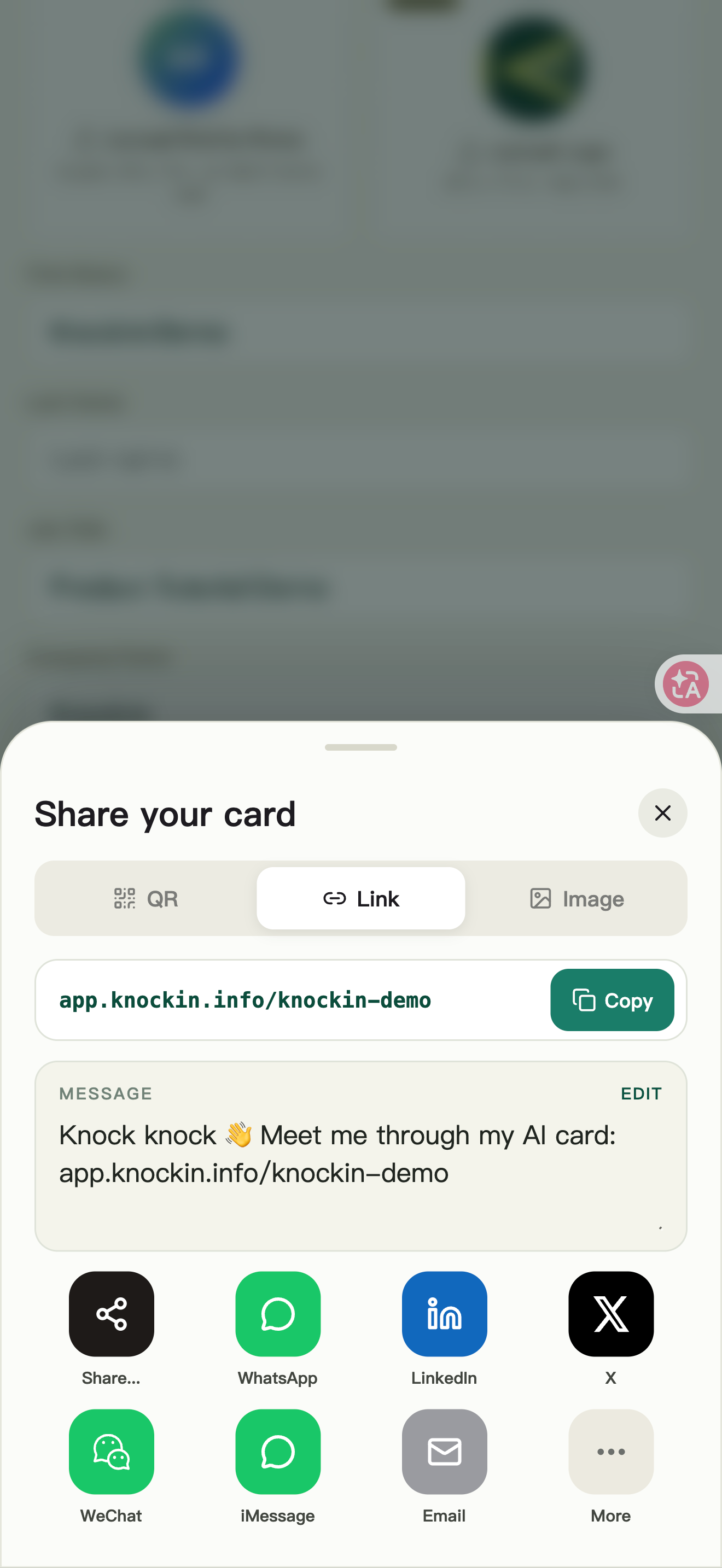
Choose Link and select Copy card link. Edit the sharing message under MESSAGE, then use the available sharing options.
Figure 32 | Copy a link, edit the message, and share
Share a card image
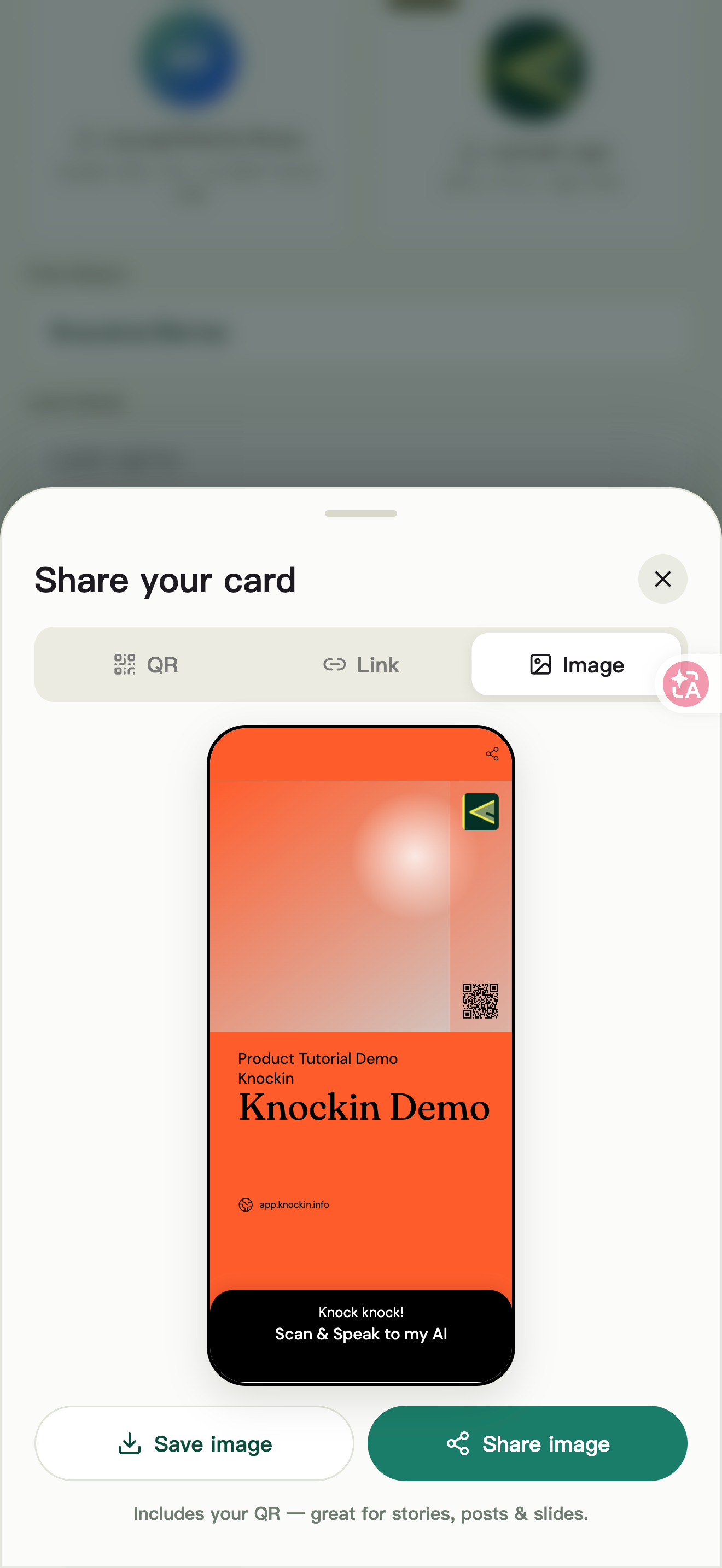
Choose Image, then select Save image or Share image. The page explains that the image includes a QR code and works for social posts, stories, or slides.
Figure 33 | Card image preview, save, and share
Manage conversations, tasks, and contacts
View visitor conversations and your own chats
- Open Conversation from the bottom navigation.
- Guest shows chats between visitors and your card’s AI. Test conversations may be labeled Owner preview / TEST.
- Use the search icon to find conversations by keyword, then open a conversation to read its messages.
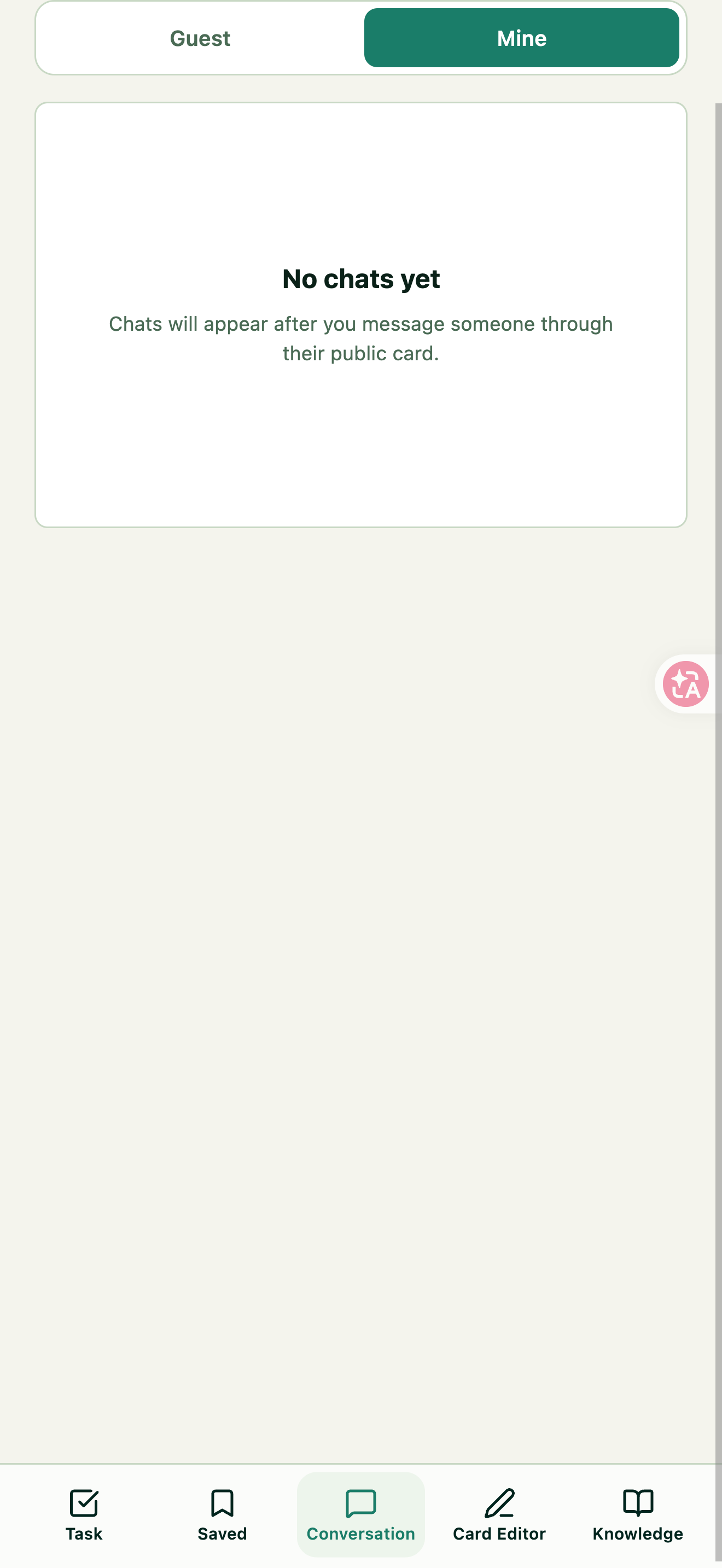
- Mine shows chats you started through other people’s public cards.
The screenshots show demo conversations. Your own account determines which conversations appear.
Figure 34 | Search for a demo conversation in Guest
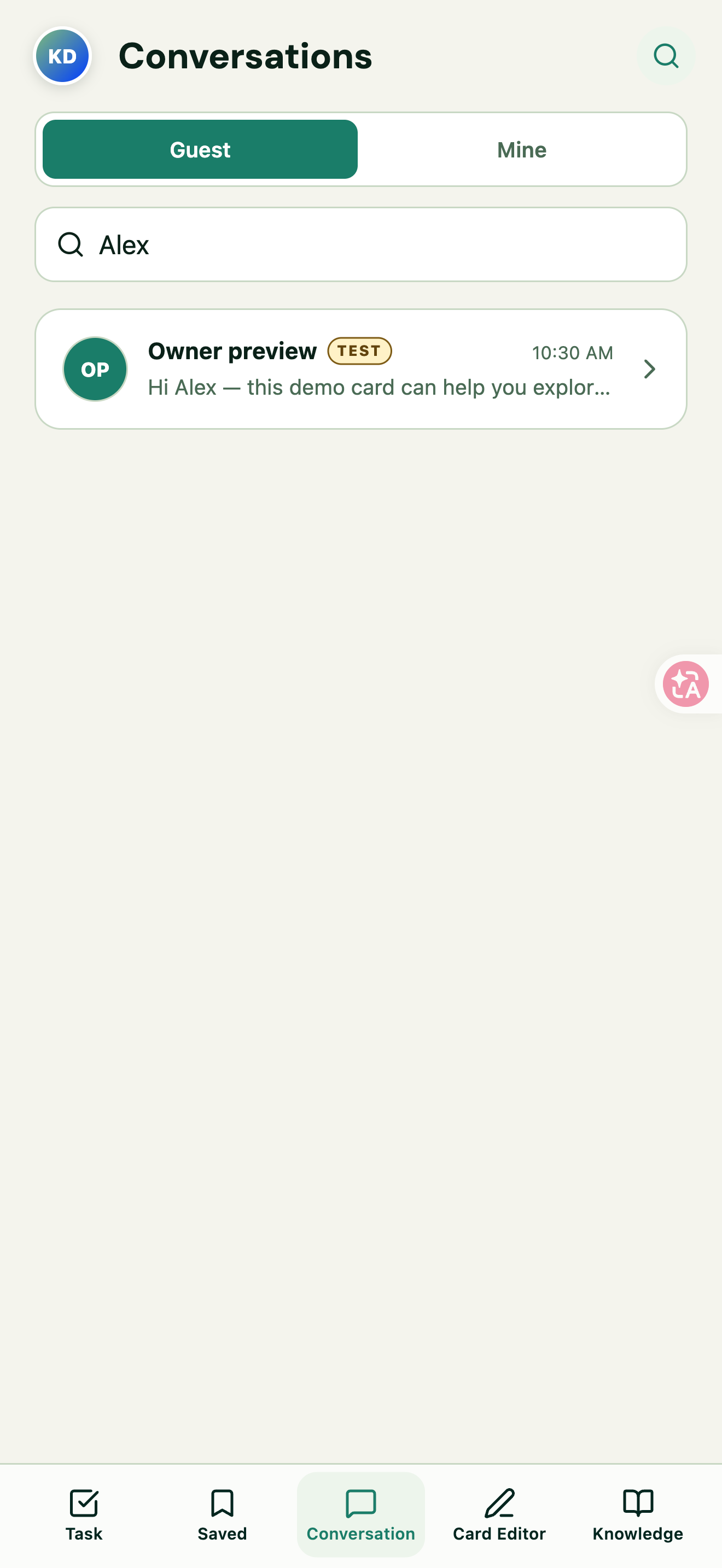
Figure 35 | Open a conversation to read messages
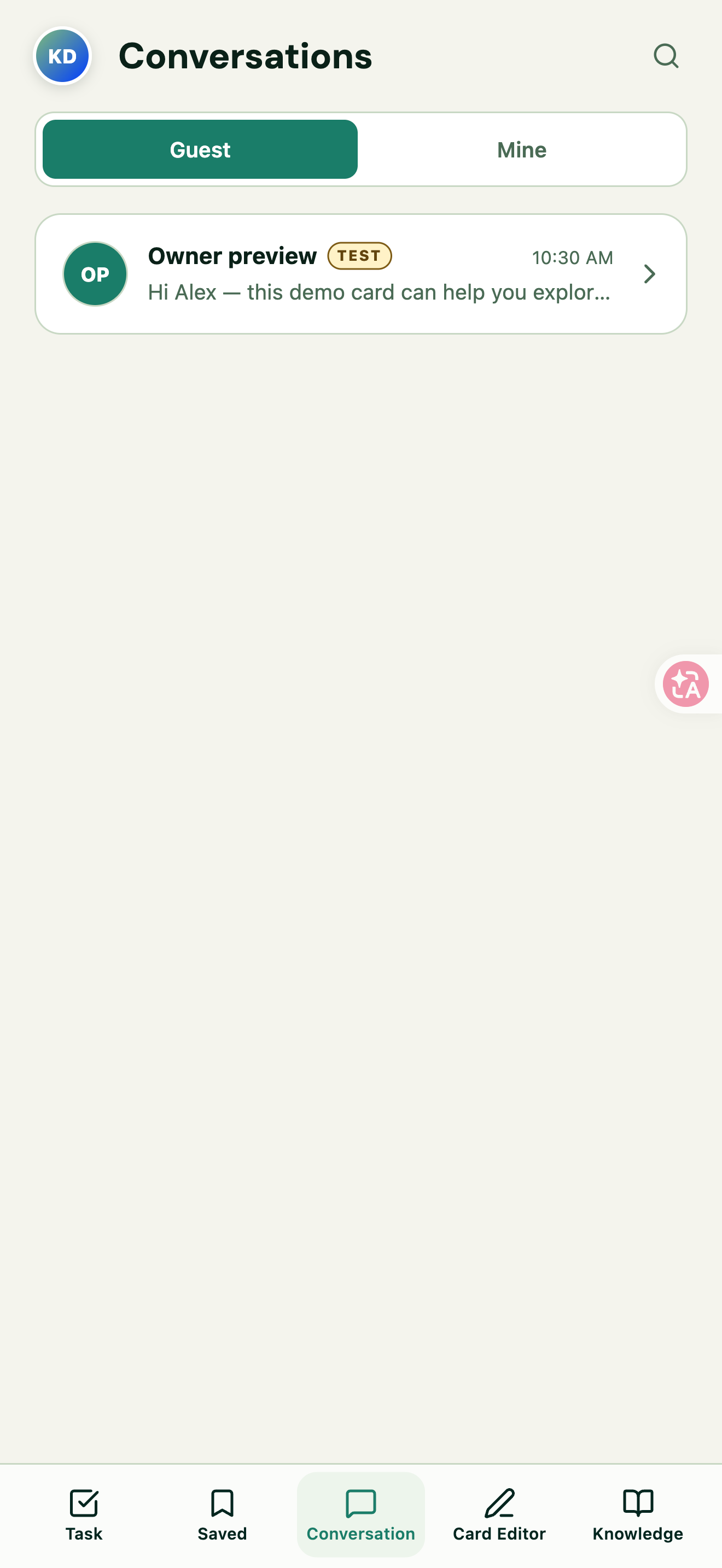
Figure 36 | The Mine conversations entry
View Task
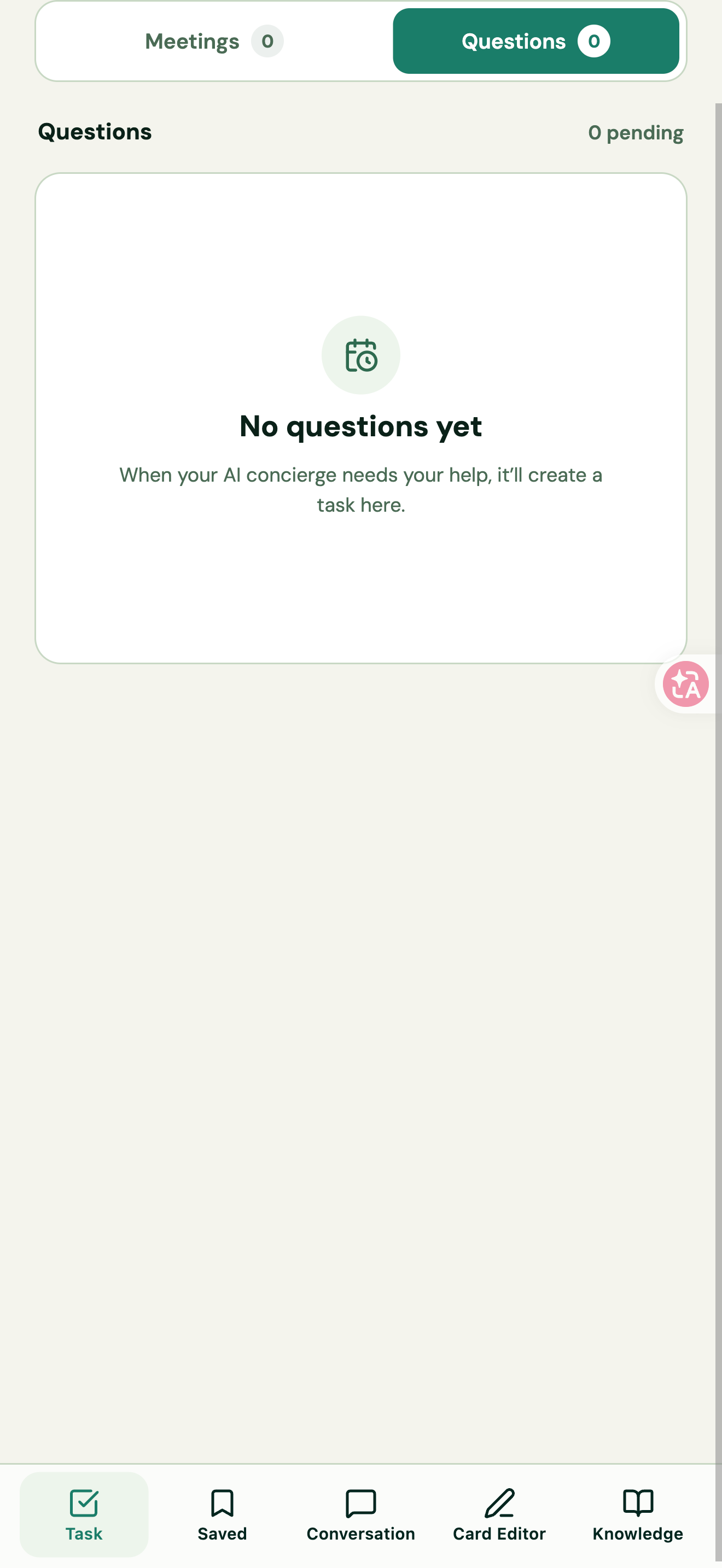
Task has Meetings and Questions. Meetings shows meeting items; Questions shows issues where your AI needs your help. Add information based on the actual task, then check the relevant knowledge and subsequent answers. If there are no pending tasks, the page shows an empty state.
Figure 37 | Meetings and the calendar connection prompt
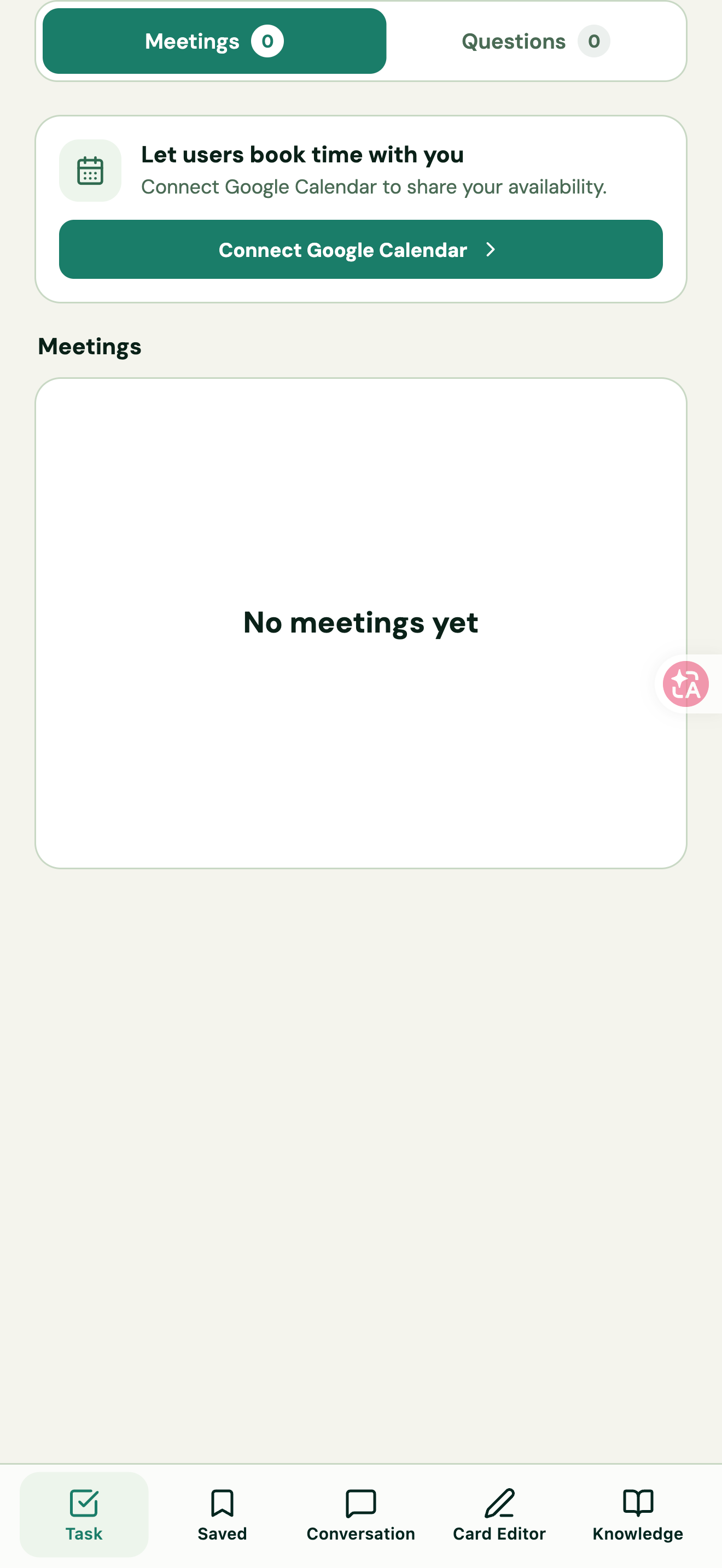
Figure 38 | Questions and pending issues
Connect your calendar
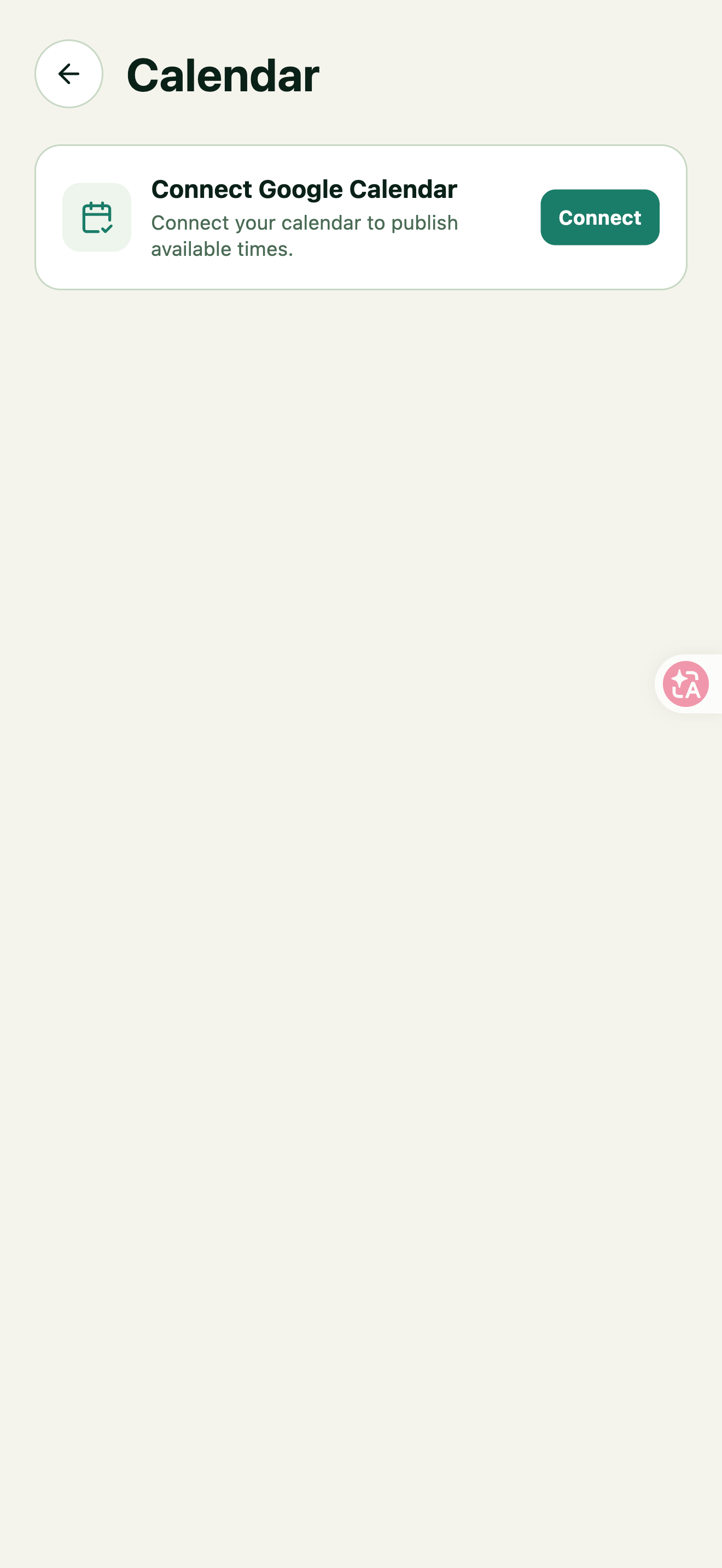
Open Connect Google Calendar from Task, or Calendar from Profile. When disconnected, the interface says “Connect your calendar to publish available times”. Select Connect and follow Google’s authorization flow. Use the current interface to set available times once connected.
Opening the connection entry does not complete authorization or booking. After authorization, check the connection status, available times, and actual meeting details.
Figure 39 | Google Calendar connection entry
Manage contacts and find cards
Open Contacts to manage people you meet, whether or not they use Knockin. Use Search contacts to find someone. Saving a card is one-way: it does not require their approval and does not automatically send your own card.
Three ways to add a contact
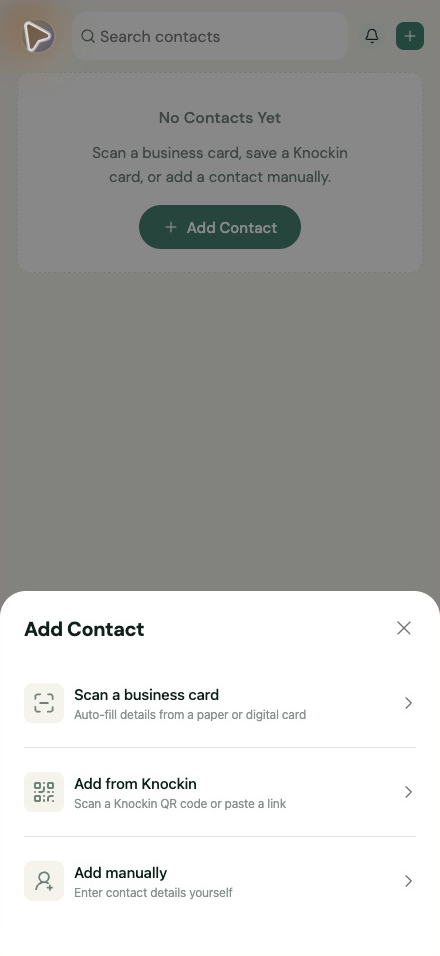
Select Add Contact (the plus button), then choose a source.
Figure 40A | Three ways to add a contact
Scan a business card
- Choose Scan a business card.
- Photograph the paper card on your phone, or provide a card image as prompted. Allow camera access when you want to take a photo.
- Review the recognized name, company, title, phone number, and email. Correct errors, complete required fields, and save.
Always check recognized email addresses and phone numbers before saving.
Add from Knockin
- Choose Add from Knockin.
- Scan a Knockin card’s QR code, or paste the card link using the available option.
- Check whose card opens, then use its save option to add it.
Add manually
- Choose Add manually.
- Fill in Name, Email, Company, and Title as appropriate. Required fields follow the current form.
- Under Where you met, record Date and Occasion if useful. Use Add Phone Number, Location, Add URL, or Add Social Media to add more details.
- Check the details and select Save Contact.
Figure 40B | Contact details and where you met, with fictional sample data
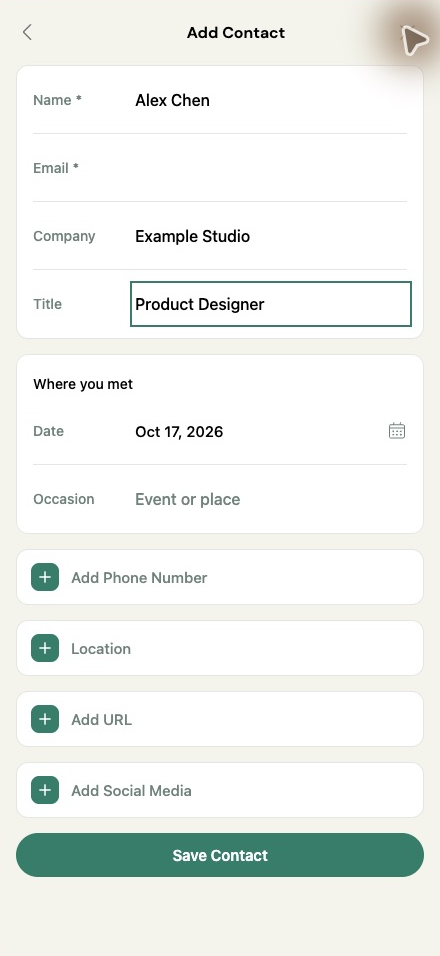
Paper-card scans and manually entered details are stored as local contacts; saving a Knockin card associates the contact with that person’s card on the platform.
Send your own card to a contact
- Find and open the contact in Contacts.
- Use the option to send your own card. Check the recipient and email before confirming.
- After sending, check New Cards → Cards Sent for the invitation status.
- No associated Knockin card: an email invitation recommends joining Knockin. After registering or signing in, the recipient can confirm saving your card. Add an email first if the contact does not have one.
- Already has a Knockin card: the recipient receives a card invitation in their new-friends area and an email notification. Your card enters their contacts only after they confirm saving it.
Sending does not create mutual saves. Your saving their card and their saving yours are separate actions.
Review contact notifications
Open the bell in Contacts to enter New Cards (contact notifications).
- Cards Received shows incoming invitations. Accept or ignore an invitation as appropriate.
- Cards Sent shows invitations you sent and their current status. No records produces an empty state.
- Distinguish an invitation to register, pending confirmation, and a confirmed saved card. Labels follow the current interface; a pending invitation is not a confirmed save.
Figure 40C | Cards Received and Cards Sent in New Cards, shown empty
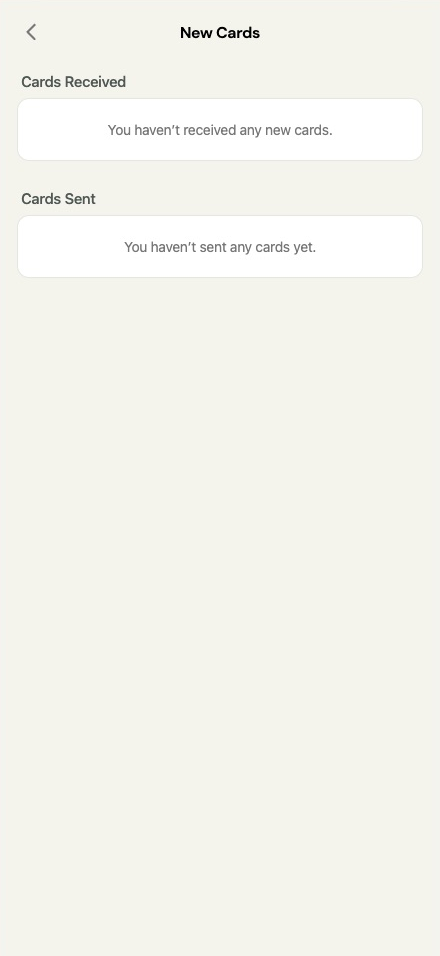
Conversation history remains in Conversation. Card invitations here are separate from Task notifications. Screenshots use the English mobile interface; the form contains fictional sample data, and the notification screenshot shows an empty state.
The invitation screenshots do not demonstrate sending or accepting an invitation; sending rules follow the source guide’s Contacts feature update.
Back to topManage settings and keep your card current
Open Profile and choose an interface language
Select your avatar to open Profile. To change the language, open Language and select your preferred option; this sets the interface and AI task-summary language. Profile also includes your card link, sharing, NFC Cards, Billing & Subscription, Credit Usage, Notifications, and Calendar. The tutorial screenshots use English.
Manage notifications and public visibility
Notifications controls email reminders for new tasks and task updates. Card Status controls public card visibility after publishing; it is unavailable before your card is published. Check the switch states in your own account.
Review credit usage
Open Credit Usage to see credit consumption, AI activity trends, and usage details. Keep your role, services, contact details, and important links up to date. Add questions real visitors often ask, then test the changes and verify the public card.
Back to top