
Business Card QR Codes: How They Work, Design Rules, and Sizing
The complete reference for QR codes on business cards: how they work, static vs dynamic, how to generate one that lasts, and the exact sizing, quiet-zone, and contrast rules for print.
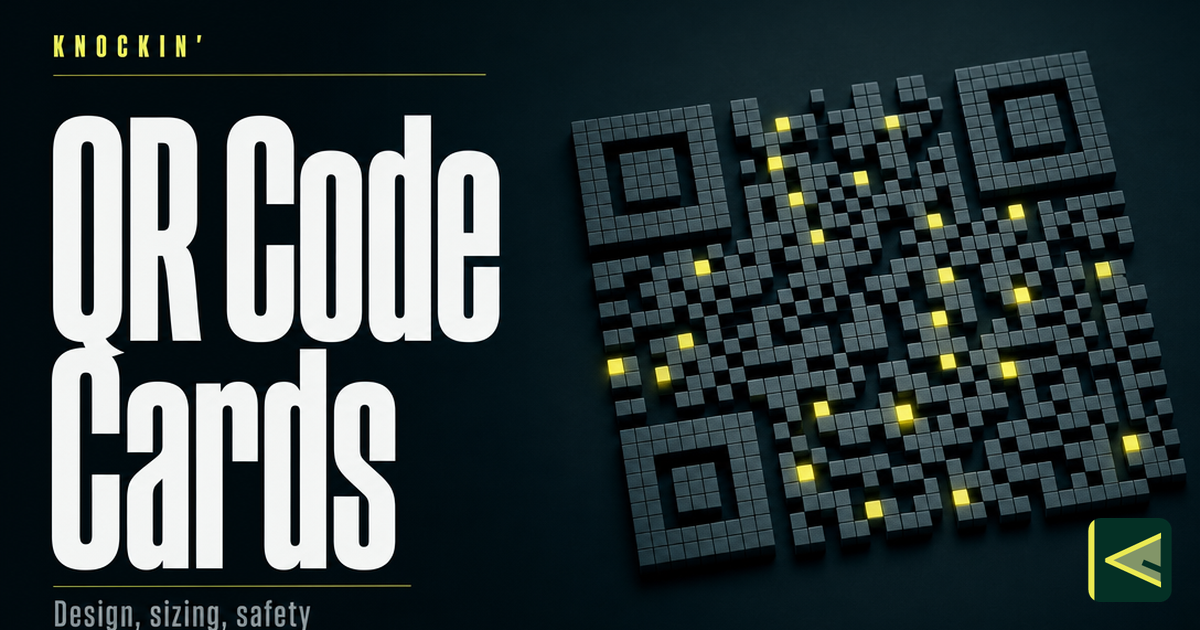
A QR code on a business card is the smallest bridge in networking: a printed square that turns a piece of cardstock into a door. Scan it, and the card stops being a frozen snapshot — it becomes whatever you have decided it should open into today. That property explains why the square has spread from badges to counters to the back of nearly every redesigned business card.
This article is the working reference for that square. It covers how the code carries your details, static vs dynamic (the one choice that matters more than any design decision), how to generate a code that still works in five years, and the sizing, quiet-zone, and contrast rules that decide whether it scans on the first try.
Why QR Codes Became the Business Card Default
Plenty of technologies could connect a paper card to something digital. QR codes won on three counts at once: they cost nothing, they need no hardware, and everyone already knows how to use them.
Cost first. A QR code is free to create — generators have offered them at no charge for years — and printing a square adds nothing to the print bill [Source: https://www.hihello.com/blog/qr-code-business-cards]. Whatever else you change about your card, the code itself is the one component with no unit cost.
Zero hardware, on either side. The reader is a phone camera. iPhones have scanned QR codes straight from the Camera app since iOS 11, and modern Android phones do the same, so recipients don't need to install anything [Source: https://en.wikipedia.org/wiki/QR_code]. The card side is even simpler: a printed pattern requires no chip, no battery, and no pairing.
And then there's habit. QR codes were invented in 1994 by Denso Wave for tracking automotive parts, and had been around for more than two decades before business cards discovered them [Source: https://en.wikipedia.org/wiki/QR_code] [Source: https://www.hihello.com/blog/qr-code-business-cards]. The pandemic finished the training: touch-free menus and payments made scanning second nature. By 2022, an estimated 89 million US smartphone users had scanned a QR code, up 26 percent from two years earlier [Source: https://en.wikipedia.org/wiki/QR_code]. You no longer have to explain the square to anyone — which matters on a card, where you get one gesture of the recipient's attention.
How a Business Card QR Code Actually Works
A QR code is a barcode that grew a second dimension: a grid of small dark and light squares called modules, framed by the three large position markers you can spot from across a room. The markers let a camera find the code at any rotation; the grid carries the message.
Two mechanics matter for business cards.
First, error correction. Every QR code stores redundant data alongside its message, so a scanner can reconstruct the content even when part of the grid is smudged, glare-washed, or covered by a logo. There are four levels — L, M, Q, and H — recovering roughly 7, 15, 25, and 30 percent of the code respectively [Source: https://en.wikipedia.org/wiki/QR_code]. Higher protection means a denser grid, which means bigger modules at the same print size, which means a code that scans from further away. That trade — capacity against tolerance — shows up in every rule in the design section below.
Second, density. More encoded data means more modules. A code holding a short link might be 25 modules across; the same code holding a full contact card with phone, email, and address can easily run 40 or more [Source: https://en.wikipedia.org/wiki/QR_code]. At the same printed size, the short-link code has modules nearly twice as large, and large modules are what cameras read reliably. This is why the single most effective design decision is not visual at all: shorten what you encode.
What you encode is usually one of three things: a URL (the right choice, for reasons the next section makes obvious), a full vCard baked into the grid, or plain text.
Static vs Dynamic QR Codes: The Choice That Matters Most
Every business card QR code is one of two kinds, and the difference decides whether your cards live or die the day your details change — it matters more than color, size, logo, or placement.
A static code has its content encoded directly in the grid. If it holds a vCard, the vCard is the code; if it holds a URL, that exact URL is baked in, character by character — nothing sits between the pattern and the payload. Static codes never expire, never depend on any company staying in business, and cost nothing to maintain — and they are frozen at the moment of printing. Change your number, your title, or your employer, and every static-coded card you have ever handed out now links to the past.
A dynamic code encodes one short redirect URL hosted by a service. Scan it, and the redirect points them wherever you currently want; you can change that destination at any time without touching the printed pattern. The code on the card is permanent; where it leads is a decision you can revisit forever.
Map that onto a card's real lifecycle. Paper cards go stale fast — change your job, email, or company, and the card in your contact's drawer is silently wrong from that day on, which is precisely the shelf-life problem vendors cite when arguing for codes on cards [Source: https://blinq.me/blog/qr-code-on-business-card-good-or-bad]. A static code inherits that shelf life; a dynamic one fixes it: print once, point anywhere. The same vendor logic cuts the other way, too — if you don't keep the destination current, the code "can cause more harm than good" [Source: https://blinq.me/blog/qr-code-on-business-card-good-or-bad].
For business cards, then, the standard is a dynamic code pointing at a live profile page — because the profile can carry more than any vCard and can be updated in seconds. This is the same distinction between the card and the doors into it that we drew in what a digital business card actually is: the printed square is not the card, it's the door.
Two cautions. A dynamic code is only as durable as the redirect service behind it — a generator that shuts down in eighteen months strands every card you printed, so prefer a service whose redirect lives alongside your profile. And verify what you actually generated: paste the code's payload into any URL expander, and if it shows your raw destination URL, you have a static code wearing a dynamic costume.
How to Generate a QR Code for Your Business Card
Generation takes two minutes; doing it in the right order takes discipline. Here is the sequence that survives contact with a print shop.
Build the destination first. The code is a door; decide what it opens before you hang it. Point it at a live profile page rather than a raw vCard — a profile can change, carry links and booking options, and tell you when someone opened it, which is the whole architecture explained in how digital business cards work.
Shorten the link. Use the shortest practical URL — ideally your own short domain or the short link your card platform issues. Fewer characters means fewer modules, which means bigger modules at the same print size, which means better scans. A short, recognizable domain also reassures the person scanning it.
Generate at error-correction level Q or H. Denso Wave's own engineering guidance defaults to level M for industrial use [Source: https://www.qrcode.com/en/howto/code.html], but a business card lives in pockets and bar lighting. Q or H buy room for a small centered logo and tolerance for scuffs, at the cost of density — which is why the short link matters.
Export vector, not just PNG. Ask any printer: you want SVG or EPS so the code renders razor-sharp at any size, plus a 1000-pixel-or-larger PNG for screens and proofs. Enlarging a small raster into print gives you soft edges that cameras reject — print quality directly determines scannability [Source: https://blinq.me/blog/qr-code-on-business-card-good-or-bad].
Test the printed proof, not the screen. Scan the proof with at least two phones — one iPhone, one Android — at arm's length, indoors. If either phone hesitates, fix the size or contrast before the full run.
Five questions sort the good generators from the risky ones. Does it offer dynamic redirects with no expiry date and no scan cap? Does the free tier watermark the code? Can you export vector files? Does it show scan analytics? And does it live inside your card platform, so the code and the profile it points to are managed in one place? That last one is why most people generate their code inside their digital business card tool — the code stops being a loose file and becomes part of the profile's plumbing.
Design and Layout: The Specs That Decide Whether It Scans
This is where printed codes live or die. The numbers below are the working spec — pin them next to your designer's monitor.
Size. Do not print a business card QR code smaller than 1 × 1 inch — about 2.5 × 2.5 centimeters [Source: https://www.flowcode.com/blog/qr-code-size]. That is the floor, not the target: the same data showed codes larger than that minimum earning roughly a 300 percent increase in scan count [Source: https://www.flowcode.com/blog/qr-code-size]. Denso Wave's guidance for industrial printing says the same thing in fewer words — print the symbol as large as the available area allows [Source: https://www.qrcode.com/en/howto/cell.html]. On a standard 3.5 × 2 inch card, a 1-inch code with its quiet zone consumes about two-thirds of the card's height — the honest argument for giving the code the entire back. As a floor for the smallest element, standard handheld scanners read modules down to about 0.25 millimeters, and phone cameras don't deserve more trust than that [Source: https://www.qrcode.com/en/howto/cell.html]. The working rule: scanning distance grows with the code, never the reverse — arm's-length codes can be small; booth posters cannot.
Quiet zone. The quiet zone is the clear margin around the code where nothing may be printed, and the specification is exactly four modules wide on every side [Source: https://www.qrcode.com/en/howto/code.html]. Run the math: a code 25 modules across plus a four-module margin per side is 33 modules of total footprint — the empty border is over a quarter of the space. This is the most commonly violated rule on designed cards. Text nudged against the code, a decorative frame hugging the squares, a background pattern bleeding into the corner markers — each quietly kills scans while looking fine on screen. Keep the margin empty, and give it the full four modules even when the layout is tight.
Contrast and color. Dark modules on a light background, as close to black-on-white as your brand can tolerate. Inverted codes (light squares on a dark field) scan inconsistently, gradients blur the boundary between dark and light modules, and busy background photography is fatal. If brand colors matter, keep the modules genuinely dark and the background genuinely light, and test on real phones before the print run. The same logic governs logos: a centered logo spends error-correction budget, so use level H — which recovers about 30 percent of the code [Source: https://en.wikipedia.org/wiki/QR_code] — keep the logo well under a tenth of the code's area, and test again. Contrast is not a style opinion; it is the machine-readable signal.
Placement. One code per side. Keep it away from the trim edge — cutting tolerance eats margins, and your quiet zone should never depend on the cutter's mood. Prefer matte finishes over gloss: glare under conference lighting is a scan killer that no amount of contrast fixes. And give the code a job title — a short line beside it, such as "Scan to save my details." A code paired with a specific call to action is measurably more likely to be scanned — 14 percent more likely in one vendor's data [Source: https://www.flowcode.com/blog/qr-code-size]. An unexplained square is a puzzle; a labeled one is an invitation.
One Printed Card, One Code, One Living Profile
The strongest setup isn't a printed card or a digital card — it's the two working as one object. Print the paper card once, with one dynamic QR code on it. Point that code at your live profile. Change your details on the profile, never on the print.
The division of labor is clean. The paper card does what paper does best: it survives pockets, feels right at a handshake, and sits on a desk for months as a physical reminder. The profile does what paper never could: it holds everything current, takes updates in seconds, and lets the recipient save your details or drop them into their phone's wallet instead of retyping them. When the profile does the heavy lifting, the printed side can shrink to the essentials — name, one identifier, and the code — which is its own design lesson in what to put on a business card.
Two practical notes: print in smaller batches than your instincts suggest — the profile removes the pressure of bulk — and when someone asks what happens if you change jobs, the answer is the whole point: change the redirect, and every card you've ever handed out opens your current self.
QR vs NFC on a Business Card
QR and NFC are the two in-person sharing methods that matter, and they split the work neatly. A QR code works on any phone with a camera, costs nothing to print, and survives on plain cardstock — its cost is the scan itself: open the camera, aim, wait a beat. An NFC card needs a tap only, which feels instant, but it requires a chip embedded in every card and NFC support on the receiving phone. That's why NFC cards routinely carry a QR fallback for phones that can't tap — the two methods cover each other's gaps [Source: https://blinq.me/blog/qr-code-on-business-card-good-or-bad]. If you're weighing the trade for your own card, the NFC business card comparison walks the hardware side in detail, and the broader field of sharing options is mapped out in how to share a digital business card.
A Word on Safety
One honest paragraph, because it belongs in any complete treatment. A QR code hides its destination from the human eye — you can't read a grid the way you read a URL, and attackers have exploited exactly that: stickered malicious codes over legitimate ones on parking meters and shop windows, a technique common enough to have earned its own names, from "attagging" to "quishing" [Source: https://en.wikipedia.org/wiki/QR_code]. When you scan an unfamiliar code, read the URL preview your phone shows before you open it, treat stickered-over codes with suspicion, and never enter payment details after an unexpected scan. When you print your own, you're on the other side of the trust problem: a clean, well-sized, clearly labeled code that opens a professional profile does the reassuring for you.
Conclusion
A QR code is the cheapest, most durable bridge between a printed card and everything digital about you — no hardware, no cost, and a scanning habit the whole world already has. Get the one structural choice right (dynamic, pointing at a live profile), respect the print specs (at least an inch square, a full four-module quiet zone, dark on light, one clear call to action), and the cards you print this year will still open your current self a decade from now.
If you want the destination behind your code to do more than list you — to greet the person who scans it, answer their questions in your voice, and book the meeting while you're still walking away — that's what Knockin is. Every Knockin profile comes ready to share by QR, and you can start for free, no credit card required, at knockin.info.
Related Posts
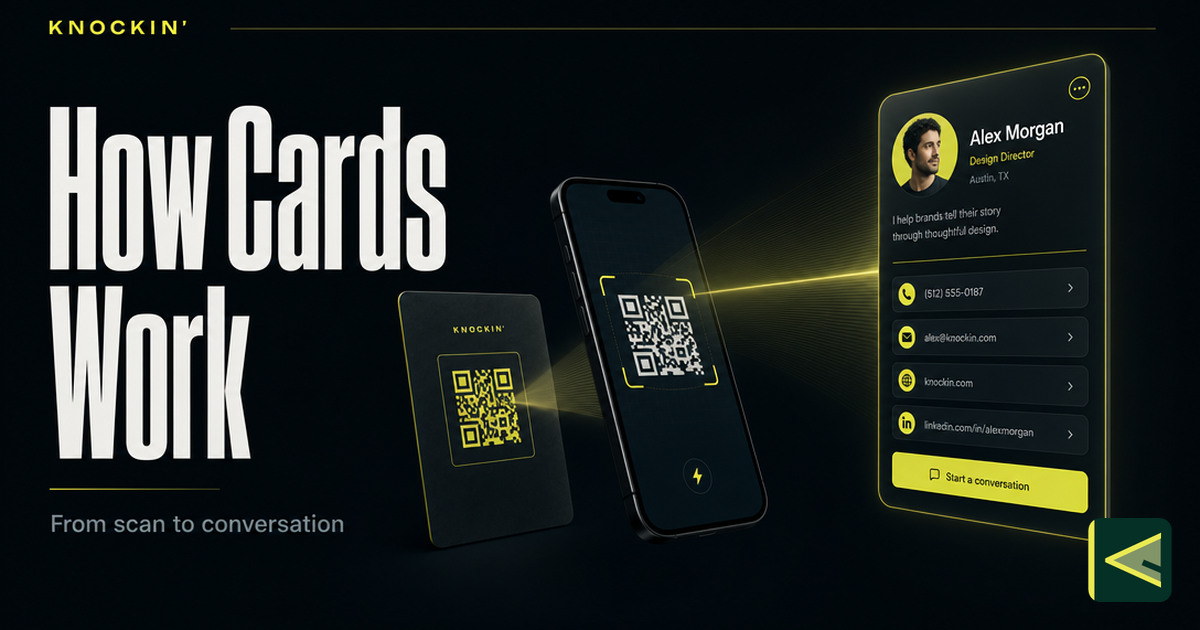
How Do Digital Business Cards Work? What Actually Happens When Someone Scans
A digital business card is one URL opening a hosted page, and every QR, tap, or link just delivers it. Here is the full mechanism, from…
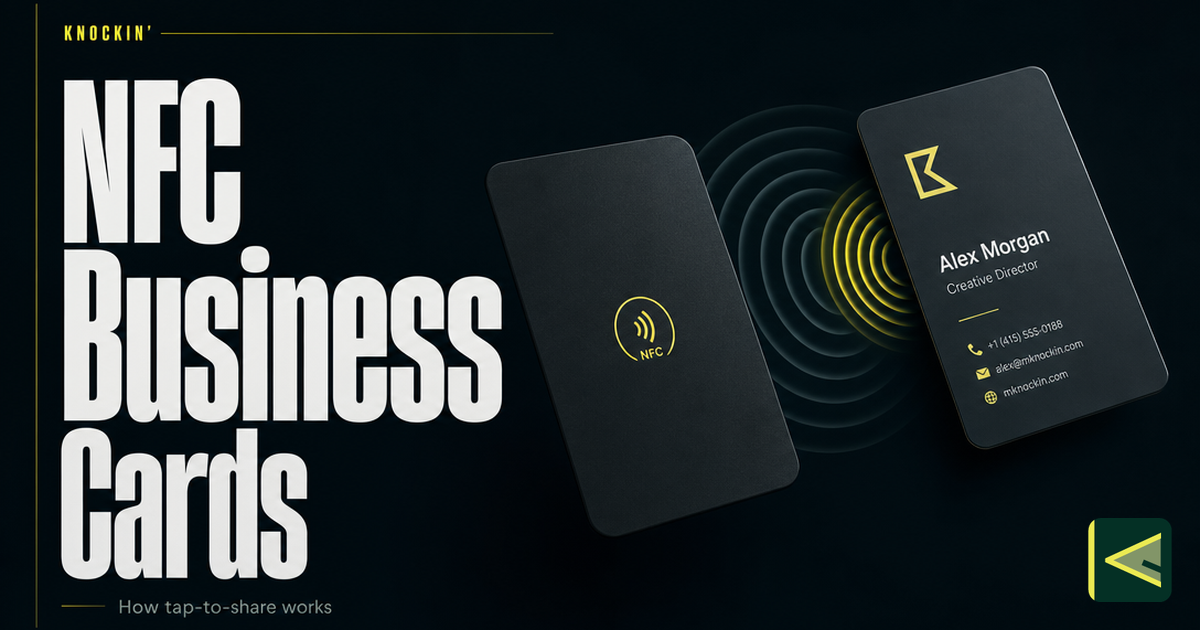
What Is an NFC Business Card? How Tap-to-Share Works
An NFC business card is a chipped card that opens your live profile when tapped on a phone. Here is how the technology actually works,…
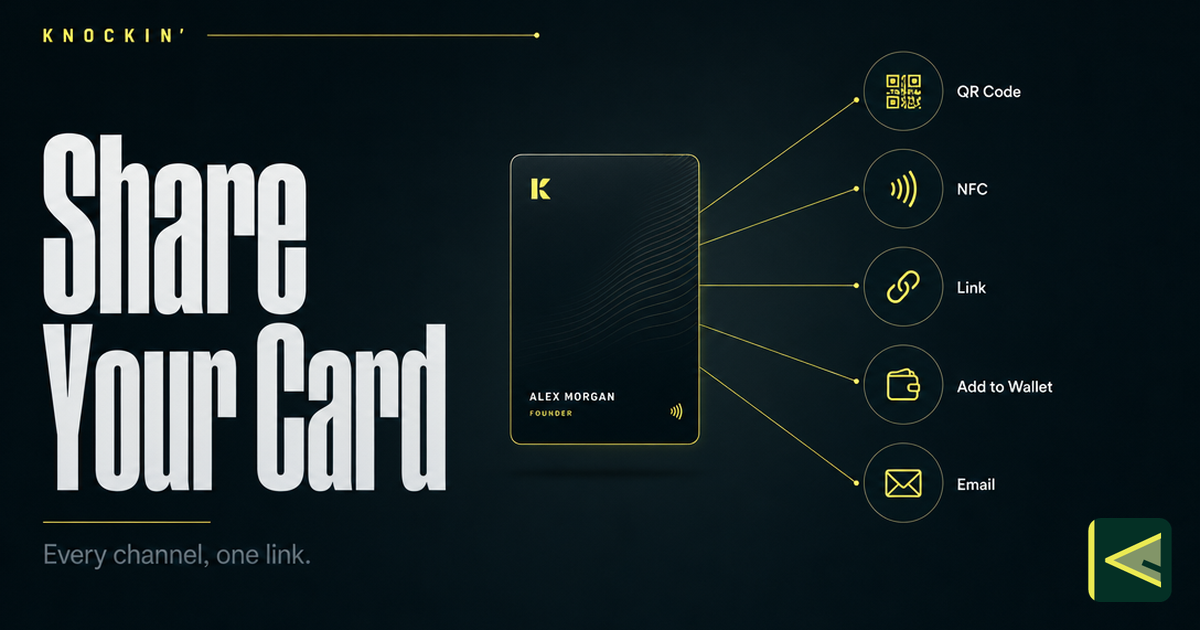
How to Share a Digital Business Card: Every Way to Connect
Seven ways to share a digital business card — QR code, NFC tap, plain link, phone wallet, email signature, website widget, and social bio —…
Frequently Asked Questions
What size should a QR code be on a business card?
Should my business card QR code be static or dynamic?
How do I make sure my QR code actually scans?
Is it safe to scan a QR code on a business card?
Your bio can finally answer back
Turn what you already know into an intelligent bio card that answers when you're not there.
Build, refine, and share in minutes — no credit card required.
https://knockin.info/blog/digital-business-card-qr-code