
How to Set Up Your Knockin AI Email Address
Prepare profile knowledge, copy your dedicated email address, and test visitor replies, collaboration tasks, and a personal handoff before sharing it publicly.
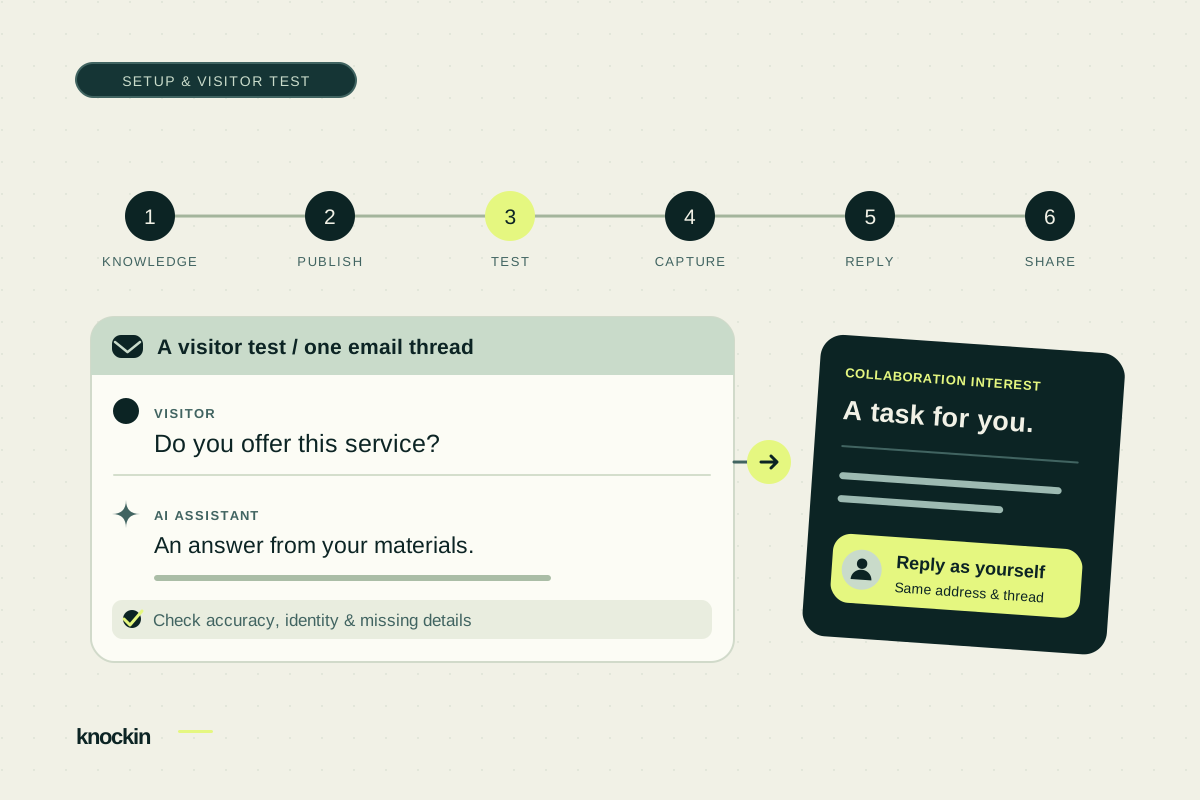
Setting up your Knockin AI email address means preparing the information your assistant can use, then testing an incoming message and a personal reply. You do not need to connect Gmail or Outlook or configure a separate email account.
By the end, you will have a public profile address and a checked workflow: a visitor writes, the assistant answers, collaboration interest becomes a task, and you reply personally.
1. Prepare information your assistant can share
Add your introduction, service scope, project experience, and work links to your profile. Expand the knowledge base with answers to common questions.
Use this starter template, replacing the brackets with accurate information. Leave out anything you do not want used in external answers.
Who I am: [Name, profession, and people I serve]
What I offer: [Specific services and scope]
Relevant experience: [Project context, my contribution, public work links]
How to begin: [Information I want a prospective collaborator to provide]
Confirm with me: [Pricing, availability, contracts, and delivery arrangements]
Do not fill gaps with unconfirmed pricing, availability, or promises. Your test should check that the assistant uses available information and acknowledges missing details.
If you have not built a profile, start with the first-profile preparation guide.
2. Publish the profile and copy its address
After publishing, open Inbox and select Email in the left navigation. The profile address appears at the bottom of the page, with a copy control.
The format is {your-profile-slug}@knockin.info. It stays fixed after publication. Before sharing, check that the address belongs to the profile you intend to use.
Reserved profile names such as admin, support, and info do not receive an email address. If the address is absent, check publication status and whether the slug is reserved.
3. Send a test message as a visitor
Ask another contact to write, or use an account that is not identified as the profile owner. Mail from the owner does not trigger the normal assistant reception workflow and cannot verify the visitor experience.
Adapt this test message to information in your profile:
Subject: A question about your services

Hello, I would like to know whether you offer [service].
Do you have any [relevant projects or work examples] I could look at?
When the reply arrives, check:
- The sender name clearly identifies your AI assistant.
- The answer matches your materials and points to appropriate work or information.
- The reply stays in the original thread and includes your profile link and an AI disclosure.
- The reply text follows the incoming language; fixed signature and disclosure templates are currently in English.
Next, ask something your materials do not answer, such as availability you have not provided. Check that the assistant avoids committing on your behalf. If necessary background is missing, update the knowledge materials and test again.
4. Test collaboration-interest capture
Reply from the visitor account in the same thread with an explicit meeting or collaboration request. For example:
I have a related project and would like to discuss working together.
The background is [brief introduction]. You can contact me on this thread.
Open that visitor's thread in Inbox and check for a task card. Verify the intent, contact information, and conversation context.
The check is whether someone seeking further discussion was recorded. You still confirm timing and collaboration arrangements; a task is not a booked meeting.
5. Continue once in your own name
Click Reply on the task card, or use the reply box in the visitor's thread. Your message is sent in your name from the profile address.
Check the visitor's mailbox again. The reply should remain in the same thread, display your name, and still come from the profile address.
For a high-intent prospect, you can also choose to reach out from your own email account after reviewing the context. Replying in Knockin keeps your private address private; outreach from your own account is your separate personal action.
6. Add the tested address to a public contact point
Choose a place you actively maintain: a portfolio contact section, a service page, a resume, or an email signature. Adapt this contact line:
For business inquiries, email [your profile address]. My AI assistant answers initial questions and records collaboration interest. I review contacts that need personal follow-up.
After sharing, keep reviewing conversations and tasks in Inbox. Let the assistant receive public inquiries, then join discussions worth pursuing.
If a test receives no reply
| Situation | What to check |
|---|---|
| No address appears on the profile | Check publication and reserved-slug status. |
| The owner sent the test | Use a visitor identity; owner mail receives a separate explanation rather than a normal assistant answer. |
| The test was a code, notification, or bulk message | Send a genuine personal inquiry instead; automated messages are not reception tests. |
| Many tests were sent in a short time | The limits are five messages per visitor to a profile per hour and 50 per profile per day; excess messages receive no reply. |
| An ordinary inquiry still has no answer | Check the recipient address and sender authentication. Check the visitor's spam folder, then use the available support channel rather than sending repeated tests. |
Verification codes and registration confirmations are not retained for retrieval, so the address cannot be used to register for other services. Conversations are handled as text; the email interface does not support attachments, stars, or archiving.
For the reasoning behind a separate public address, read dedicated AI email versus your existing inbox. See the Knockin AI email introduction for the reception and follow-up workflow.
Related Posts
An AI Email Address That Gives You Time for the Right People
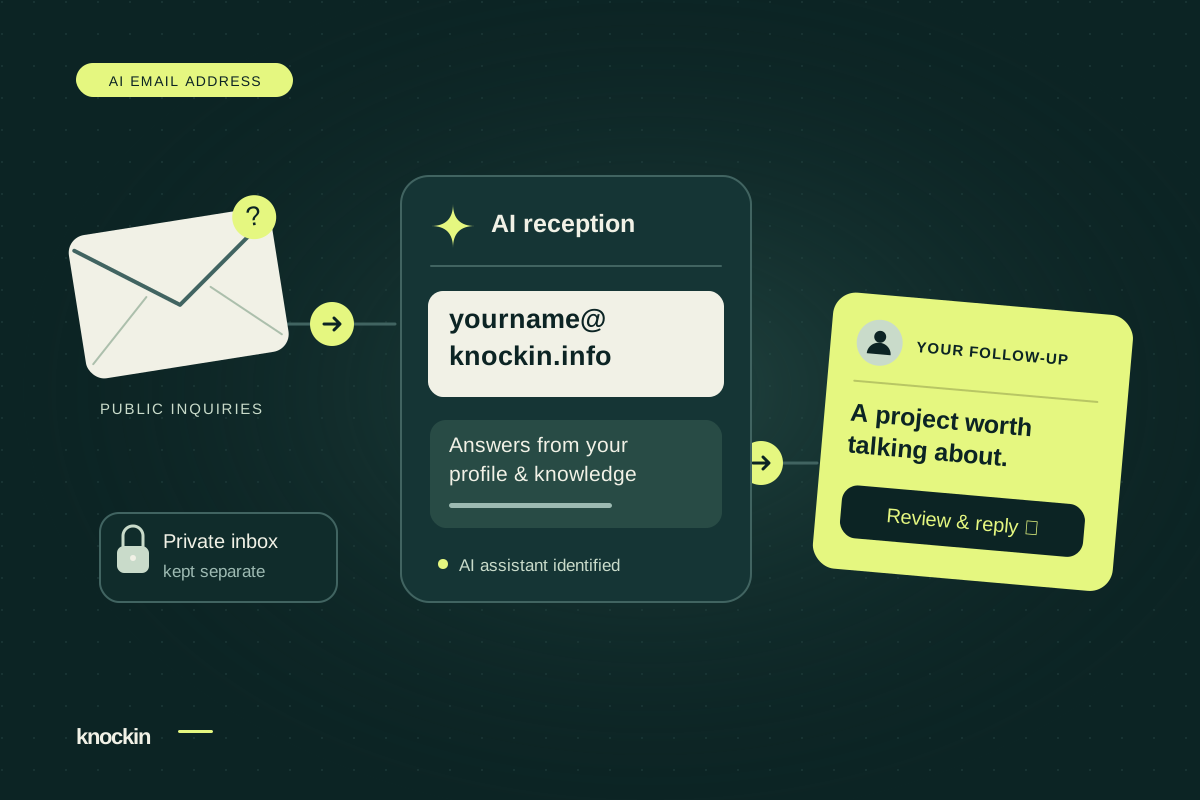
Your Knockin AI email address handles public inquiries and records collaboration interest. Keep your inbox private and follow up personally…
Before Connecting an AI Email Assistant, Check the Permissions
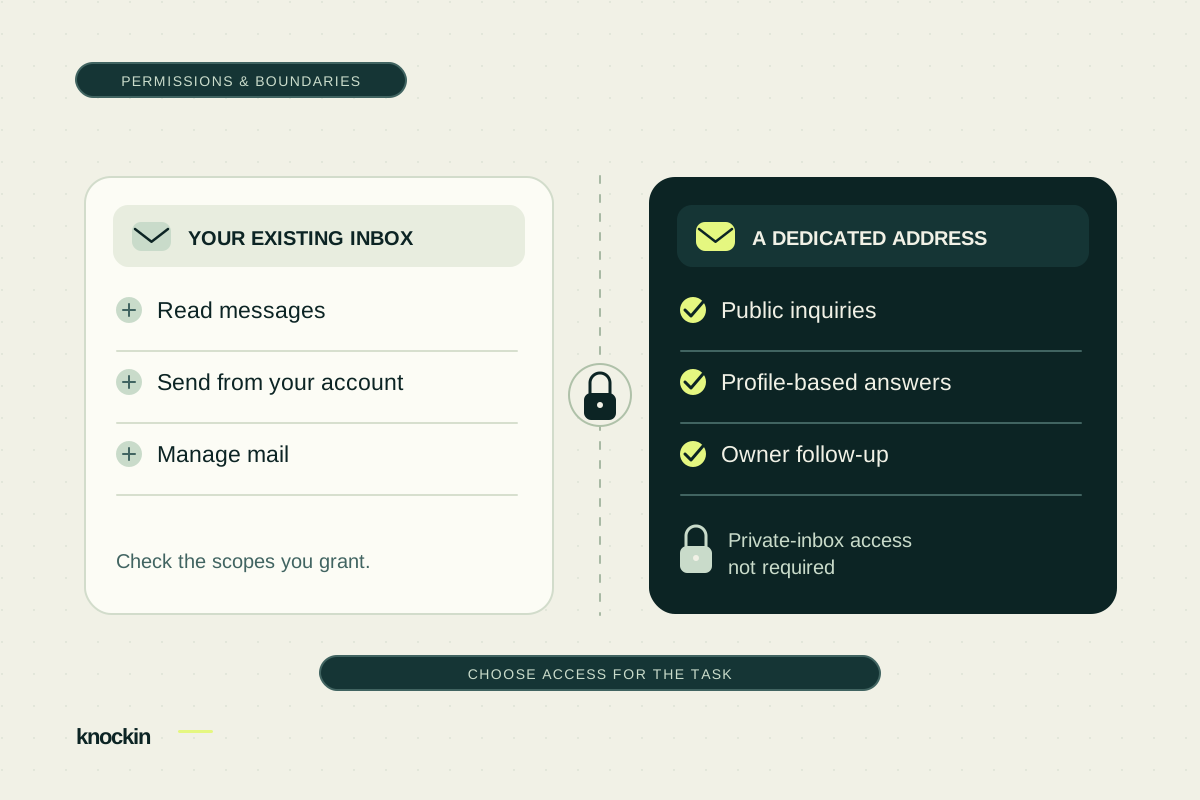
Understand the reading and sending permissions an AI email assistant may request. Compare private-inbox access with a dedicated address for…
AI Email Products Compared: Choose for the Work You Need Done
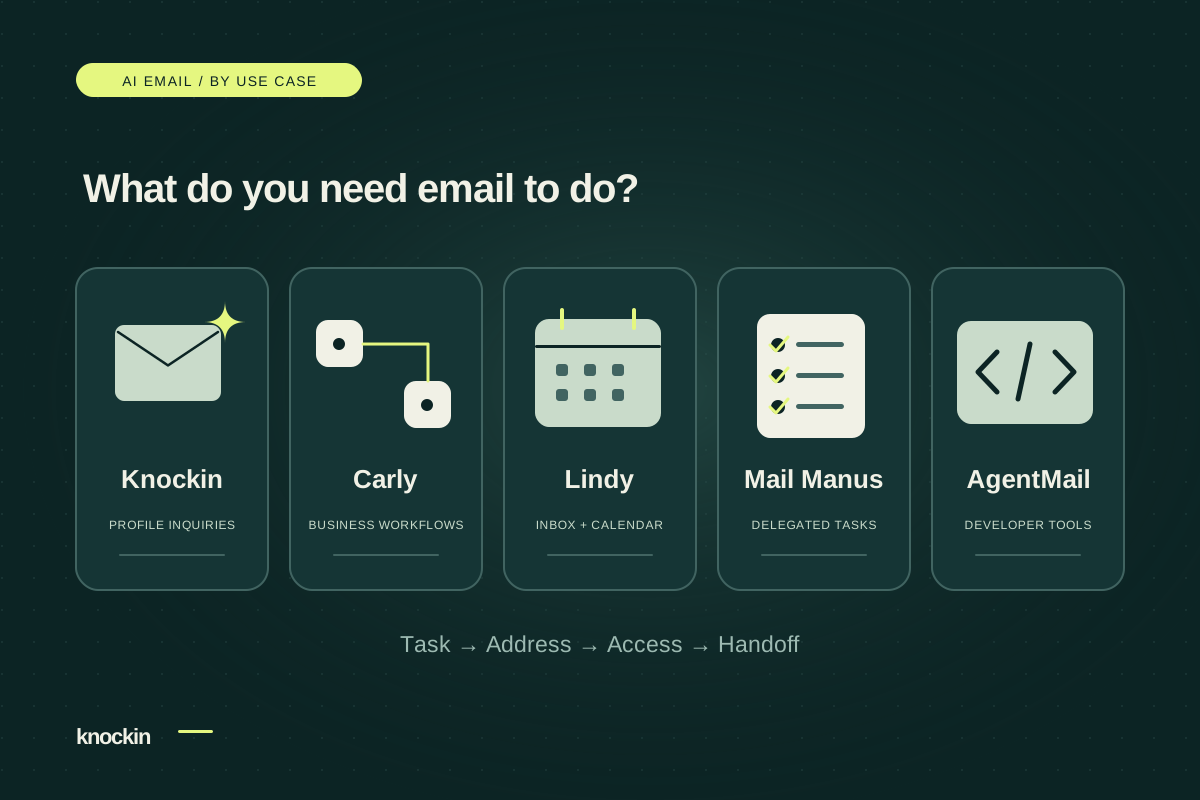
Compare Knockin, Carly, Lindy, Mail Manus, and AgentMail by task, address model, and handoff. Choose for public inquiries, inbox work, or…
Your bio can finally answer back
Turn what you already know into an intelligent bio card that answers when you're not there.
Build, refine, and share in minutes — no credit card required.
https://knockin.info/blog/set-up-knockin-ai-email-address