
How to Turn Your Resume Into a Knockin AI Profile
Build a shareable AI profile from your resume and project background. Prepare your material, test the answers, and publish a Knockin link that helps people learn about your work.
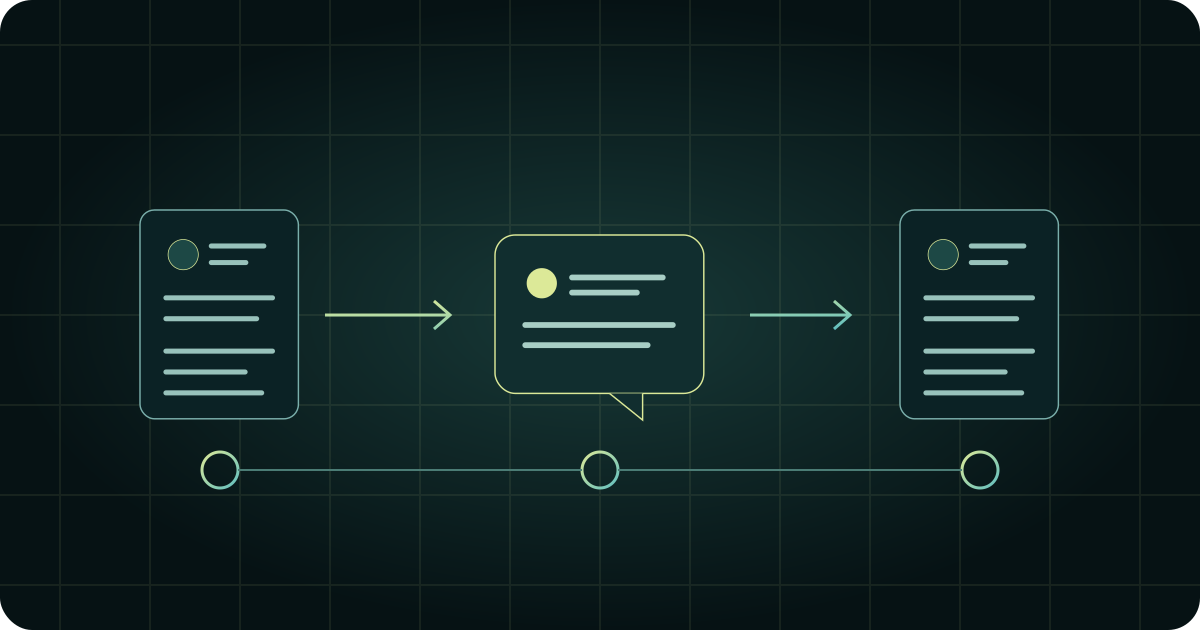
Start with the resume you already have. Add the project background you would normally explain in person, then turn that material into a profile someone can browse and ask questions about.
This guide walks through that setup in Knockin. If you are still deciding whether the format would help, read why pair your resume with an interactive profile first.
1. Prepare a public version of your background
Before opening the editor, gather three things:
- A current resume with accurate dates, titles, and responsibilities.
- Two or three projects you are comfortable discussing publicly.
- A short statement of the work or opportunities you want to explore.
For each project, write down the problem, your contribution, relevant constraints, and the result you can substantiate. Separate your own work from the team's work. If a result is qualitative, describe it honestly rather than inventing a number.
Remove details you do not want visitors to learn, including confidential client information and private contact details. Check linked documents as well as the resume itself.
2. Build the introduction people will see first
Open Knockin and go to Card Editor. Add your name, professional title, introduction, and the contact information you want to share. Choose a readable layout and preview it on a small screen.
Your opening line should help the right person recognize relevance. For example, “Product designer focused on onboarding for small business software” tells a reader more than “Passionate professional seeking opportunities.” Use your real specialty, not the example's wording.
Add selected case studies or portfolio links through Showcase. Give each a title that explains what the reader will find. A few relevant examples are easier to evaluate than a long, unexplained list.
3. Give the AI the background behind the page
Open Knowledge and add the professional information you want the concierge to use. You can enter text directly or use the supported file-upload flow. The current guide lists PDF and DOCX among the supported document formats; processing a file and publishing a useful profile are separate steps.
Wait until the material is ready, then review what was extracted. Correct missing context and ambiguous claims. A resume bullet such as “Led launch” may need an explanation of what you owned, who else contributed, and which outcome is attributable to your work.
Keep facts in Knowledge. Use personality settings to shape the tone and handling of the conversation. For example, ask for concise professional answers and for unanswered availability questions to be referred to you rather than guessed.
4. Test the questions a visitor is likely to ask
In the editor, open Preview or Preview & Test, then Speak to my AI. Try questions tied to your actual material:
| Test question | What to check |
|---|---|
| What kinds of work does this person do? | The answer reflects your current focus. |
| What did they personally do on this project? | It distinguishes your role from the team's. |
| Where can I see a relevant example? | The link opens the intended public work. |
| Are they available next month? | It avoids a commitment you have not supplied. |
| Have they used a tool absent from the material? | It does not invent experience. |
Use the answer-correction flow when a response is wrong, review the updated knowledge, and ask again. Also inspect the page itself: names, links, and public contact information should be correct outside the chat.
5. Publish, reopen, and share deliberately
Publish the profile and follow the prompt to choose an available public address. Reopen that address as a visitor and check the introduction, work links, and AI entry point before sharing it.
Add the link where extra background is useful: beside your portfolio, in a relevant introduction email, or in a follow-up. Keep submitting the resume file a hiring process requests. A link is an invitation to learn more, not a guarantee that the recipient will visit.
Maintain the profile when your projects, focus, or contact details change. A small, current knowledge base is more useful than an impressive-looking collection of outdated material.
What this setup does—and what comes later
These steps create a profile that visitors can explore through Knockin's AI. Access by a visitor's own external AI is a separate planned direction. See AI-readable resumes explained before describing the profile as compatible with a particular external assistant.
For screenshots and current interface details, use the Knockin user guide. Available features and plan requirements follow the current product interface.
Your bio can finally answer back
Turn what you already know into an intelligent bio card that answers when you're not there.
Build, refine, and share in minutes — no credit card required.
https://knockin.info/blog/how-to-turn-your-resume-into-a-knockin-profile