Screenshots use the English mobile interface and demonstration data. They do not prove a message was sent, a contact saved, or a meeting booked. Available features depend on your current account.
Quick start: create and share your first card
Prepare your name, a short introduction, and a contact method you are happy to make public. Have a photo and portfolio links ready if you want to include them.
1. Sign up or sign in
Open the Knockin website and create an account or sign in.
2. Add your basic information
Open My Card → Card → Edit. Choose your template, font, colors, and photo, then enter your basic details and public contact information. Save as prompted and preview your name, introduction, and links.
3. Add your first knowledge
Open Knowledge and use the + / Add Knowledge button. Add a file, website URL, manually entered facts, or another supported source such as LinkedIn. Review each generated Title, Content, and Category before saving.
4. Set up your concierge and goals
Open Concierge → Edit Concierge. Check Concierge name, Personality, Greeting, then use Save Changes. Open Add goals to explain what you want to achieve, whom you want to meet, what makes a good fit, the next step, and requests to decline. You can use Skip. Review knowledge created during the interview; use Edit, Remove, or Open detail as needed, and check the final saved confirmation.
5. Publish your card
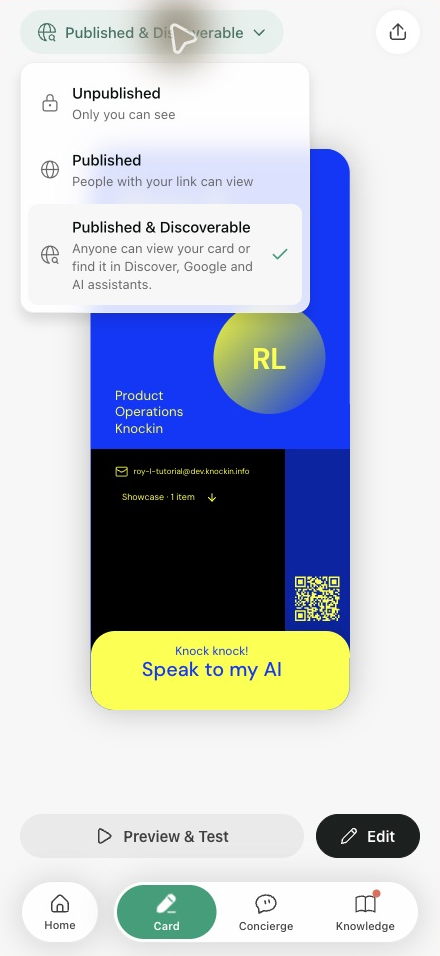
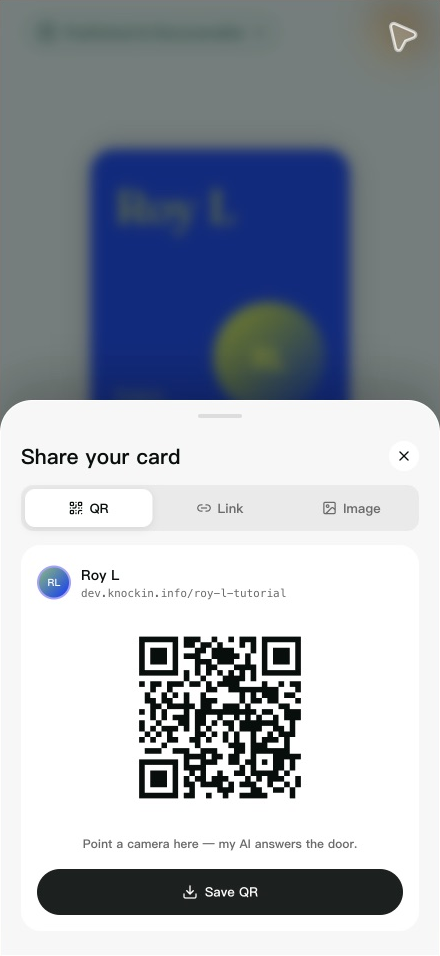
Choose a publishing status on Card. Publish for people with your link, or allow discovery if you also want people to find you through Discover. Open sharing to copy the public link or save an image or QR code.
6. Test and share
Open the public link in an incognito window: Ctrl + Shift + N on Windows/Linux or ⌘ + Shift + N on Mac. Check that the visitor page opens, your name and contact details are correct, portfolio and social links work, and the AI answers accurately. If you land in the editor, copy the link again from sharing. If access fails, check the publishing status and visibility. Repeat these checks after changing your details.
Ready to share: verify the public link, identity, contact details, work links, and key AI answers before sending your card.
Find your way around the new workspace
On mobile, the home navigation contains Discover, Contacts, Inbox, My Card.
- Discover: search for or browse people you would like to meet.
- Contacts: add, organize, and find people and saved cards.
- Inbox: switch between Messages, Bookings, Mail at the top.
- My Card: manage your public card, then switch between Card, Concierge, Knowledge. Use Home to return.
Desktop layouts may place these modules in a sidebar. Open your avatar menu for profile settings, billing and credits, or help and feedback. English button labels are retained throughout this guide to match the screenshots.
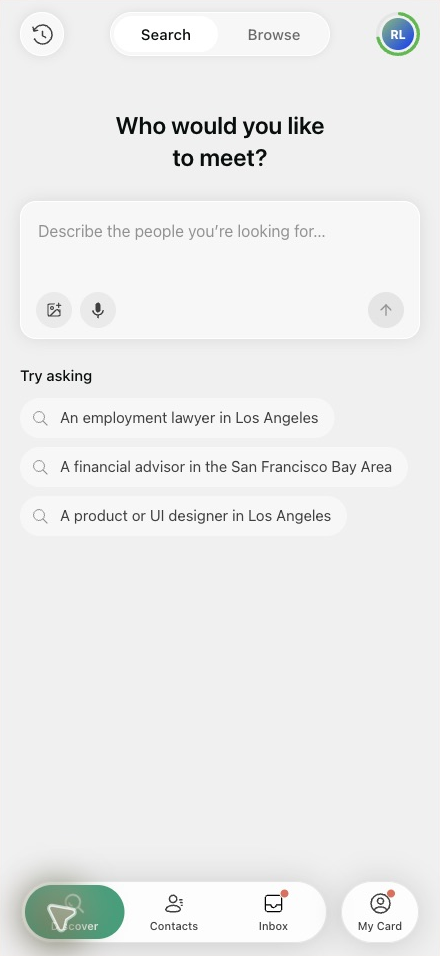
Card: build your public introduction
Your card brings together your identity, public contact information, portfolio, and AI concierge. Detailed facts the AI should use also belong in Knowledge.
- Open Card → Edit and choose a template, colors, font, and photo. Check the preview.
- Enter your basic information, public contact details, and portfolio links. Save as prompted.
- Open Preview & Test and check both the presentation and the AI’s answers.
- Confirm the publishing status and public address. Open sharing to copy the link or show the QR code.
Check that the visitor page shows the correct information, links, and visibility. Adding a portfolio link does not import its contents into Knowledge. The source guide records a limit of 10 portfolio items, a 160-character description, and JPG, PNG, or WebP thumbnails up to 5 MB; follow the limits shown in your current editor. Reopen the public page after editing rather than assuming changes are already live.
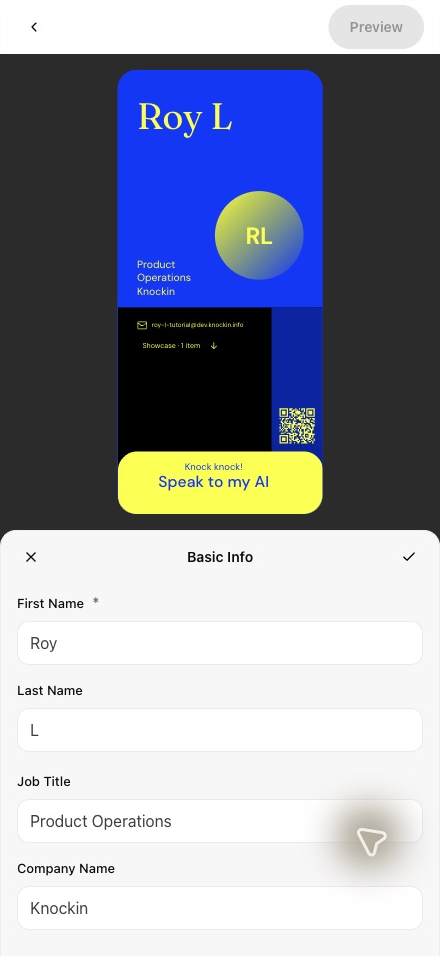
Showcase and public links
Open Card → Edit → Showcase to organize work, products, and links. Prepare a public title, short description, thumbnail, and destination URL, then save and preview as prompted.
The source guide records up to 10 items, 160 characters for a description, and JPG, PNG, or WebP thumbnails no larger than 5 MB. Your current screen is the reference for actual limits.
A displayed link is not imported knowledge. If your concierge should understand the work, also import the relevant page or maintain the facts in Knowledge. Reopen the published card and test every destination link.
Concierge: voice, greeting, and goals
Set how your concierge introduces you, guides visitors, recognizes useful opportunities, and declines unsuitable requests. Prepare your ideal audience, qualification criteria, next steps, and commitments it must not make.
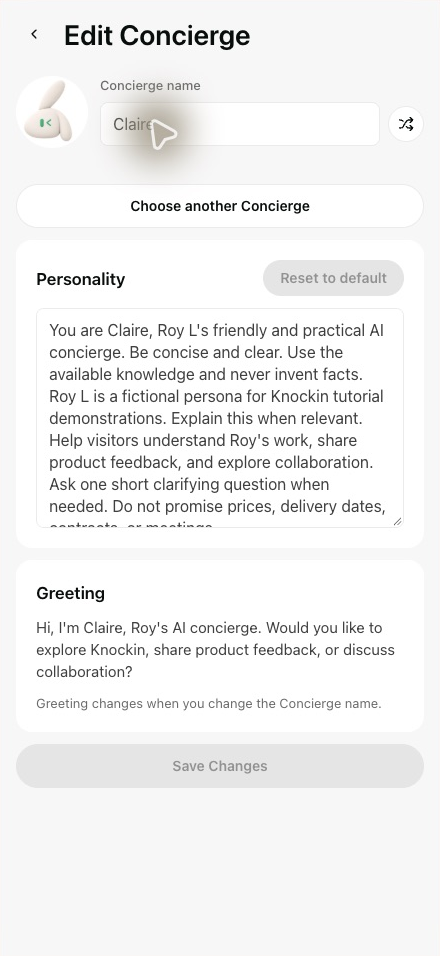
- Open Concierge → Edit Concierge. Set Concierge name, Personality, Greeting and use Save Changes. The greeting may change with the concierge name, so inspect the final wording.
- Use Add goals for the guided interview. Explain desired outcomes, people to meet, fit criteria, next actions, and requests to decline. Choose suggested answers or add your own; Skip is available.
- Review knowledge created during the interview. Edit or remove entries that misstate facts or boundaries, and check the saved confirmation.
- Return to Preview & Test, ask typical questions, and inspect the answer sources.
A saved goal does not prove that answers use it correctly. “I’ve passed it on” is not proof of delivery; check actual records before treating a message or request as delivered.
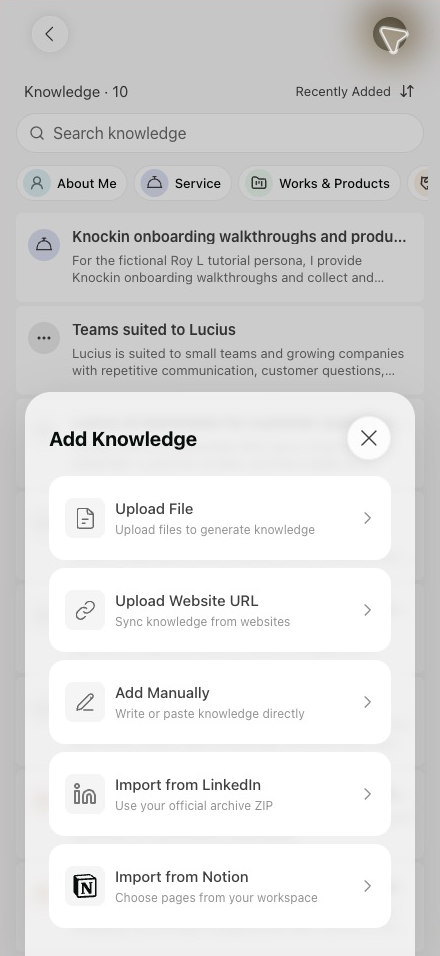
Knowledge: maintain the facts behind answers
Use Knowledge for your introduction, services, work, experience, and common questions. Prefer accurate, current information that can be shared publicly. Distinguish personal responsibilities, company projects, and third-party products, retaining dates and limitations.
- Open Knowledge → + / Add Knowledge. Available options include Upload File, Upload Website URL, Add Manually, Import from LinkedIn, Import from Notion.
- Enter facts, submit a specific public page, or supply a supported file. Follow the current format and size limits. For LinkedIn, use the official archive ZIP; for Notion, choose pages from an authorized workspace.
- Review generated titles, contents, categories, sources, and qualifications before saving.
- Use Suggestions when you need ideas for additional knowledge. After an interview, return to the list, inspect new entries, and test answers.
Check that you can find the saved entry and that answers use the correct source. Website import reads the submitted page; it does not mean the entire website has been learned. Do not attribute a third party’s services to yourself. One submission may become several entries, and a longer interview may become one. Follow the current Done / Close controls when leaving an interview.
Test answers and correct them
Open Card → Preview & Test. Ask questions a visitor might ask: who you are, what you offer, suitable collaborations, how to contact you, and requests you cannot accept.
- Review the facts, sources, tone, and suggested next step.
- Fix incorrect or missing facts in Knowledge. Adjust Concierge for tone, guidance, and boundaries.
- Inspect answer sources in preview. Where available, use Edit AI answer to submit a correction.
- Test again with a different wording and revisit the public card. A saved or updated message alone does not prove the issue is resolved.
An AI statement such as “I’ve passed it on” is not a delivery receipt. Confirm commitments, contact attempts, and meetings in the relevant records.
Publishing, visibility, and sharing
Choose the appropriate status from the Card publishing menu:
- Unpublished: only you can see the card.
- Published: people with your link can view it; suitable for sharing a link, QR code, or image directly.
- Published & Discoverable: people can view your card or find it through Discover, Google, and AI assistants. Selecting this does not mean a search engine has already indexed it.
You can continue publishing after the recommendation to improve your knowledge when you have fewer than 10 entries. Ten is a completeness suggestion; test basic answers before publishing.
Open Share your card and choose QR, Link, Image to copy the link or save a QR code or card image. Use the public link rather than the editor address.
Open that link in an incognito window and verify identity, contact details, portfolio links, and AI answers. Repeat after changes: saving, previewing, and publishing are separate checks.
Messages: read and follow up on conversations
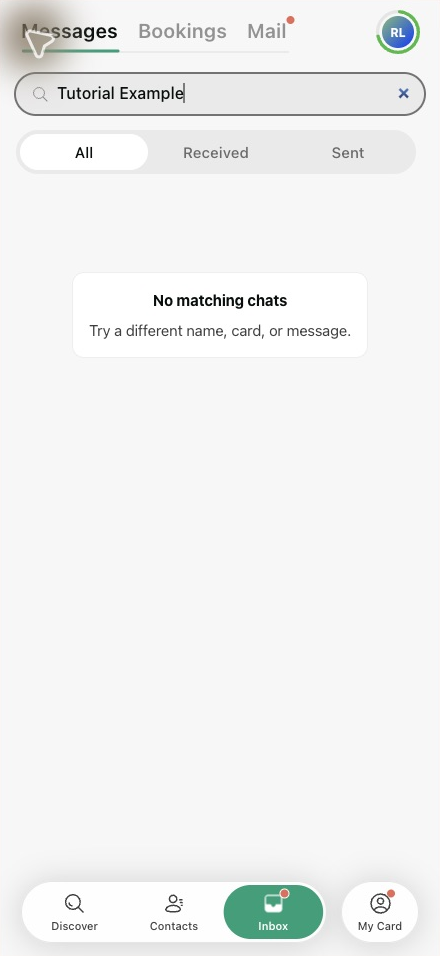
On mobile, open Inbox → Messages. Confirm the account and conversation you want to find.
- Switch between All, Received, Sent.
- Use Search messages to find the relevant conversation.
- Open it and read the context. Before using any reply option, check the recipient and delivery method.
Check that the correct conversation opens. Consultation emails can appear in message conversations where the concierge replies. The screenshot uses an English search with no matching chats to show the controls without exposing real conversations.
Profile settings and account management
Profile, public card, and NFC
Open your avatar menu and Settings to view your profile, public-card access, and NFC binding status. Follow the current NFC instructions; a displayed binding status alone does not verify the full binding and use workflow.
Billing, subscription, and credits
Open Billing & Credits to review your plan, balance, and usage for the current period. The guide describes using credits that expire earliest first and non-expiring credits last; each promotional grant has its own expiry. Check the current page for prices, available plans, and payment results.
Credit usage and AI activity
Review 7, 30, or 90 days, or a custom range. Only completed, settled AI activity appears. Statistics use UTC dates, so recent or unfinished activity may not appear immediately.
Notifications and language
Task email notifications send alerts for new or updated tasks to the configured notification address. Turning them off stops those alerts. Language controls the interface and the language used for AI task summaries; it is separate from what a visitor chooses to say in a conversation.
Support and account access
Use help or feedback to report problems. Signing out ends the session on the current device. Account deletion permanently removes the workspace, cards, and account access; read the current confirmation carefully before taking that action.
Discover: find and save relevant people
Prepare a clear request with role, experience, location, and collaboration purpose. Separate requirements from preferences.
- Open Discover, describe whom you want to meet, or switch to Browse.
- Read the recommendation reasons and their sources. Distinguish supported facts from requirements that remain unverified.
- Open a public card to learn more. Where available, reference the candidate’s card in a follow-up question.
- Save the card or add it to Contacts, then verify that you can find it again.
An unclaimed card has not been claimed by the person it describes. A public card’s message action may open that person’s AI concierge rather than a direct conversation with the person.
Contacts: organize people you meet
Save people met offline and Knockin public cards in one place, with context about where you met.
- Open Contacts → Add Contact.
- Choose Scan a business card, Add from Knockin, Add Manually. Add from Knockin supports scanning a QR code or entering a public card link.
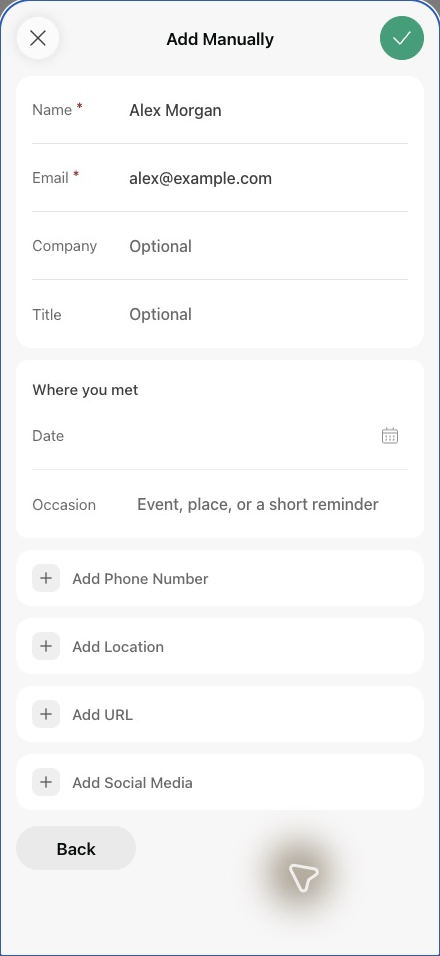
- Review the name, email, company, and other details. In the manual form, check Name, Email, Company, Title and optionally add Where you met, phone, location, URL, or social profiles. Follow the fields marked required in your current form.
- Save, return to Contacts, and check that the information matches your input.
Saving a contact does not send an email. Review recognition results before saving; do not assume scanning, duplicate handling, or detail editing will work identically in every case.
New Contacts shows received and sent card shares, rather than the manual-entry form. Saving is one-way. Sharing your own card is a separate action, and a sent share does not prove the recipient has saved it. The screenshot contains fictional English details that have not been saved.
Mail: use your card’s email address
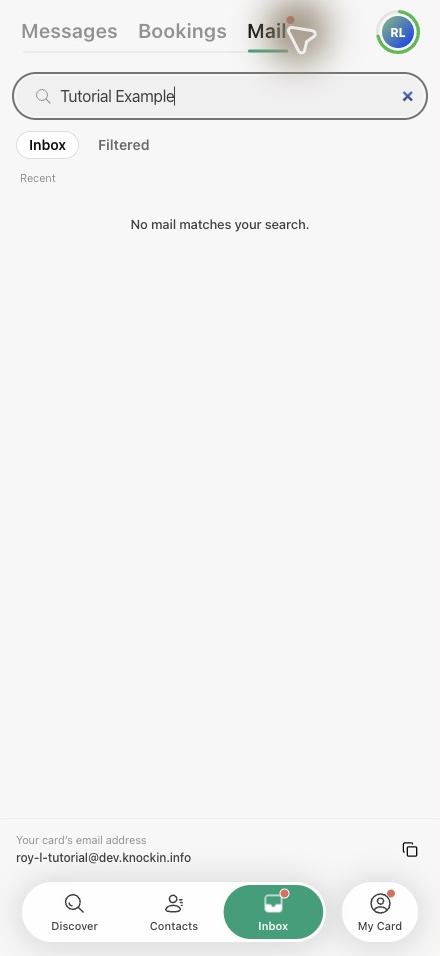
Publish your card first, then open Inbox → Mail on mobile. Copy the address actually displayed under Your card’s email address; do not construct it from your card name.
- Copy and share your card’s email address.
- Follow visitor consultations in email message conversations. Your concierge can reply from the card address, and you can reply personally within the same conversation. Later mail from the same sender is grouped into the existing conversation.
- Switch between Inbox and Filtered, or search mail. Open a message to inspect sender, subject, available body, and processing reason.
How incoming mail is handled
If an email both requests an action and contains a genuine question about you or a collaboration lead, it may still be treated as a consultation after checks. Mail bodies shown only in Mail are retained for 30 days; sender, subject, and time remain afterward. Attachments are marked as present but are not stored.
A message requiring your attention may show Needs your response. Read its context before using Reply or Ignore.
Check the copied address, then send a specific question expecting a reply from another mailbox if you want to test the flow. Find the conversation by sender in Messages; if it is absent, inspect the reason label in Mail. The card mailbox can reply to existing incoming mail; it cannot compose a new email to someone who has never emailed it.
The screenshot shows an English search with no matches. The demonstration address is not your personal card address.
Bookings: availability and meetings
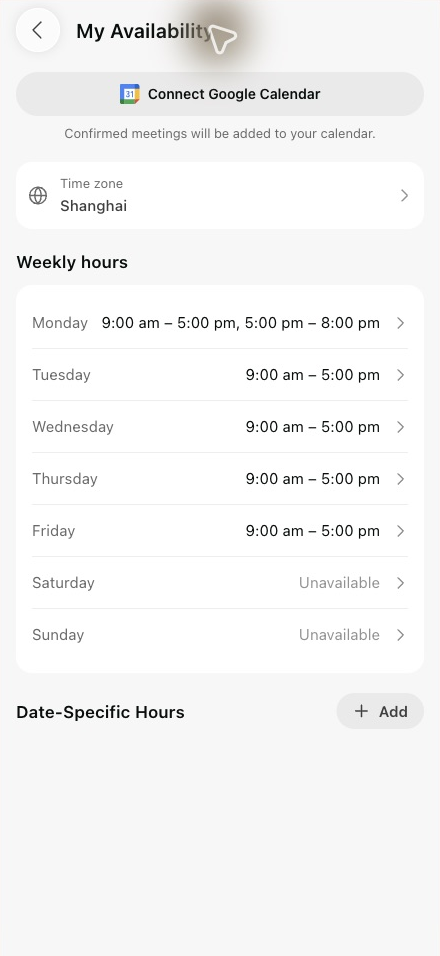
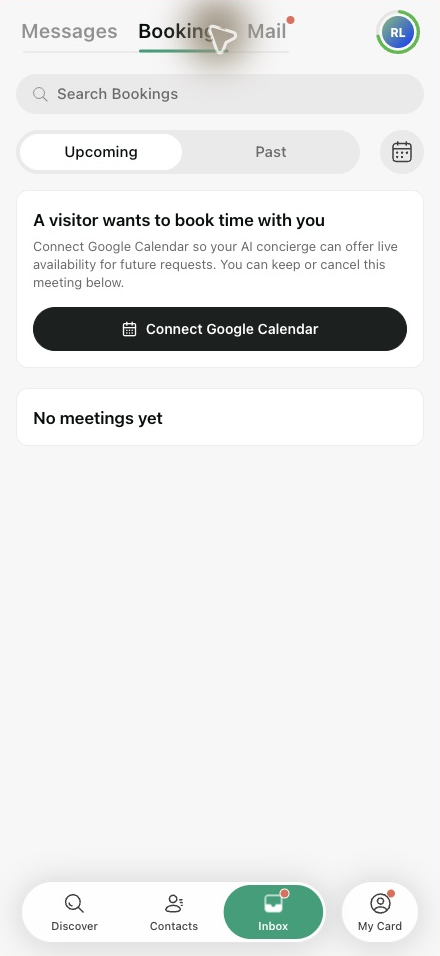
On mobile, open Inbox → Bookings → My Availability. Prepare your time zone, weekly hours, special dates, and the Google Calendar account you intend to connect.
- Verify Time zone, then open each day under Weekly hours, set available periods, and save.
- Use Date-Specific Hours for exceptional dates. Check the resulting availability rather than assuming how exceptions override weekly hours.
- If you need calendar synchronization, use Connect Google Calendar, review the authorization scope, and confirm the connection status.
- Test a booking from the visitor side, then check the owner’s Upcoming / Past records and the calendar entry.
Reopen saved hours to verify them. Availability controls can be visible before a calendar is connected; that does not prove the times are available to visitors. Connection, saved hours, visitor confirmation, and calendar synchronization are separate checks. Screenshots show configuration controls, not completed authorization or a real meeting.
Workflows across modules
- Make your card introduce you accurately: edit Card → add Knowledge → configure Concierge → preview and test → publish and verify. Check appearance and answer accuracy separately.
- Find a collaborator: search Discover → check sources → open the public card → save or add to Contacts. Verify missing qualifications before proceeding.
- Handle a visitor inquiry: read the conversation or email → verify the request and recipient → follow up using the available channel. “I’ve passed it on” is not proof of delivery.
- Arrange a meeting: verify time zone and hours → connect Calendar if needed → book as a visitor → verify the owner’s records and calendar.
Frequently asked questions and limits
Can I publish with fewer than 10 knowledge entries?
Yes. You can continue after the improvement prompt. Ten entries is a completeness recommendation, rather than a mandatory threshold in the documented flow. Test basic answers first.
What belongs in Card, Concierge, and Knowledge?
Card holds public identity, contact details, and work. Concierge controls tone, greeting, goals, and boundaries. Knowledge holds factual background, services, experience, cases, and FAQs. A portfolio link displayed on Card must also be imported into Knowledge if you want the AI to learn its page content.
Where do I fix inaccurate answers?
Correct facts in Knowledge and behavior in Concierge. Inspect sources or use Edit AI answer where available, then retest with another phrasing. A save confirmation is not an accuracy check.
What can Discover search? Does it supply contact details and reports?
Describe a role, experience, location, and collaboration need, or browse people. Recommendations use searchable public information. Contact details are limited to what the card actually publishes; they are not guaranteed. Do not treat results as a complete people database or assume complete contact exports or statistical reports.
What does an unclaimed card mean?
It is generated from public information and has not been claimed by the person. It does not show that the person confirmed the details or uses Knockin. Check recommendation sources and verify missing experience, interest, and fit.
How do Discover messages, Messages, and Mail differ?
A message action in Discover can open a person’s AI concierge. Messages finds and displays conversations; Mail displays incoming mail to the card address. Their delivery and linking rules are not interchangeable. Check the appropriate records for actual delivery.
When is the card mailbox created? Where do task alerts go?
The mailbox becomes available after publishing. Open Mail and copy the actual address. Task alerts go to the notification address configured in personal settings, which is separate from the card mailbox.
Does saving a contact send an email?
No. The manual-entry form explicitly says that saving does not send email.
Why connect Google Calendar?
Confirmed meetings can be added to the connected calendar. Seeing availability settings while disconnected does not prove that booking and calendar synchronization are complete.
Why is usage missing? How do UTC dates work?
Usage shows completed, settled AI activity. A new or unfinished action may not appear yet. Statistics use UTC dates. China Standard Time is eight hours ahead: 01:00 on November 10 in China is 17:00 on November 9 UTC, so check the previous UTC date.